How to clean AutoCAD drawing, six methods
If you are also wondering how to clean AutoCAD drawings then this article will help you with six different methods. AutoCAD drawings specially the old ones tend to accumulate a lot of redundant data that slows it down. Eventually it creates performance issue but fixing slow AutoCAD or slow AutoCAD drawing is quite easy as [ ]
If you are also wondering how to clean AutoCAD drawings then this article will help you with six different methods.
AutoCAD drawings specially the old ones tend to accumulate a lot of redundant data that slows it down.
Eventually it creates performance issue but fixing slow AutoCAD or slow AutoCAD drawing is quite easy as explained in this article.
If you prefer video then here is a video version of the article.
Let’s start with the most common Purge and Overkill commands.
PURGE and Overkill
These are probably the first few commands which are used by almost every draftsman to clean their drawing.
Purging a drawing cleans all redundant or unused entities like layers, blocks, line types etc from your drawing.
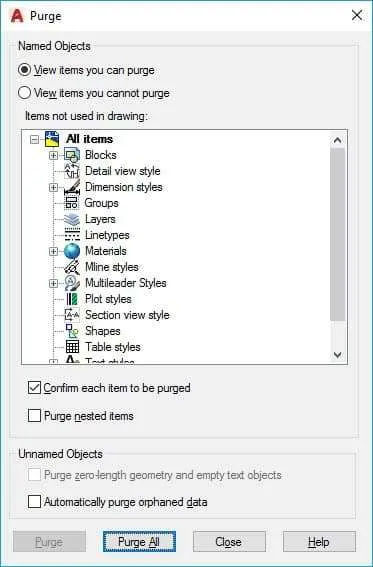
To use purge command type PURGE on the command line and hit enter, a new purge window will pop up.
Click on Purge All button from this window, you may need to click on Purge all button several times to remove all redundant objects from the drawing.
When the drawing becomes completely clean the purge all button grays out, click on close button to exit purge window.
Overkill is another such cleanup tool, by using overkill all the overlapping or duplicate drawing entities can be removed and merged together.
To use overkill type OVERKILL on the command line and press enter, the command line will now prompt you to select objects from drawing area.
Type ALL and press enter, this will select complete drawing in our selection set for applying overkill.
Press enter again and click on OK in the delete duplicate objects window.
Write block
This may not look like a straightforward drawing cleanup tool but write block command is very efficient in cleaning all useless clutter from your drawing.
This method should only be used when you have no other option of cleaning your drawing as this method causes loss of data from your drawing including layer assignments.
This command transfers all drawing elements to another clean and blank template leaving all the clutter behind.
To use this feature open the affected drawing then type WBLOCK and press enter.
This will open write block window, select Objects radio button from source panel and then click on pick points button and specify a base point in drawing.
Then move to objects panel and click on select objects button and make a selection to include all drawing entities from your drawing area.
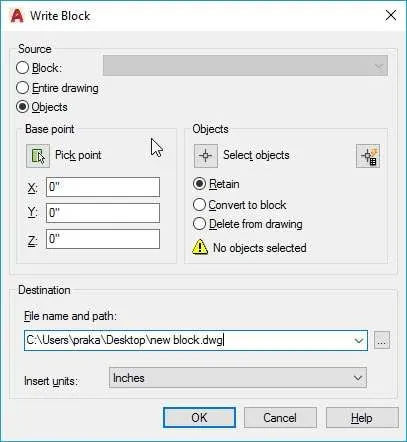
You can use "Entire drawing" radio button from source panel to include all drawing entities.
However I prefer making the manual selection as it helps in avoiding selection of invisible drawing entities which are generally present in your drawing outside your work area.
From the Destination panel specify the path where you want to save the exported drawing and click OK.
The cleaned drawing will now be saved on the specified path.
Audit and Recover
These commands are generally used to remove errors from AutoCAD drawings, a drawing containing errors can unnecessarily become bloated up.
To clean this kind of drawings type AUDIT on the command line and press enter.
Command line will now prompt you to specify whether you want to fix detected errors or not, type Y and press enter to find and fix all detected errors.
Recover command can be used at places where the drawing is corrupt to such an extent that it can’t be opened.
For these situations open a blank drawing type RECOVER and press enter then browse affected drawing from select file window and click on open.
AutoCAD will attempt to recover your drawing removing all errors from it and then it will open it in a new session.
DGN PURGE
Sometimes AutoCAD drawings file size becomes too bloated up with seemingly no data in it.
This error also leads to other issues like lagging cursor when selecting annotations like text and dimensions, copy paste not working in AutoCAD and file taking too long to open.
This issue also spreads to unaffected files if data from the affected file is copied to an unaffected file.
This issue starts in a drawing due to improper data import from DGN files resulting in huge drawing database.
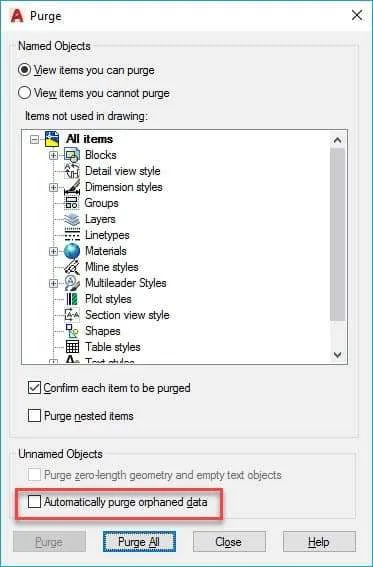
Autodesk offered a hotfix of this issue for versions older than 2014 but with AutoCAD 2015 and later version they implemented DGN purge feature within the standard PURGE command.
To remove this kind of orphaned data from AutoCAD 2015 and later versions type PURGE and press enter then select Automatically purge orphaned data radio button from purge window as shown in the image above.
Cleaning unreferenced Regapps
With the excess of unreferenced Registered application ID’s the drawing starts to show larger than normal size and performance issue creeps in.
To clean unreferenced Regapp Id’s type -PURGE on the command line (don’t forget to add a dash before PURGE) and press enter.
Then select Regapp from the command line and press enter when command line prompts you to specify the name of Regapp.
Keep pressing enter till all unreferenced Regapps Id’s are purged.
Although you can use -PURGE command for purging unreferenced Regapp Id’s in a single drawing but for multiple drawings it simply becomes a time taking task and for those cases you can use Regapp ID cleanup utility tool to batch process unreferenced Regapp Id’s cleanup.
You can also use -PURGE command to clean other entities like zero-length geometry and empty text objects that otherwise cannot be deleted from
standard PURGE command.
Drawing Purge Add in
This free add-in is available for download on Autodesk app store, download it here.
I tried this app myself and it works perfectly!
This tool can take the pain of applying many commands to clean your drawing out of your workflow.
Using this tool you can purge almost all redundant and unused entity in your drawing including unused DGN data.
If a drawing contains an X-ref then it will scan for DGN data in referenced files as well and prompt you to select whether you want to clean DGN data from xRef also.
To use this tool download it from the link above and install it.
Then restart your AutoCAD software and go to add-ins tab and select Purge from Drawing Purge panel.
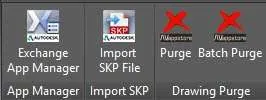
The tool can also perform bulk cleaning task for multiple drawings.
To perform batch cleaning operation click on Batch Purge icon on Drawing purge panel of add-ins tab.
A batch drawing purge & settings window will appear, click on Select drawings or Select Folder icon in the top left corner of this window and select a folder containing all your drawings or select multiple drawings manually.
When all the drawings are listed in the window click on Purge button on the lower right corner as shown in the image below.
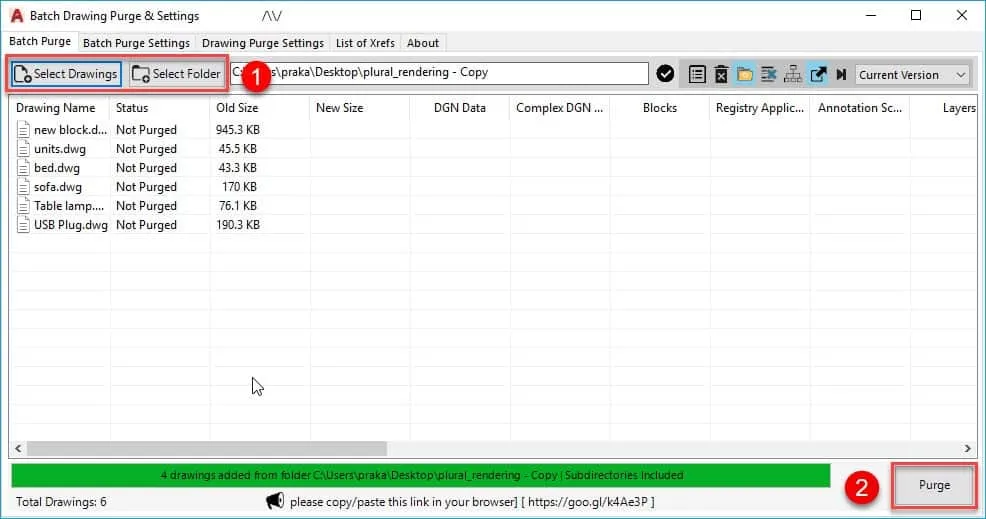
It will perform purge operation on all selected drawing’s and it will show file size before and after performing purge along with a list of items purged for each drawing.
Smartpurger
This one is another great app that you can use to clean your drawing.
I tried it on windows 10 PC with AutoCAD 2017 and it worked smoothly.
For using this tool you need to download it from JTB world website or Autodesk app store, it’s trial version can batch process a maximum of 10 files but you can remove this limitation by purchasing its license.
To use SmartPurger download and install it, then restart your AutoCAD software.
Go to add-ins tab and click on the Smartpurger icon, JTB WORLD SmartPurger window will pop up.
Click on add drawings icon on the top left of this window and select all your drawings which you want to include in the batch for cleaning.
You can also select a folder using Add Folders Only button on the top left side of the window, selecting a folder will include all files of the folder in the queue.
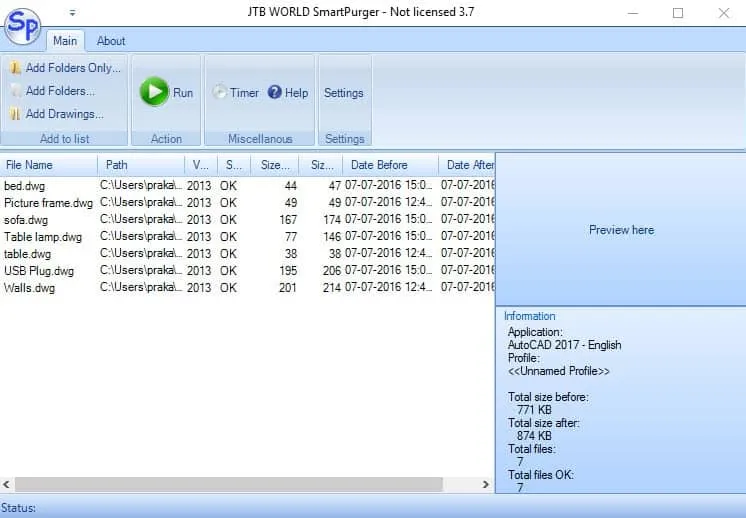
When you have all your drawings in the queue click Run and wait for the app to do the rest for you.
Summary
So, that was my list of most useful tools that can help you clean AutoCAD drawings.
There are other optimizations as well that you can try like tweaking AutoCAD system variables to speed up the performance even further.
If you have more drawing cleanup tools then let us know using the comments area down below.