How to select objects in AutoCAD, here are 11 methods
There are many ways of making a selection in AutoCAD like a simple window or manual selection by clicking on objects. But there are also many other ways of making a specific type of selections using different tools like Quick Select, Filter and other selection sets. In this article, I will explain eleven different methods [ ]
There are many ways of making a selection in AutoCAD like a simple window or manual selection by clicking on objects.
But there are also many other ways of making a specific type of selections using different tools like Quick Select, Filter and other selection sets.
In this article, I will explain eleven different methods of making these selection sets and I will explain ways of saving these selection sets so that they can be used later.
I have used a sample drawing with circle and rectangles of the different colour and dimensions to explain this article.
Window selection
This is the normal and most obvious way of making a selection in AutoCAD.
To make a window selection click at any point in the drawing area and drag the cursor towards right side to include the objects in the selection window.
All the objects which are completely inside this solid window will be selected, as shown in the image below.

Objects crossing the boundary will not be selected in this case, only objects completely inside the selection window will be selected.
Crossing window
This one is like normal window selection but in this case, any object which even touches the boundary of the window will be selected.
To make this crossing window click at a point in drawing area and move your cursor towards left.
All the objects within this dashed window, as well as objects touching the boundary of the window, will be included in the selection set as shown in the image below.

Window and Crossing Polygon
This one is another type of window and crossing selection.
In this case instead of rectangular selection boxes you can make a polygonal selection box.
In this case too if you make a window polygon then all the objects completely inside the polygon will be selected.
If you make a crossing polygon then all the objects within the polygon as well as objects touching the boundary of the polygon will be selected.
To make a window or crossing polygon click at any point in the drawing area and then type WP or CP for window polygon and crossing polygon respectively and press enter.

In this example, I have made a window polygon to select all red circles from the drawing.
You can use crossing polygon as well for the similar type of selections.

Fence Selection
Using this selection option you can create a fence in such a way that all objects touching that fence will be included in the selection set.
To use this selection option click anywhere in the drawing area then type F on the command line and press Enter.
Your fence will start from the point of click, now move this fence to touch other objects in the drawing to make the selection.
In this example, I have made a fence to make the selection of all yellow rectangles in the drawing.

Lasso Selection
This type of selection can also be called as the free hand selection set, it is relatively new and it was introduced in the 2015 version of AutoCAD.
In this case, you can make a selection set simply by moving your cursor freely in the drawing area.
Click and hold at a point don’t release your mouse key then draw your cursor in the drawing area.
You will notice that a free hand selection will be made. If you move your cursor towards the right side, window Lasso will be made.
If you move your cursor towards left crossing lasso will be made.
In the image below I have used crossing lasso to make a selection of objects of magenta colour.

In case of lasso selection, you can press enter or spacebar key while in the middle of selection to cycle through Window, Crossing and Fence type of lasso selection.
Chain Type selection
Using FSMODE system variable you can implement chain type selection of objects in the drawing area.
An example of this type of selection is shown in the gif image below.
Type FSMODE and press enter, then type ON and press enter again.

Now type FS and press enter and then click on any one of the objects of your AutoCAD drawing.
You will notice that all the objects which are connected to each other will be selected.
If you don’t want this type of chain selection then type FSMODE press enter and type OFF and press enter again.
When FSMODE is off the FS command will only select the object on which you will click and one adjoining object as shown in the gif image above.
Removing an object from selection set
If you have accidentally selected any object(s) in your selection set then press and hold the shift key and click on the object which you want to remove from the selection set.
You can also press and hold the shift key then make a selection, crossing or lasso window and instead of adding the object it will remove it from the selection set.

Using Quick select
You can make meaningful selection sets using the quick select tool of AutoCAD.
Let’s assume that we want to make a selection set of all the circles in the drawing which has the radius less than 25 units.
To start type QSELECT on the command line and press Enter.
The quick select window as shown in the image below will appear.
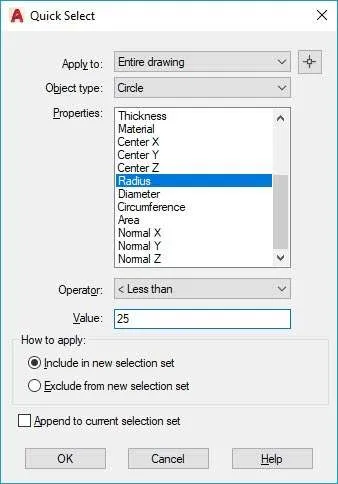
From this window select “Entire drawing” option in the “Apply to” drop down menu.
In the “Object type” menu select “Circle” and select “Radius” from “Properties” panel.
Select “< Less than” option from “Operator” drop down menu and enter 25 in the value field.
The properties entered so far will tell AutoCAD to select all circles from drawing with the radius less than 25 units.
Click OK to apply this selection criterion on the drawing and you will notice that all objects which meet the criteria of Quick Select window will be included in the select set.
Select Similar option
This one is another simple yet powerful tool which can be used to make selections quickly from your drawing.
Let’s assume that we want to select all the circles of the sample drawing, for that I will select any one of the circle then right click and select “Select Similar” option from the contextual menu.
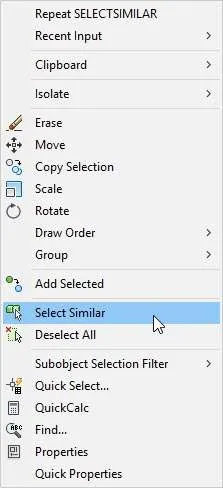
You can also refine the selection criteria of the select similar tool by changing it's settings.
To change the settings type SELECTSIMILAR on the command line and press enter, then select settings option from the command line.
Now check the property boxes which you want to include in the selection criteria of the select similar option.
For example, you can include the color in the selection criteria too.
After selecting “color” in the selection criteria if you select a circle then choose the select similar option.
It will select all the circles which have the same color as the color of the selected circle.
Using Filter
AutoCAD selection filter can be called as an advanced version of Quick Select tool.
Using this tool, you can create complex filters and you can also save these selection sets.
You can also read all about FILTER command of AutoCAD.
Saving selection sets
You can save these selection sets using Group command in AutoCAD and Layer tools.
After making a selection simply type GROUP and press enter to save it as a group.
You can also make groups and name them separately, learn more about groups in the following video.
Summary
So, that was all about making different selection sets using AutoCAD.
I hope you found this article helpful if you have questions share it down below.