How to Convert STL to SolidWorks (4 methods)
If you work with SolidWorks regularly, you ve probably run into an STL file at some point. Maybe a client sent you one, you downloaded a model from Thingiverse, or you received scan data from a 3D scanner that needs to be turned into a proper part. Either way, you re now staring at an STL file [ ]
If you work with SolidWorks regularly, you’ve probably run into an STL file at some point
Maybe a client sent you one, you downloaded a model from Thingiverse, or you received scan data from a 3D scanner that needs to be turned into a proper part.
Either way, you’re now staring at an STL file and wondering: what exactly am I supposed to do with this in SolidWorks?
Importing an STL to view it is straightforward.
Actually editing it as a proper SolidWorks part is a different story.
And turning it into a fully parametric, editable .SLDPRT file? That can range from a few clicks to a full afternoon of work, depending on the geometry.
In this guide, I’ll walk you through four different methods to work with STL files in SolidWorks; from the simplest direct import all the way to dedicated third-party reverse engineering tools.
By the end, you’ll know exactly which approach fits your situation.
Let’s use STL in SolidWorks!
Why STL Files Are Tricky in SolidWorks
Before we get into the how, it helps to understand the why.
Think of an STL file like a PDF.
You can open it, view it, and share it easily.
But if you try to actually edit the content inside, things get messy fast.
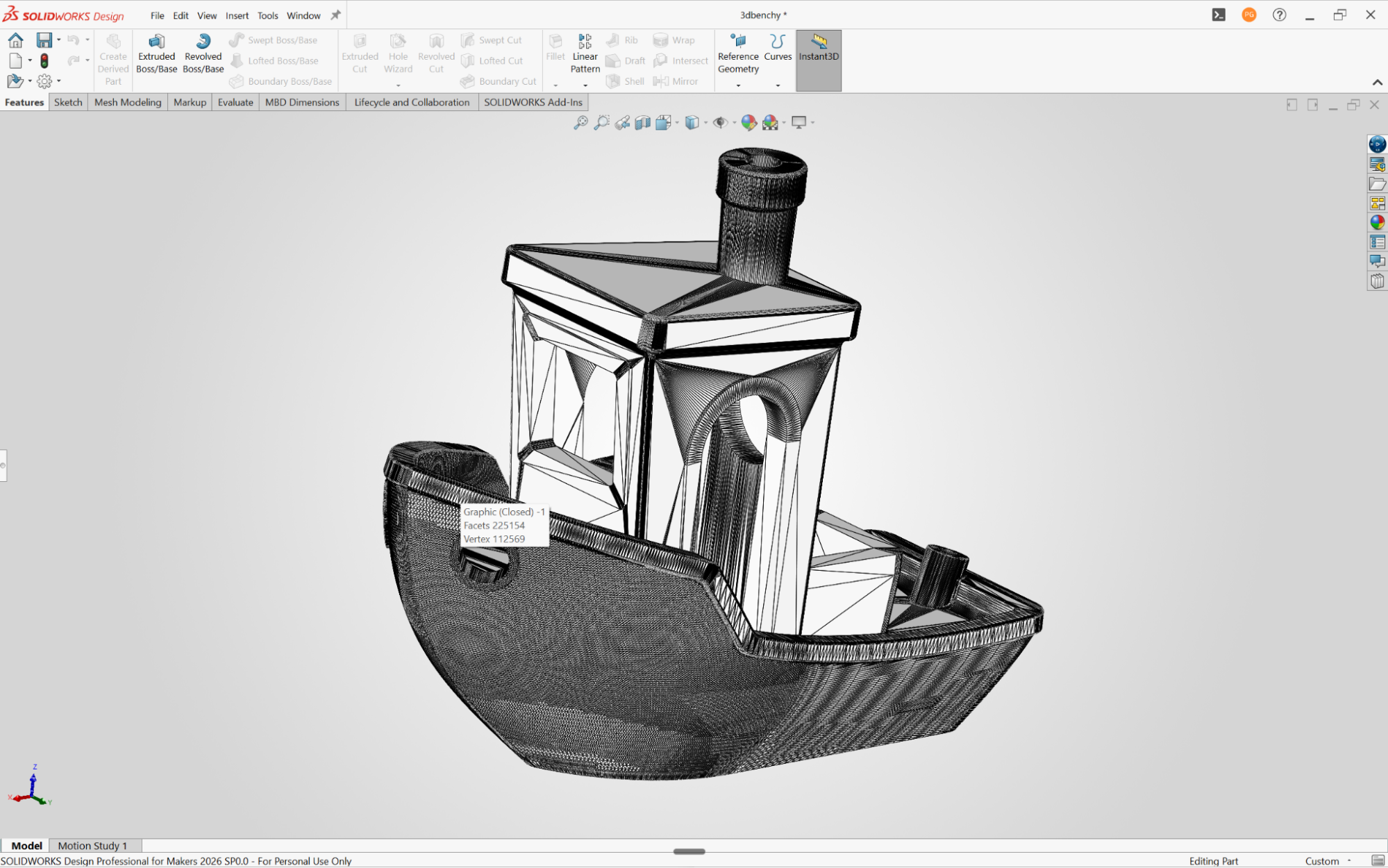
STL files are made up of thousands (sometimes millions) of tiny triangles, called tessellations, that describe the surface of a 3D object.
There are no parametric features, no sketches, no dimensions, and no design intent stored in the file.
It’s just a surface.
SolidWorks, on the other hand, is a parametric modeler.
It builds parts based on features like extrudes, revolves, and cuts – all driven by dimensions and fully editable.
When you throw a mesh file at it, SolidWorks has no way of knowing that a slightly uneven set of triangles was supposed to be a perfectly flat face, or that a faceted round shape was actually meant to be a cylinder with a specific diameter.This is the core challenge.
There is no magic ‘convert to solid’ button that gives you a clean, editable parametric model in one click.
What we do have are four solid methods that cover almost every real-world use case.
Let me walk you through each one.
Method 1: Direct Import as a Solid or Surface Body
This is the simplest approach and the one most people try first. It works well for clean, simple geometry, but there is one firm limitation you need to know about before you start.
How to do it
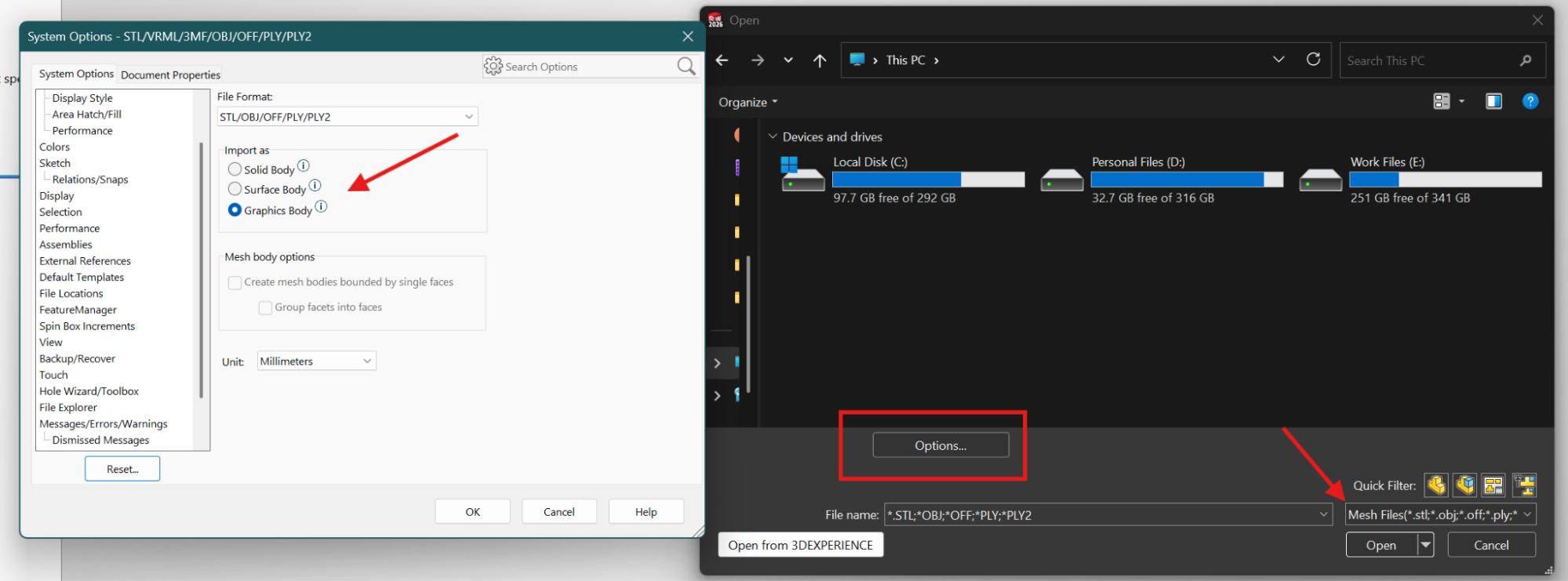
Go to File > Open.
In the file type dropdown at the bottom of the dialog, select STL (*.stl).
Before you click Open, click the Options button — this is the step most people miss.
Inside the Options dialog, you’ll see the Import As setting with three choices: Graphics Body, Surface Body, or Solid Body.
Graphics Body brings the mesh in as a visual reference only.
You can’t edit it or extract features — it’s mainly useful for viewing the shape or using it as a reference overlay while modeling something new.
Surface Body imports the mesh as surface geometry.
You can then use SolidWorks’ surface tools to stitch, repair, and eventually thicken it into a solid.
Solid Body is what you want when the goal is to get a directly editable model.
SolidWorks will attempt to convert the mesh into a watertight solid body.
Once you’ve selected Solid Body and clicked Open, the part appears in the Feature Manager Design Tree as an imported solid.
From here, you can run FeatureWorks to try to extract actual SolidWorks features from the imported solid.
Go to Tools > FeatureWorks > Recognize Features, and it will attempt to identify extrusions, holes, fillets, and other recognizable shapes.
The catch
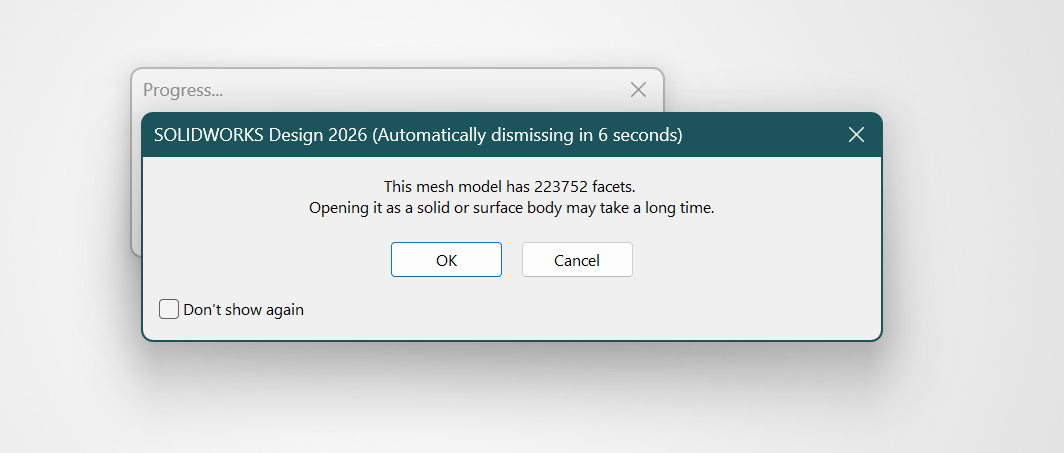
SolidWorks has a hard limit of around 20,000 faces when importing as a Solid Body.
If your STL has more faces than that — which is common for anything from a 3D scanner or a high-polygon model — SolidWorks will fall back to a Graphics Body import instead.
If that happens, the next two methods are designed to handle exactly that situation.
This method is best suited for simple, clean geometry: machined parts, bracket-style components, basic enclosures.
For organic shapes or scan-derived data, keep reading.
Method 2: ScanTo3D Add-in
ScanTo3D is SolidWorks’ built-in add-in for working with mesh and point cloud data.
It was designed specifically for cases where you have a scanned physical object and want to convert it into a 3D model.
Starting from SolidWorks 2016, it’s available in the Professional and Premium packages.
Enabling ScanTo3D
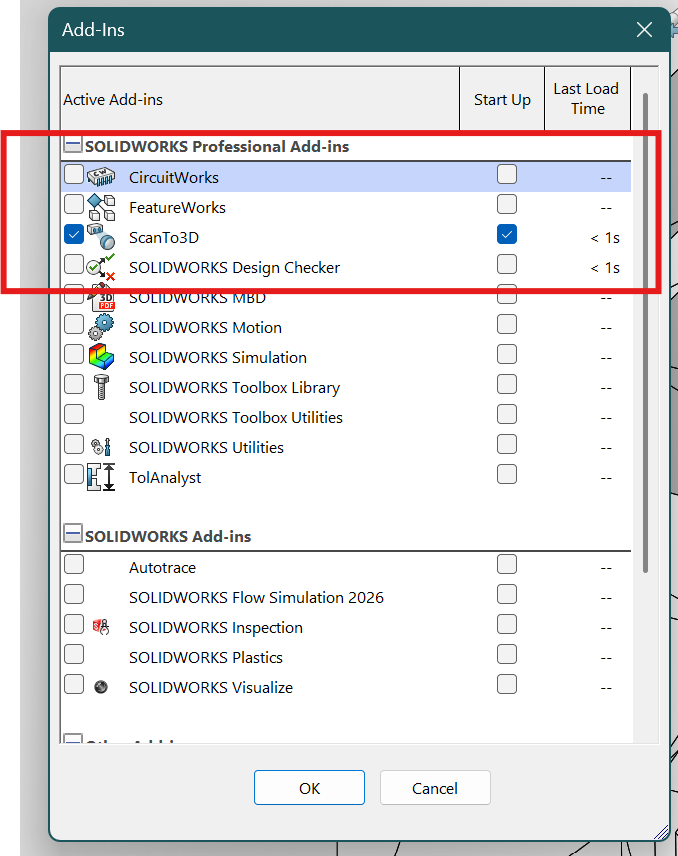
Go to Tools > Add-ins and check the box next to ScanTo3D.
Once active, you’ll see new mesh file type options appear when you open files.
The Mesh Prep Wizard
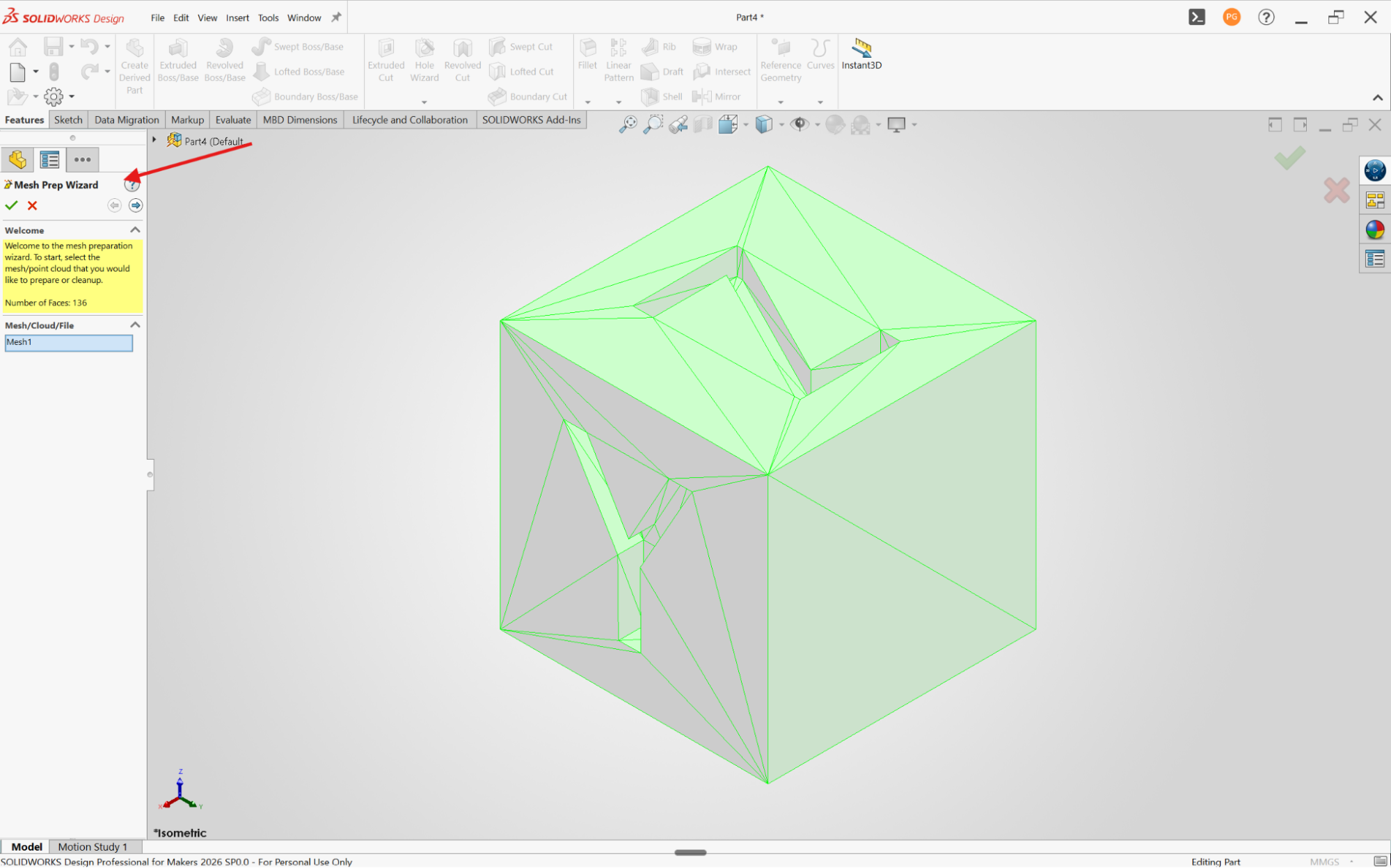
Access it via Tools > ScanTo3D > Mesh Prep Wizard. This is where you clean up your mesh before doing anything else with it.
The Mesh Prep Wizard lets you align the mesh to SolidWorks’ global coordinate system, remove noise from scan data, smooth rough or jagged areas, reduce the overall polygon count, and fill holes in the mesh.
If your file has floating data points or gaps, this is where you address them.
Skipping this step is one of the most common mistakes people make — the cleaner your mesh going in, the better the surface output coming out.
The Surface Wizard
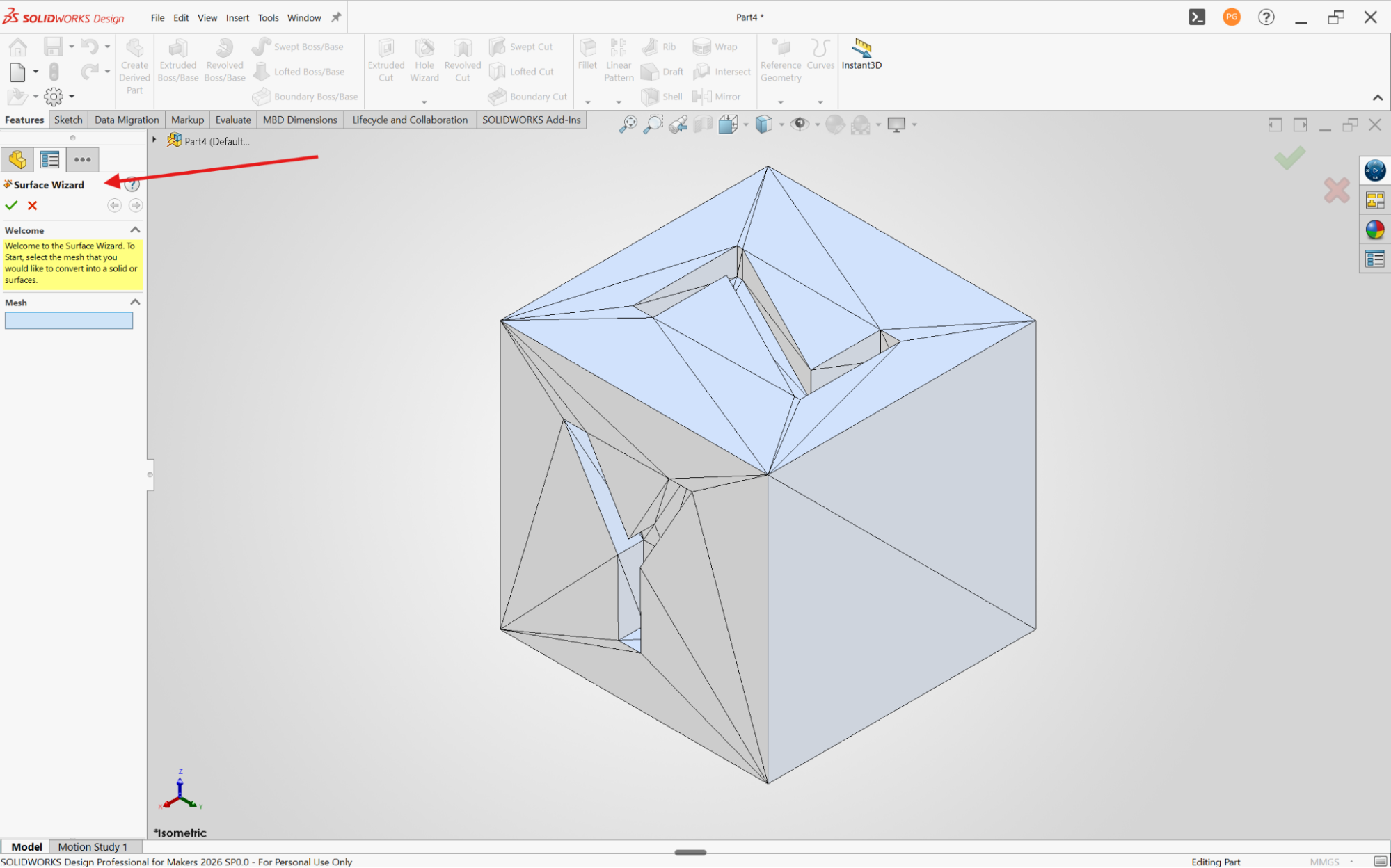
Once the mesh is cleaned up, run it through the Surface Wizard: Tools > ScanTo3D > Surface Wizard.
You have two creation options: Automatic and Guided.
Automatic creation is faster.
SolidWorks patches the surface by matching edges and features as best it can.
It’s a reasonable starting point for simpler shapes. Guided creation gives you more control. ‘
You can divide the mesh into regions, assign surface types to each region, and have more say over how the final geometry is built.
For symmetrical parts, there’s even a Mesh Split option that lets you work on one half and mirror the result.
After the Surface Wizard completes, you’re left with surface bodies. You then use SolidWorks’ standard surface tools like Trim, Extend, Knit, and Thicken to close any remaining gaps and convert the surface body into a solid.
Honest limitations
ScanTo3D is a useful tool, but it isn’t a complete reverse engineering solution.
You’ll almost always need post-processing to clean up overlapping or poorly fitted surfaces, especially on complex geometry.
For smaller organic shapes or simpler scan files, it does its job well.
For large, detailed industrial parts, you may find yourself spending more time fixing the output than it saved you.
In those cases, Method 4 is worth looking at.
Method 3: Manual Reverse Engineering

This is the most time-consuming method, but it gives you the cleanest result.
If you need a truly parametric SolidWorks model with accurate dimensions — for manufacturing, FEA analysis, or tolerance-critical applications — this is the method to use.
The concept is simple: import the STL as a Graphics Body to use as a visual reference, then model a new part on top of it from scratch.
You’re essentially building a real SolidWorks part using the mesh as a guide, not a source of CAD data.
How the workflow looks
Start by importing the STL as a Graphics Body — same File > Open process from Method 1, but choose Graphics Body in the Options dialog.
This brings in the mesh without any conversion attempt, keeping SolidWorks running smoothly even with large files.
Then start modeling your new part directly in the same environment, using the mesh as a dimensional reference.
You can sketch on mesh faces, use section views to understand the cross-sectional profile at different points, and reference mesh vertices with sketch relations.
For symmetrical parts, hide one half of the mesh to reduce visual clutter while you work.
Also setting up Display States to toggle between the mesh visible and hidden is much faster than manually hiding it every time.
Every feature gets built from scratch: extrudes, revolves, sweeps, fillets.
You’re using the mesh the same way a sculptor uses a reference photo — it tells you what the finished result should look like, but you’re creating the actual geometry yourself.
If you also have caliper measurements from the physical part, those are your primary source of truth for dimensions.
When to use this method
Use manual reverse engineering any time dimensional accuracy matters: replacement parts for manufacturing, retrofitting components into an existing assembly, or any situation where a toleranced drawing will be produced.
It also works particularly well for parts with mostly prismatic geometry — flat faces, cylinders, consistent fillets — where the shapes are easy to reconstruct cleanly.
That said, this method does require solid SolidWorks modeling skills.
If you’re still building those fundamentals, our SolidWorks beginners course at SourceCAD covers all the core part modeling tools step by step.
Method 4: Third-Party Tools
If you’re regularly working with large, complex mesh files, SolidWorks’ native tools will eventually reach their limits.
This is where dedicated third-party plugins make a real difference.
Geomagic for SolidWorks
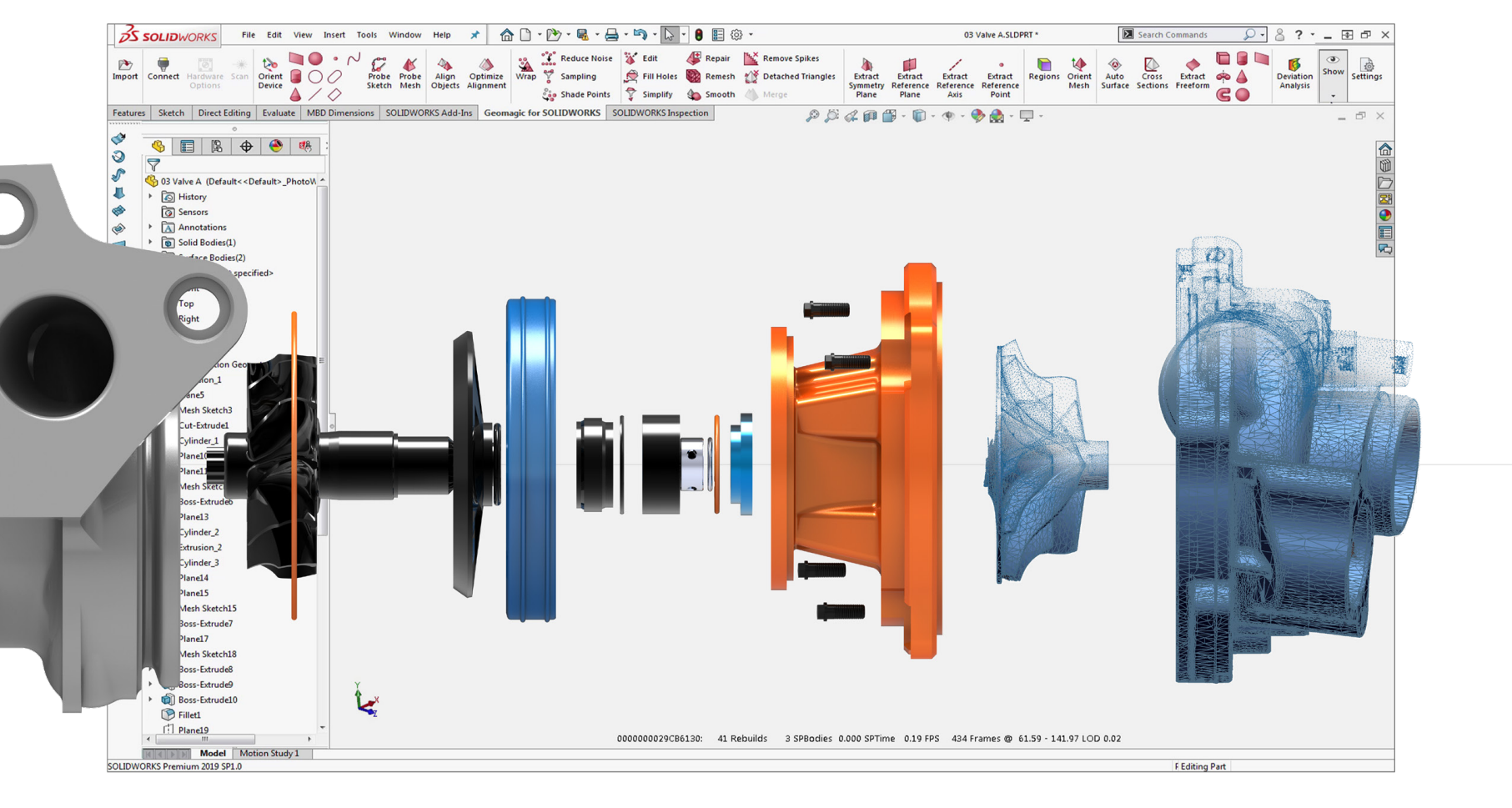
Geomagic for SolidWorks is the most widely used professional option.
It’s a plugin that lives directly inside SolidWorks. After installation, it adds a dedicated Geomagic tab to your Command Manager with a complete set of tools for mesh editing, feature extraction, surface fitting, and deviation analysis.
The key advantages over ScanTo3D are speed and capability.
Geomagic is roughly four to five times faster than ScanTo3D for complex mesh files.
For organic, freeform surfaces it has an Auto Surface command that handles the mesh-to-surface conversion automatically.
Every feature extraction wizard also includes a deviation analysis tool, so you can compare your reverse-engineered result against the original mesh at any point in the workflow and see exactly how accurate it is.
Geomagic for SolidWorks is a separately purchased add-in, and it’s professional-grade software.
It’s not a casual purchase, but for users who process scan data regularly, the time savings justify it.
QuickSurface for SolidWorks
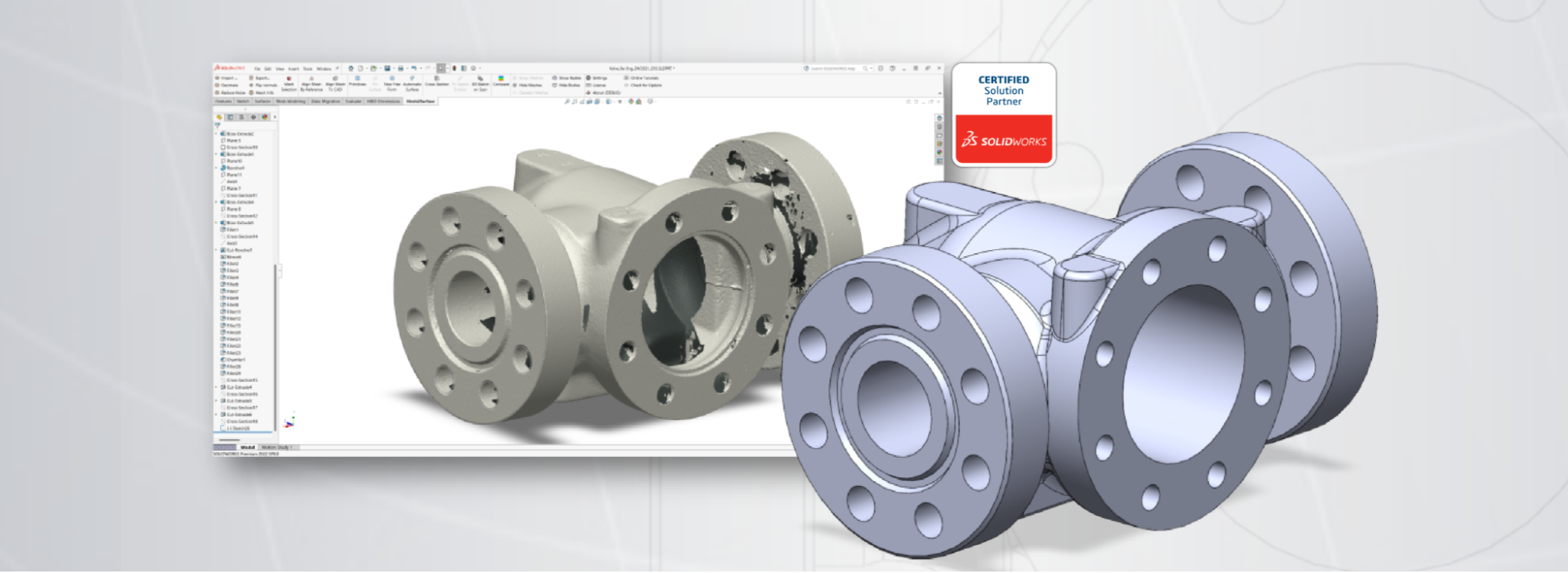
If the Geomagic price tag is a concern, QuickSurface for SolidWorks by KVS is a more affordable plugin alternative.
It supports parametric reverse engineering from STL, OBJ, and PTX files and generates a full parametric feature tree that imports cleanly into SolidWorks.
It’s a good fit for SOLIDWORKS users doing occasional reverse engineering work who want something more capable than ScanTo3D but don’t need a full professional pipeline.
Which Method Should You Use?
The choice of method comes down to what you are trying to achieve with the STL file and how much time you have.
If you just need to view or reference the model without editing it, bring it in as a Graphics Body and leave it at that.
If you have a clean, simple STL with a relatively low face count and just need a quick editable solid, the direct Solid Body import is the fastest path — run FeatureWorks afterward if you want to try recovering parametric features.
For scan data of an organic shape, ScanTo3D is a good starting point if you have SolidWorks Professional or Premium.
Just make sure to run the Mesh Prep Wizard first and manage your expectations on post-processing time.
If you need the result to be dimensionally accurate for manufacturing — or if you’re working with mostly prismatic geometry — the manual approach gives you the cleanest, most reliable model.
And if you’re regularly processing large, complex scan files as part of a professional workflow, Geomagic for SolidWorks will save you significant time over any native SolidWorks method.
Common Problems and How to Fix Them
The STL imports as a Graphics Body even though you selected Solid Body.
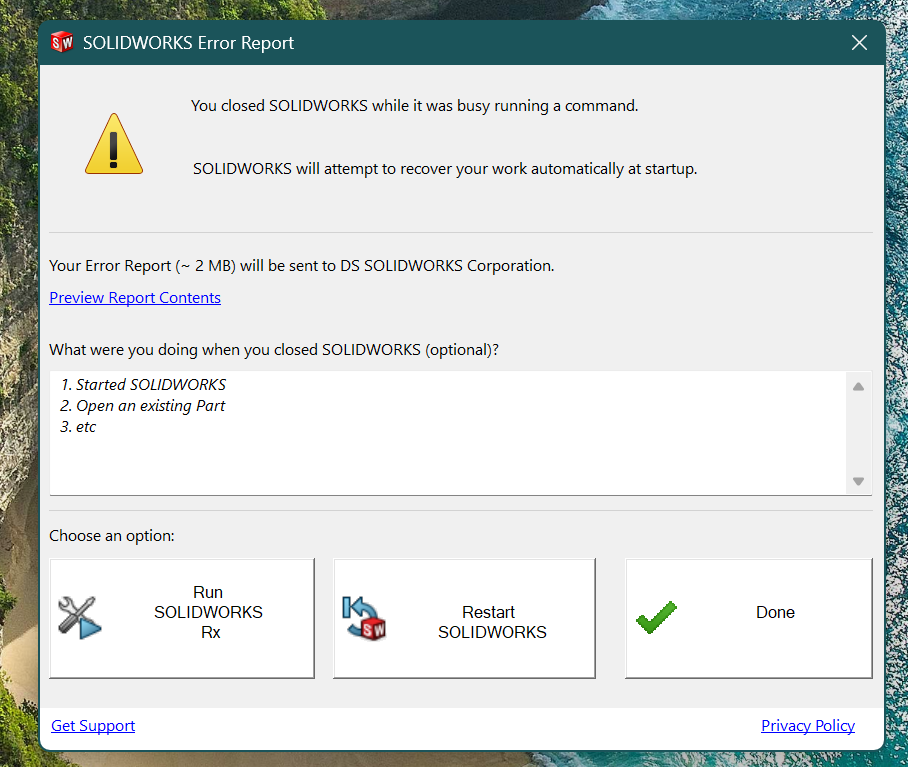
This almost always means your file exceeds the ~20,000 face limit for solid conversion.
Open the STL in a free mesh editor like MeshLab and run a polygon decimation to reduce the face count before re-importing.
Be careful not to over-reduce otherwise areas with significant curvature will lose definition quickly.
SolidWorks becomes very slow after importing the mesh.
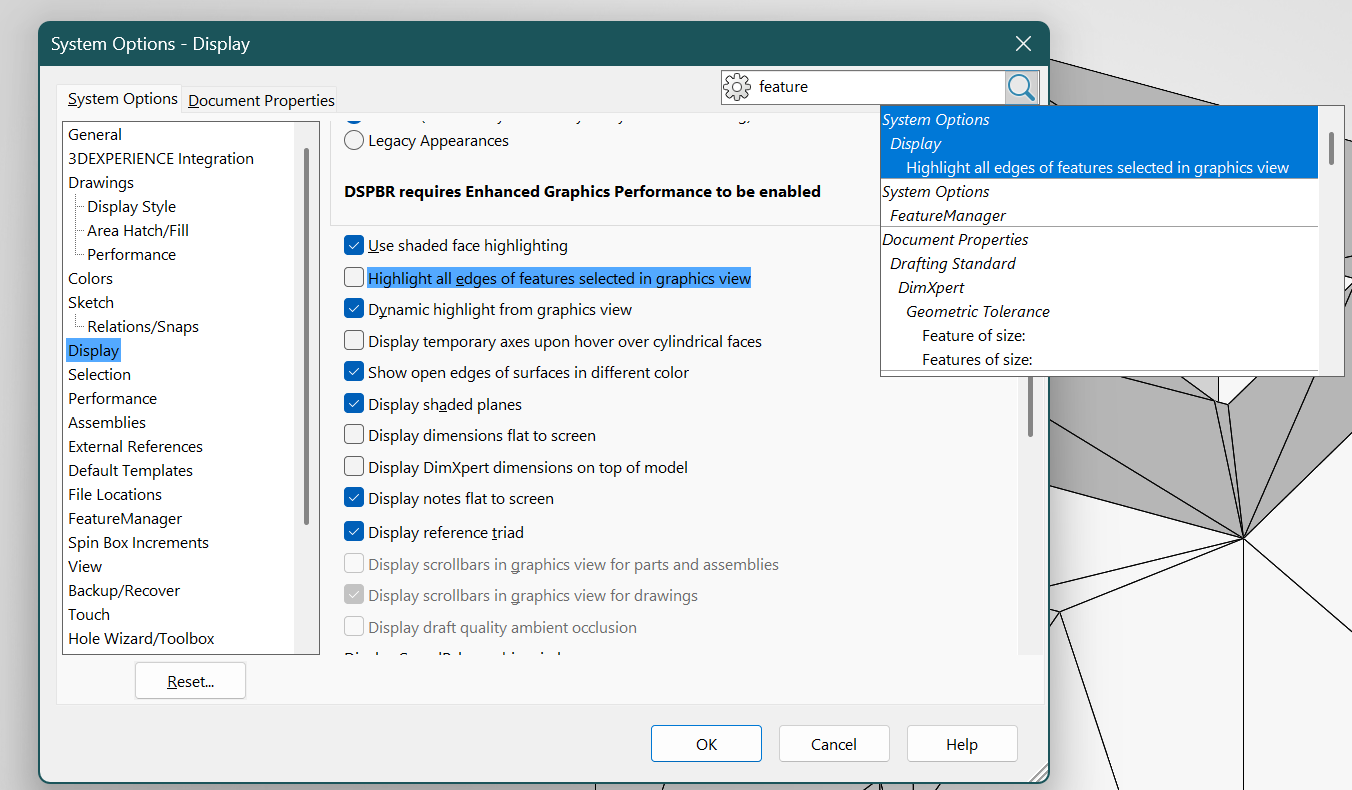
Mesh files can be heavy on system resources.
Go to Tools > Options > Display/Selection and disable any highlighting options tied to the FeatureTree.
More usefully, set up Display States to toggle quickly between seeing only the mesh, only the SolidWorks geometry, and both.
Manually hiding and showing bodies each time adds up — Display States are two to three times faster.
FeatureWorks doesn’t recognize the features properly.
FeatureWorks works best on clean, well-defined prismatic geometry — flat faces, true cylinders, consistent fillets.
If the model came from scan data or a low-resolution mesh, the geometry may be slightly irregular and FeatureWorks will struggle.
In that case, switch to the manual reverse engineering approach — it’ll be more reliable.
The Surface Wizard produces overlapping or incomplete surfaces.
Go back to the Mesh Prep Wizard and do more cleanup first. Filling holes and reducing noise before running the Surface Wizard makes a significant difference to the output quality.
If the problem persists, switch from Automatic to Guided creation mode and manually define the surface regions rather than letting SolidWorks guess at them.
Frequently Asked Questions
Can I edit an STL in SolidWorks without ScanTo3D?
Yes.
You can import the STL as a Solid Body using the direct import method, which doesn’t require ScanTo3D and works in all versions of SolidWorks.
For small, simple edits on clean geometry, this is often enough.
Just be aware of the 20,000 face limit, and that you won’t have the mesh editing tools that ScanTo3D provides.
Can I convert an STL to a STEP file in SolidWorks?
If you’ve successfully imported the STL as a Solid Body, you can export it as STEP by going to File > Save As and choosing STEP AP214 or STEP AP203 from the file type dropdown.
Keep in mind the STEP file will still contain tessellated geometry — not a parametric model — unless you rebuilt the part manually using Method 3.
Do I need SolidWorks Premium to use ScanTo3D?
Not on recent versions. Starting from SolidWorks 2016, ScanTo3D is included in the Professional edition.
If you’re on an older version (2015 or earlier), you’ll need Premium.
If you’re unsure which license you have, go to Help > About SOLIDWORKS and it will tell you your edition.
Conclusion
Working with STL files in SolidWorks has never been especially smooth.
The fundamental gap between a mesh and a parametric model isn’t something software can fully paper over.
But with the right method for your situation, it’s very manageable.
Start simple and work your way up. The direct Solid Body import handles a good chunk of everyday cases.
When things get more complex, ScanTo3D and the manual method are there. And when you need more firepower, Geomagic is well worth exploring.
If you’re still building your core SolidWorks skills and some of the part modeling steps in this guide felt unfamiliar, check out our SolidWorks essentials course — it’s a solid starting point for the fundamentals.
You can also browse the full SolidWorks course library on SourceCAD for more advanced topics.