Best Laptop for AutoCAD – Our top 10 picks for 2026
AutoCAD is heavily dependent on the CPU for most of its processing so if you want to get the best laptop for AutoCAD then your choice should be heavily dependent on CPU architecture and speed. But that does not mean you can ignore other factors like a fast memory, SSD and GPU as slower hardware [ ]
AutoCAD is heavily dependent on the CPU for most of its processing so if you want to get the best laptop for AutoCAD then your choice should be heavily dependent on CPU architecture and speed.
But that does not mean you can ignore other factors like a fast memory, SSD and GPU as slower hardware may create a bottleneck where a faster CPU will remain idle if your components simply fail to deliver the data fast enough to process them.
It’s not like selecting the best mouse for AutoCAD where all parameters are independent of each other, here you need to think of your workstation as a single unit and the worst-performing hardware can significantly impact your workstation’s overall performance.
So, the best bet here is a fast CPU with fairly optimized other peripherals.
I would also recommend you ignore the minimum system requirement for AutoCAD as suggested by Autodesk as it is almost of no use.
It covers just the bare minimum of hardware specs and does not address the issue of the data type with which the user is working and their workflow.
For a smaller data set a fairly modest configuration will just work fine but when you are working with large files and especially 3D drawings containing several features, materials, textures, camera and rendering environment then faster hardware will make your work easier.
So, to help you make an informed decision I have highlighted the technical specifications of all the hardware you should consider to shortlist the best laptop for AutoCAD.
I have compiled a list of the best laptops for AutoCAD based on these hardware recommendations, check the list directly here.
If you prefer, here is the video version of this article as well.
Processor
AutoCAD is predominantly a single-core application and apart from 2D regeneration, there is hardly anything in AutoCAD that depends on multiple cores.
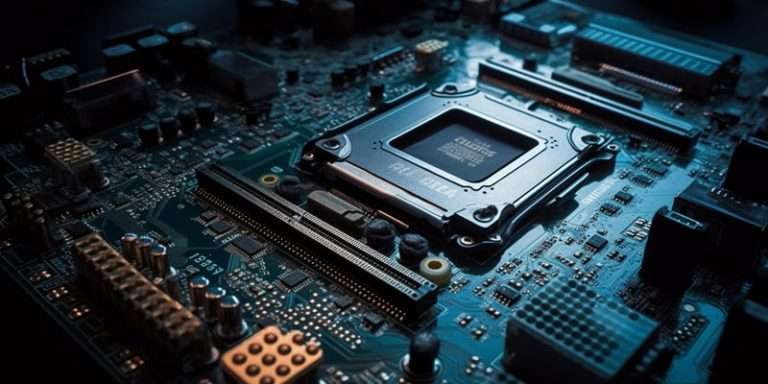
But that does not make a multicore processor redundant for AutoCAD.
Despite being a single-core application I would recommend at least a 4-core processor with a higher clock speed.
Multiple cores will help you leave plenty of room for other applications on your laptop keeping enough room for AutoCAD to work smoothly.
Autodesk recommends a minimum of 2.5 GHz of clock speed but it is sufficient only for small 2D drawings up to a few MB’s in size.
For a larger data set you would need a faster CPU.
Though clock speed is an important factor when selecting a CPU don’t always rely on clock speed alone as its built architecture is also important.
As an example, an older generation CPU with a higher clock speed will be outperformed by the latest-generation CPU with a lower clock speed because of the architecture which will allow the CPU to process data much more efficiently.
But if you are selecting a CPU within the same generation then always go with the higher clock speed.
Another thing to look for in a processor is the size and type of Cache memory.
This is the type of memory that stores data temporarily from your application for the CPU to process but as this memory is directly available in the CPU (and in some cases on Motherboard) it is a lot faster than RAM.
Another thing to consider is overclocking which is the additional speed your CPU can gain to perform intensive tasks provided it is equipped with a sufficient cooling system.
Not all CPUs can be overclocked, but Intel has several that can be, and you can easily identify a CPU that can be overclocked using the K or X suffix.
As an example, the Intel i7 8700K can be overclocked whereas Intel Core I7 12800H can’t be overclocked.
Apart from that Xeon processors don’t support overclocking and all AMD Ryzen processors support overclocking.
Memory
RAM or the physical memory installed in your PC dictates the number of and size of concurrent programs and datasets you can have open at any one time.
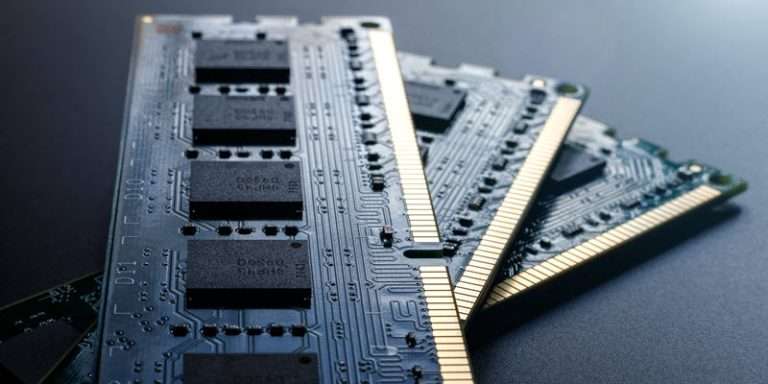
Although AutoCAD can work quite easily with 8Gb of RAM for simple 2D drawings as well as some 3D components, I would recommend an absolute minimum of 16 GB of RAM considering their cheaper price and for making your laptop future-proof.
But as always, more RAM will allow you to work with more programs at once and open bigger datasets.
If your CAD program requires more RAM than you have installed then windows operating system will redirect the allocation to virtual memory (section of the hard disk that is set up to emulate the computer’s RAM).
This will allow you to continue your work, but as hard disk or even SSD’s are lot slower when compared to RAM, the performance will be slower and sluggish.
So, if you are working with larger file sizes, only then upgrading to 32 GB of RAM or more will be suitable but for normal CAD workflow, 16 GB is just the sweet spot.
RAM these days are quite inexpensive and you can also purchase laptops with 8GB of RAM and later upgrade it to 16GB or more yourself which can be a lot cheaper than buying one with preinstalled 16 GB RAM.
A common mistake is to assume more RAM will automatically make your computer run faster in every department, this is incorrect.
If you have 32GB RAM installed but your programs are only using 9GB RAM, your computer will perform the same as if you had 16GB RAM installed or 64GB.
More RAM simply means you have more breathing space to work on bigger datasets before Windows begins to use the virtual memory.
Another important feature of RAM is the data speed, which is usually measured in MHz, this is the rate at which data is transferred between RAM and processor.
As you can expect higher speed is better but as AutoCAD is not a memory hog getting a very high-speed Ram may not significantly improve the performance and beyond 3200MHz it will generally decrease the overall performance.
Another thing to consider is the CAS latency.
This is the time RAM takes to access the data in the memory.
For this try to go with the RAM with a lower CAS number as it represents less latency.
Graphics Card (GPU)
As mentioned previously AutoCAD being a single-core application very much depends on the processor for its performance but there are areas where it uses GPU as well.
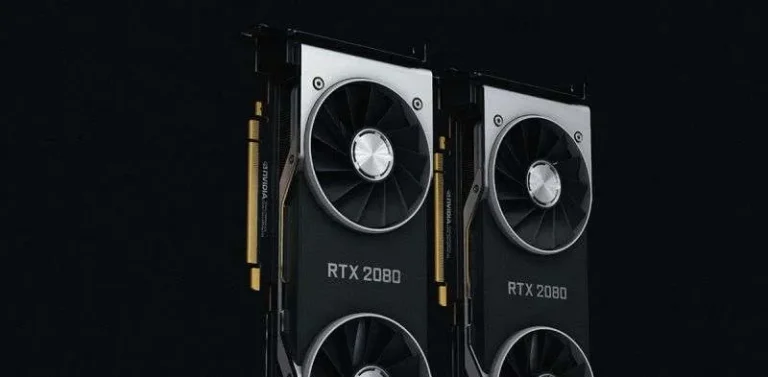
Especially in 3D rendering and when working with designs containing complex 3D models a dedicated GPU will give you a significant improvement in performance.
As far as integrated graphics is concerned...
If your work needs complex 3D modelling and rendering I would recommend you stay away from it.
Even when you only work with 2D drawings you should avoid integrated GPU keeping upgradability in mind.
An Autodesk-certified graphics card like NVIDIA Quadro will play well with the software and we recommend a minimum of 4GB of VRAM with 106 GB/s bandwidth and DirectX 12 compliance.
Gaming graphics are not always best for AutoCAD and as mentioned before you should select a graphics card that supports Direct X.
For best performance, you can select a graphics card that is tested with AutoCAD and vetted by Autodesk themselves.
Just in case you are interested here is a list of certified AutoCAD-compatible graphics cards.
So, the takeaway here is simple.
If your work involves working with 2D drawings then I would recommend investing in an entry-level dedicated GPU rather than spending a ton on high-end GPU’s.
Hard Drive
Let me start this with one very important note.
Never ever go with a hard disk drive (HDD) for the Boot drive always go with a Solid State Drive (SSD) where the faster the drive the better.

This may be an easily overlooked factor but if ignored this has the potential of creating a bottleneck in your system where the effect of high-end CPU, Memory and GPU will be dwarfed by the HDD.
As the CAD files are saved on disk if the system can't access them fast enough, other faster components like CPU or RAM will stay idle for most of the time making entire workstation slow.
Hard disk drives are disk platters that rotate at high speed and data is read from this disk platter.
These hard disk drives are bulkier and contain a lot of moving parts.
On the contrary, there are no moving parts in Solid-state drives and hence they are generally more stable and faster too.
SSDs are generally separated into two categories identified by the communication bus they use, that is SATA or PCIe.
SATA solid-state drives are limited to roughly around 600 mb/s data transfer rate, which is the limit of the SATA interface, whereas PCIe-based solid-state drives can read and write at over 2500 mb/s.
There are many SSDs on the market that can read and write at 3500 mb/s too.
If you are on a budget a SATA SSD will be a good investment because despite the comparatively slower data transfer rate and higher latency it’s still way faster than HDD.
But for the best performance, you can go with PCIe M.2 NVMe SSD which is way faster than its traditional counterpart.
Cooling vents and Ports
These things may not look like significant features, but they also make quite a difference in performance.
Cooling is essential for the CPU and GPU as well so you should select a laptop with a better heat vent design.
Make sure you don’t block these vents and clean them regularly.
If these vents are blocked you will start noticing a significant drop in the performance of the CPU at higher temperatures like 70 degrees Celsius or more.
Also, invest in laptops with at least one USB 3.X port and type C as well.
These ports may not directly help you with AutoCAD but eventually will make it convenient to attach it with external peripherals like an external hard disk or your phone.
How I created this list of best laptops for AutoCAD
I tested most of these laptops myself and I am currently using Lenovo Legion and Custom made desktop of Ryzen series of processor myself.
During my time in my last design consulting company as a CAD analyst I tested several laptops with AutoCAD and this helped me gain insights into hardware that works best for AutoCAD.
Also, over the years I have helped several large corporations with their CAD setup for employees.
So, all these recommendations are coming from experience.
So, now you know what to look for in a laptop for AutoCAD and how I made this list let’s go to my recommended list of best laptops for AutoCAD.
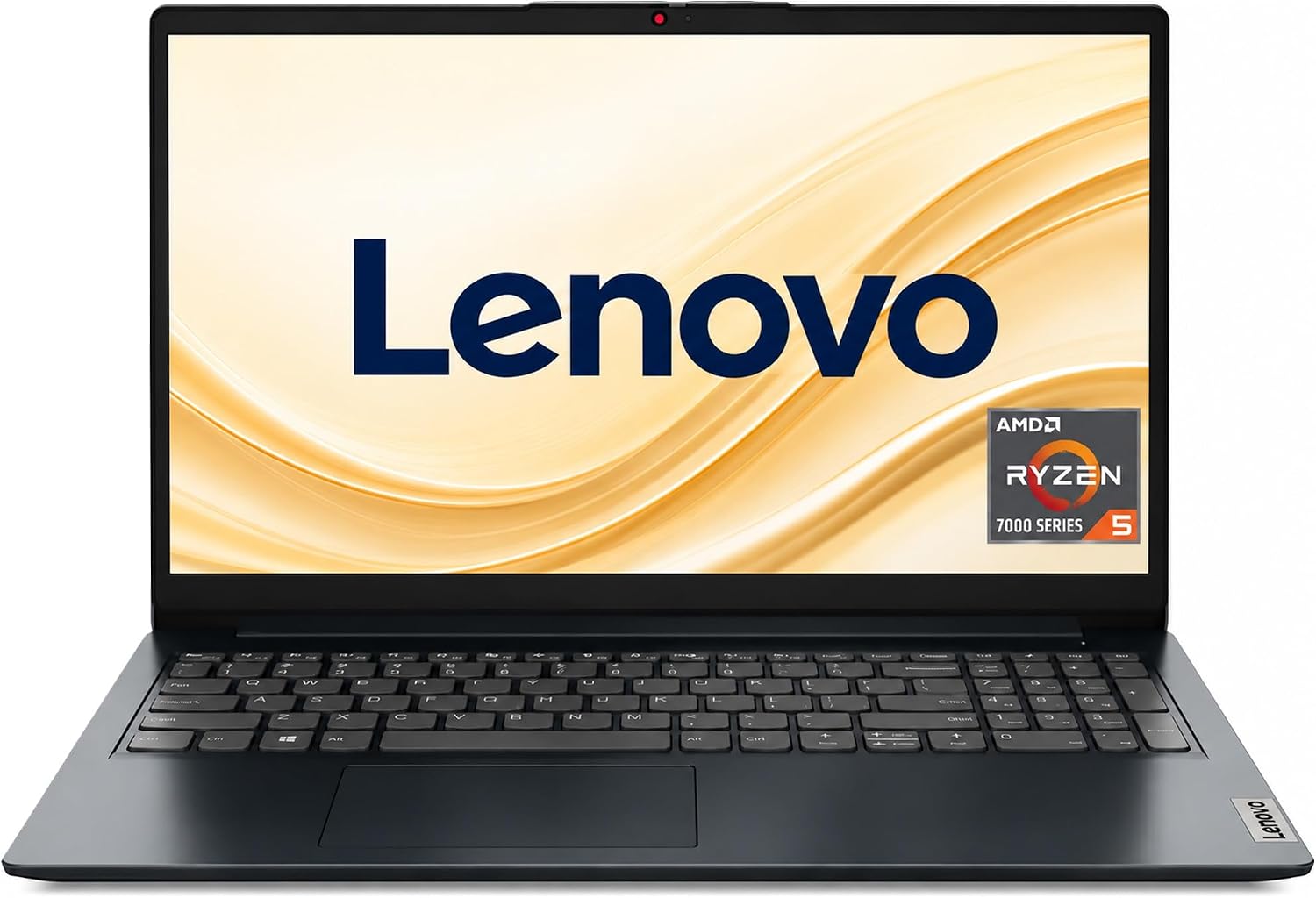
Lenovo Ideapad
Component | Specification |
|---|---|
Processor | Ryzen 5, 4 core 8 threads, 2.8 GHz base clock speed and 4.3 GHz Max |
Memory | 8GB LPDDR5-5500MHz |
Storage | 512GB PCIe NVMe, TLC M.2 SSD |
Graphics | Integrated AMD Radeon 610M Graphics |
Screen | 15.6 inch |
Operating system | Windows 11 operating system |
Recommended for | Intermediate to advanced user and larger data sets |
HP Omen 16
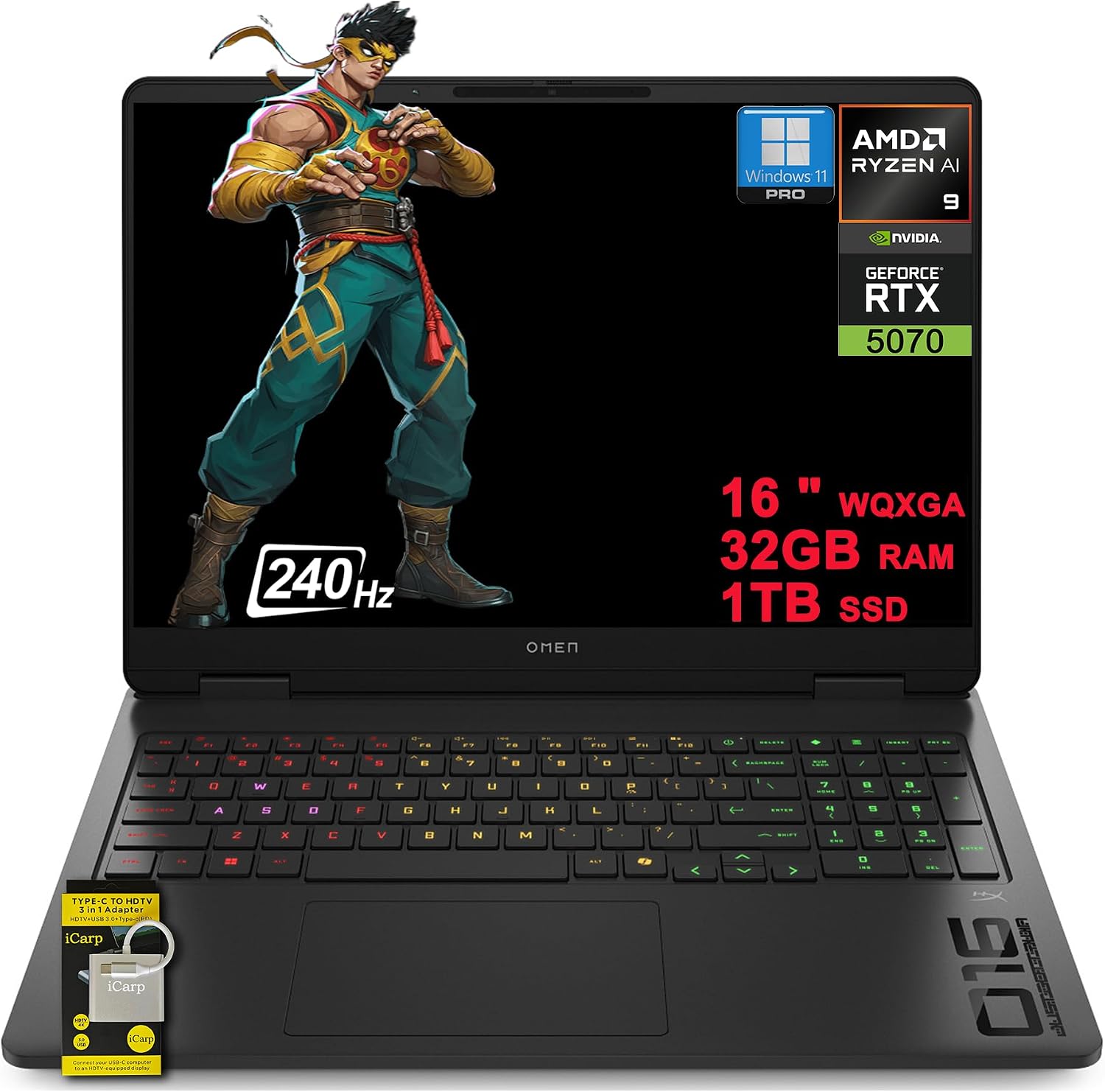
Component | Specification |
|---|---|
Processor | AMD 10-core Ryzen AI 9 365 , 10 core 20 threads, 5.0 GHz Max |
Memory | 32GB DDR-5600MHz |
Storage | 1 TB PCIe NVMe, M.2 SSD |
Graphics | NVIDIA GeForce RTX 5070, 8 GB GDDR7 |
Screen | 16.1 inch |
Operating system | Windows 11 operating system |
Recommended for | Intermediate to advanced user and larger data sets |
ASUS TUF
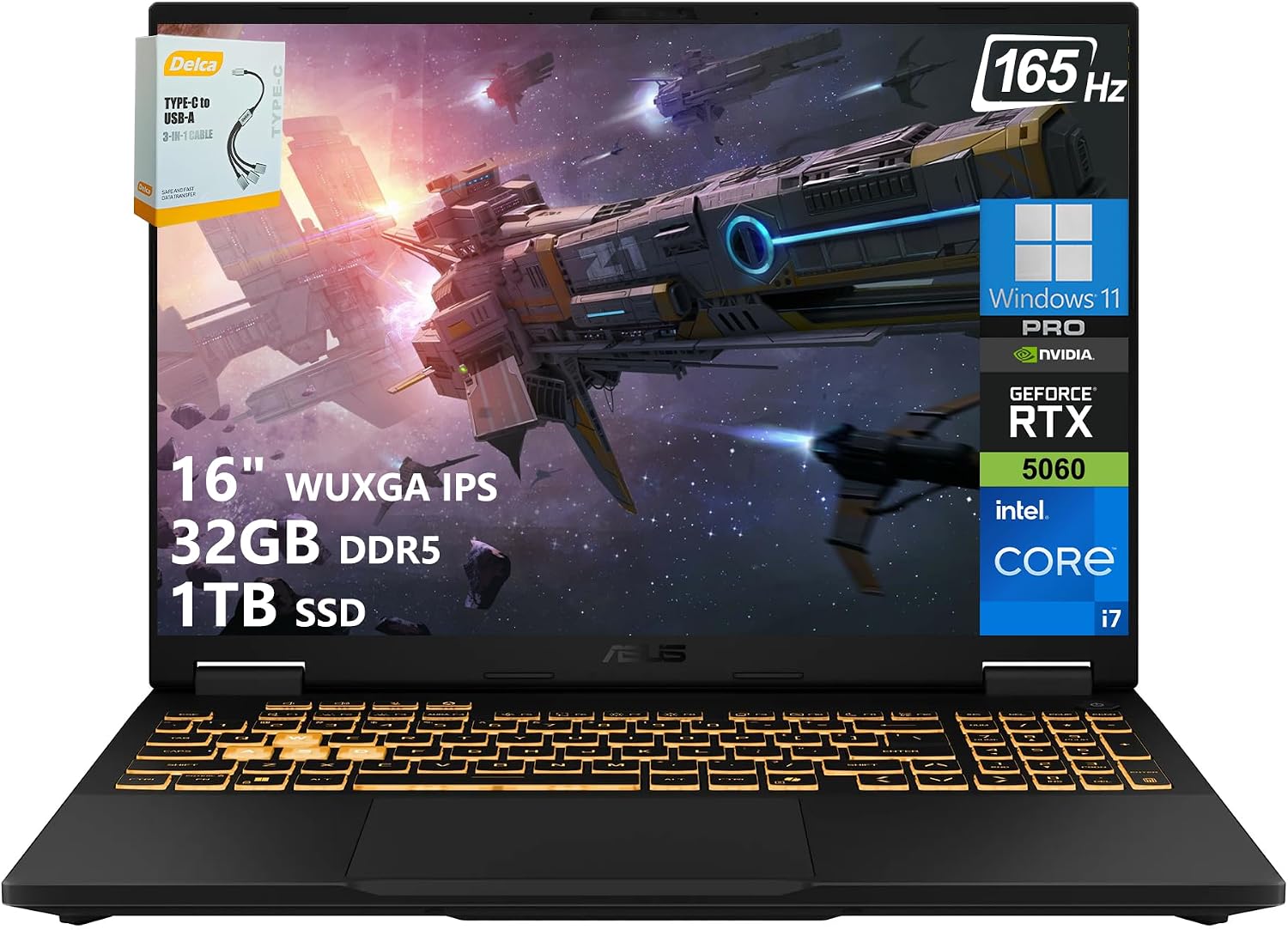
Component | Specification |
|---|---|
Processor | Intel® Core™ i7-14650HX 14th Gen, Base 2.2 GHz up to 5.6 GHz max,16 cores and 24 threads |
Memory | 32 GB DDR5-5200MHz |
Storage | 1TB M.2 NVMe PCIe 4.0, M.2 SSD |
Graphics | NVIDIA® GeForce® RTX 5060, 8GB |
Screen | 16 inch |
Operating system | Windows 11 |
Recommended for | Intermediate to large user category |
HP Pavilion Gaming
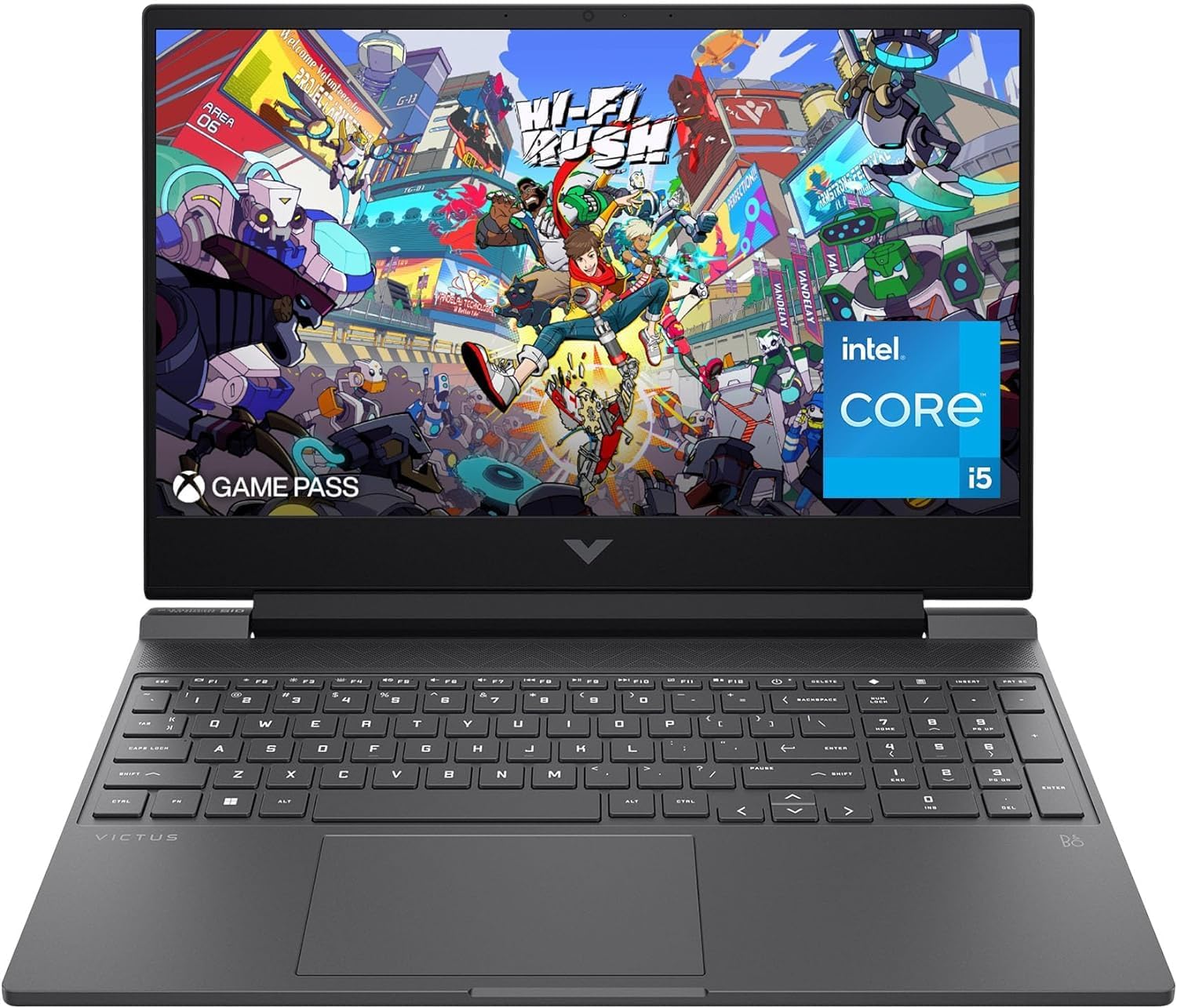
Component | Specification |
|---|---|
Processor | Intel Core i5 12th Gen i5-12450H 4.4GHz base clock speed, 8 cores and 12 threads |
Memory | 16 GB DDR4-3200MHz |
Storage | 1 TB M.2 NVMe PCIe M.2 SSD |
Graphics | NVIDIA® GeForce®RTX 3050 |
Screen | 15.6 inch |
Operating system | Windows 11 |
Recommended for | Basic user and smaller to intermediate data sets |
ACER Nitro 5
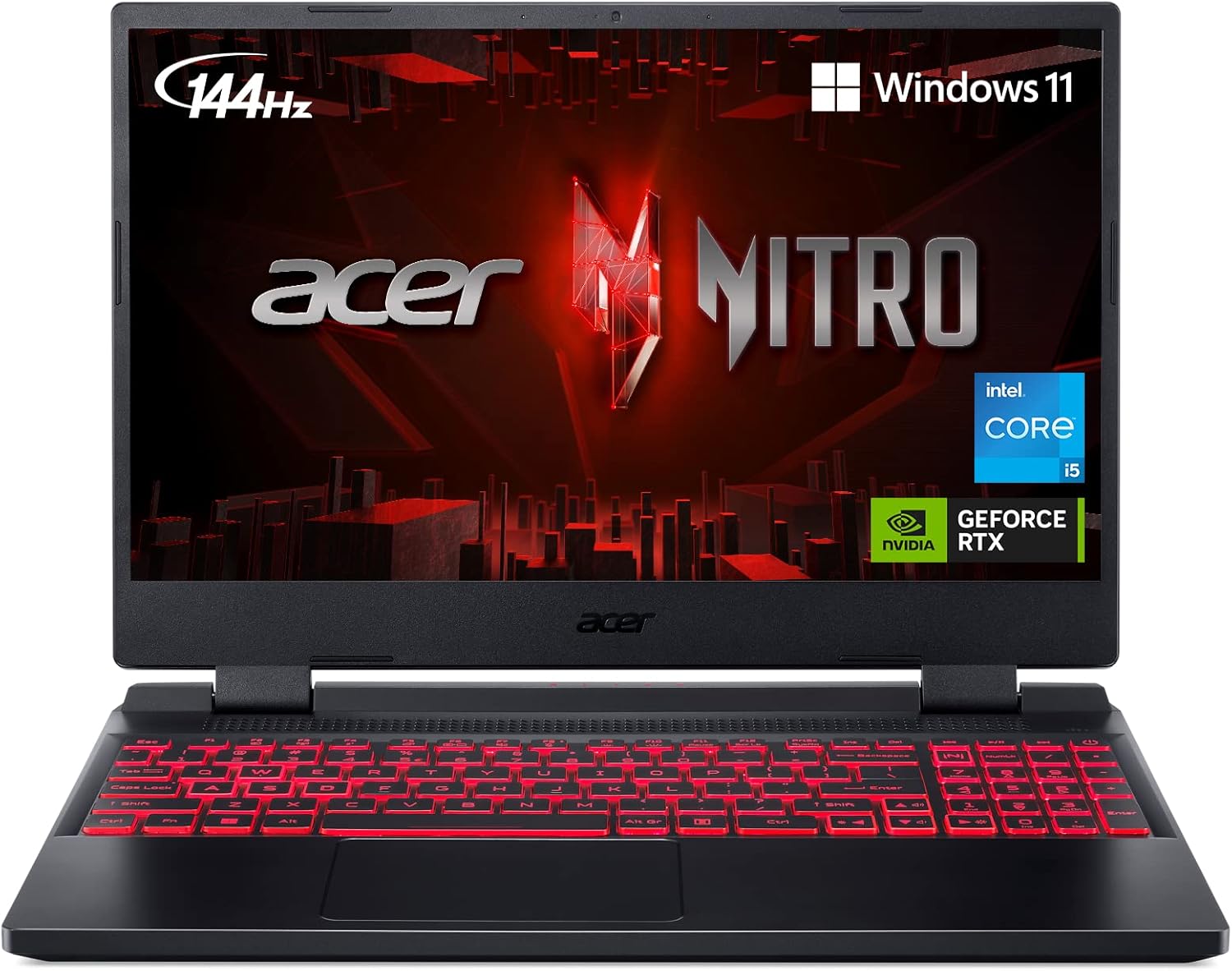
Component | Specification |
|---|---|
Processor | Intel® Core™ i5-12500H Processor, 12 cores 16 threads, 2.5 GHz base clock speed and 4.5 GHz max |
Memory | 8GB DDR4-3200MHz, Maximum 32GB supported |
Storage | 256GB M.2 NVMe PCIe SSD |
Graphics | NVIDIA® GeForce RTX 3050 with 4 GB GDDR6 VRAM |
Screen | 15.6 inch |
Operating system | Windows 10 Home |
Recommended for | Basic user and smaller to intermediate data sets |
Lenovo Legion 5
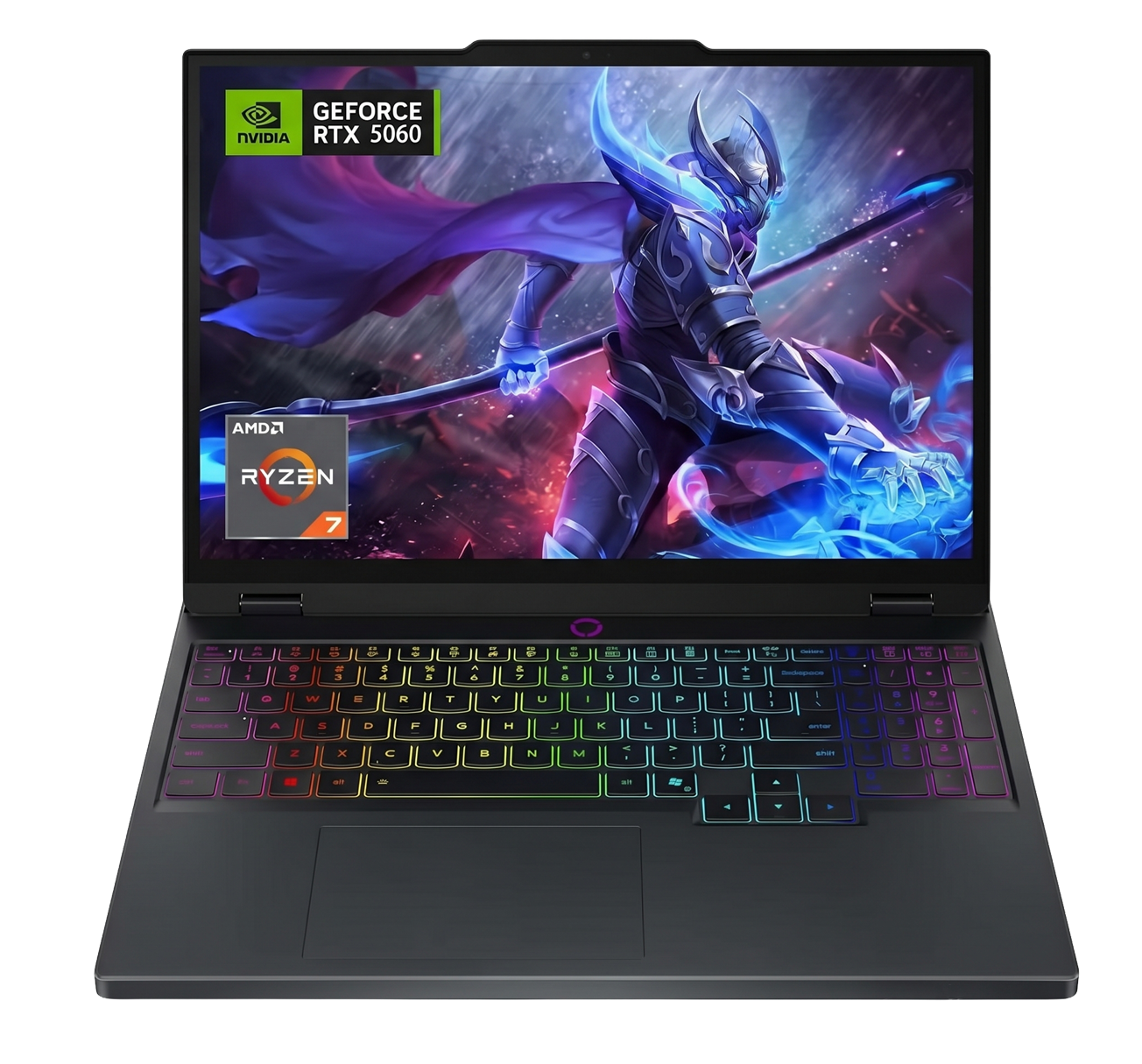
Component | Specification |
|---|---|
Processor | AMD Ryzen 7 5800H, 8 core 16 threads, base clock speed 3.8 GHz and 5.1 GHz max |
Memory | 32 GB DDR5-4800MHz, Expandable up to 64GB DDR5 |
Storage | 1 TB NVMe PCIe M.2 SSD |
Graphics | NVIDIA® GeForce® RTX 5060 8GB |
Screen | 15.1 inch |
Operating system | Windows 11 Pro |
Recommended for | Intermediate to advanced user and larger data sets |
Alienware M15 R6
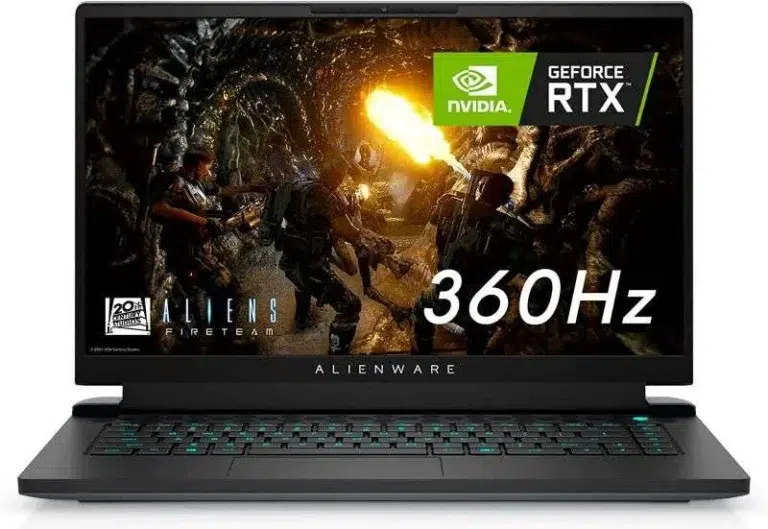
Component | Specification |
|---|---|
Processor | 11th Generation Intel® Core™ i7-11800H Processor, 8 cores 16 threads, 2.3 GHz base clock speed and 4.6 GHz max |
Memory | 32GB DDR4-3200MHz |
Storage | 1 TB M.2 NVMe PCIe SSD |
Graphics | NVIDIA® RTX 3070 8GB |
Screen | 15.6 inch |
Operating system | Windows 11 Home |
Recommended for | Intermediate to advanced user and larger data sets |
MSI GF75
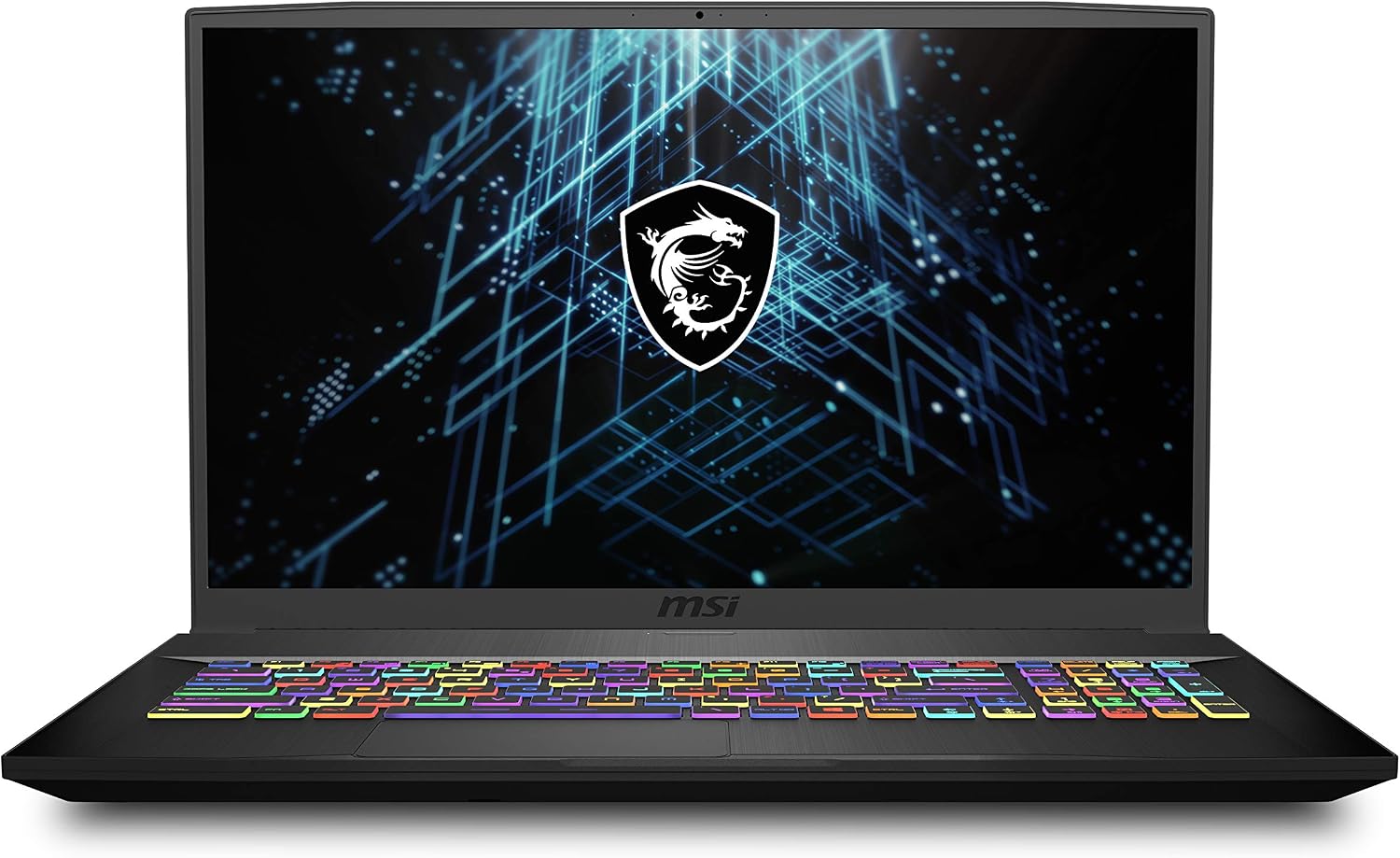
Component | Specification |
|---|---|
Processor | 10th Generation Intel® Core™ i7-10750H Processor, 6 cores 12 threads, 2.6 GHz base clock speed and 5.0 GHz max |
Memory | 16GB DDR4-3200MHz, Maximum 64GB supported |
Storage | 512GB M.2 NVMe PCIe SSD |
Graphics | Nvidia GeForce RTX3060 6GB GDDR6 |
Screen | 17.3 inch |
Operating system | Windows 10 Home |
Recommended for | Intermediate user and basic to intermediate data sets |
ASUS ROG Zephyrus G14
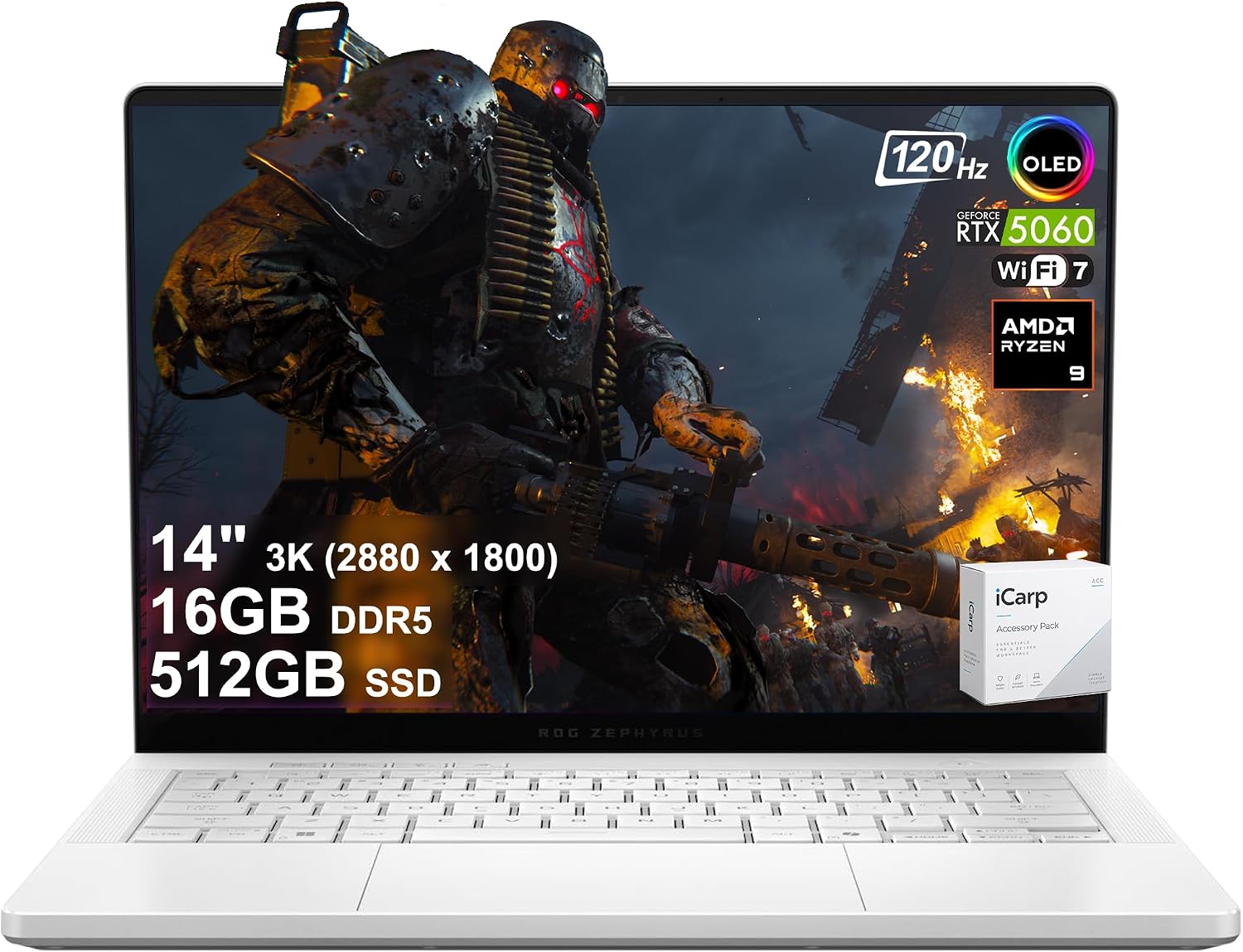
Component | Specification |
|---|---|
Processor | AMD Ryzen 9 , 8 cores 16 threads, 4.0 GHz base clock speed and 5.2 GHz max |
Memory | 16GB DDR5-7500MHz, Maximum 32GB supported |
Storage | 512GB M.2 NVMe PCIe SSD |
Graphics | NVIDIA GeForce GTX 5060 8GB GDDR7 |
Screen | 14 inch |
Operating system | Windows 11 Home |
Recommended for | Intermediate to advanced user and intermediate data sets |
MSI Cyborg 17
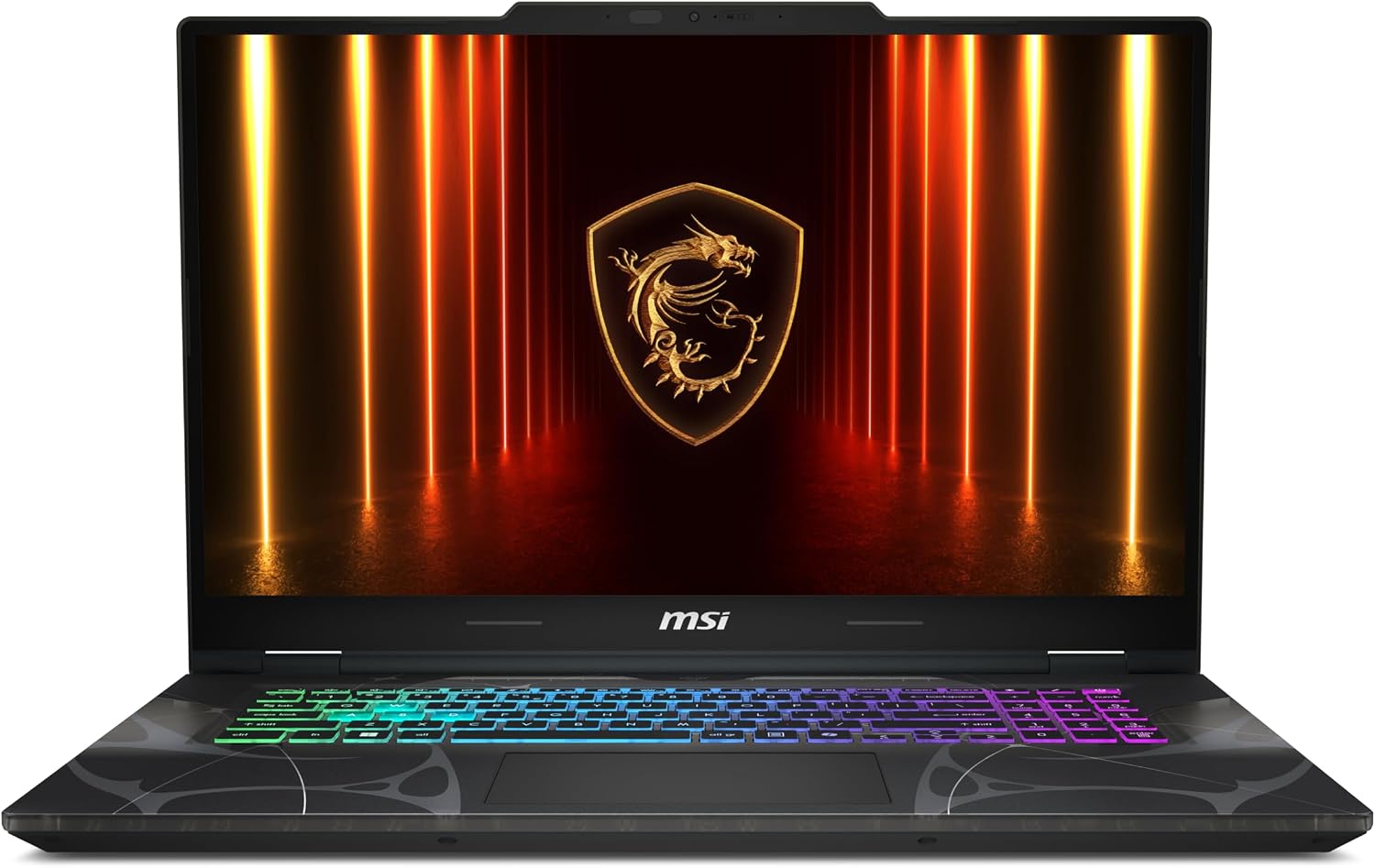
Component | Specification |
|---|---|
Processor | Intel Core 7 , 10 cores 16 threads, 1.8 GHz base clock speed and 5.2 GHz max |
Memory | 16GB DDR5-5600MHz, Maximum 96GB supported |
Storage | 1TB M.2 NVMe PCIe SSD |
Graphics | NVIDIA® GeForce RTX 5060 with 8 GB GDDR7 VRAM |
Screen | 17.3 inch |
Operating system | Windows 11 Home |
Recommended for | Intermediate to advanced user and larger data sets |
So, that was my selection of best laptops for AutoCAD.
There are several questions that our users have asked over time which I want to answer here:
What is the minimum system requirement to run AutoCAD?
When it comes to running AutoCAD it can run on systems that don’t even meet the minimum hardware requirement as recommended by Autodesk but that doesn’t mean it will run smoothly.
To have at least a decent performance you should use a laptop that has at least this specification.
Component | Specification |
|---|---|
Processor | Minimum of 2.5-2.9 GHz |
Memory | Minimum 8 GB |
Storage | Minimum 10 GB free |
Display | 1920 x 1080 |
Operating system | 64 Bit windows 10 or 11 (Works with MAC as well) |
What is the best laptop to run AutoCAD?
If budget allows, MSI Stealth 15M will be the best laptop for AutoCAD from the list of laptops recommended in this article as it provides the best overall hardware specifications with fast SSD, processor and graphics.
If you are on a budget then HP Victus should be your choice of best laptop for AutoCAD as it has the best hardware in a moderate budget segment.
How good are gaming laptops for AutoCAD?
Gaming laptops as usually a great choice for AutoCAD just make sure that the graphics card supports Direct X as it’s what CAD software use.
Also, it’s better if you get gaming laptops with certified graphics cards from Autodesk.
Should I select more cores or a higher clock speed in a processor?
Ideally, you should incline towards higher clock speed more than the number of cores when it comes to the processor for AutoCAD as AutoCAD runs single-threaded operations mostly.
Conclusion
So, as you might have noticed the list is heavily dependent on processor speed and CPU architecture.
Also there is no Intel i9 series laptop here as they are usually way too expensive with not-so-significant improvement in performance when compared with i7 latest generation processors.
So, do you agree with our list of best laptops for AutoCAD? Which laptop you are using for AutoCAD?
Let me know in the comments down below.