Best mouse for CAD software – Our top 8 pick for 2026
I have used CAD mouse for more than 5 years and over the years I also used several other mice like Logitech MX masters and several simple 3 button mice. I also used them with AutoCAD, Fusion 360, SolidWorks and more CAD software s. So, in this article I will be sharing with you my take [ ]
I have used CAD mouse for more than 5 years and over the years I also used several other mice like Logitech MX masters and several simple 3 button mice.
I also used them with AutoCAD, Fusion 360, SolidWorks and more CAD software’s.
So, in this article I will be sharing with you my take on why you should consider getting a CAD mouse for your CAD and engineering software and why it makes a difference.
I have used parameters like technical specs, ease of connection with CAD software, programmable keys, ergonomics and battery life (for wireless mouse) to make my list of best mouse for CAD software.
So, before we move into our list of the ten best CAD mice let’s see which mouse features were the most important one’s I considers for making this list.
Ergonomic shape
Unsurprisingly, a large mouse with an ergonomic shape that fits properly in hand and is comfortable to work with is the most sought feature.
Rubber grip near the thumb and on the sides of the mouse which make it less slippery and comfortable to hold was also recommended by some users.
Dedicated programmable keys
The software-specific programmable key was another great feature recommended by our users.
You can use these keys to set some frequent functions like changing views and accessing the most frequent commands like dimension and trim.
Dedicated keys for Pan, Zoom and other functions are an added advantage but too many dedicated keys generally become overkill unless you really like a programmable mouse with lots of dedicated keys.
Resolution or mouse sensitivity
Resolution or sensitivity is another parameter that was highlighted by some users but for regular mice where some serious precision with mouse movement is not required, you can safely overlook this parameter.
You might however what to consider resolution when your work required pixel-perfect precise movement of the mouse, like working with an assembly containing several joints and for sculpting tools.
Wired vs Wireless and battery life
Wired or wireless is another feature that might influence your choice.
In my opinion, this hardly matters as both have their pros and cons like a wired mouse won’t need batteries that need replacement or recharging, but it will make your desk look more occupied with an extra cable which some people (including me) may find a bit like an eye soar!
If you are a heavy CAD user and don’t mind a few meters of extra wire on your desk you can go with a wired mouse as it is generally cheap, and it can last for years without needing any battery replacement or recharging.
So, now you know the main parameters we used to select the best mouse, let’s start our list with the best recommendation at the top.
3DConnexion CAD Mouse
I switched from a standard mouse that comes with a Logitech MK850 keyboard-mouse set to 3DConnexion CAD Mouse about three years back and since then it’s the only mouse I used for all my CAD workflows (and I am never going back to using any other mouse!).
It’s ergonomic and fits very comfortably in your hand.
Here is a video as well that I made about my experience with this mouse after 5 years of usage.
It has a dedicated middle wheel click button which I have found extremely useful for panning drawings as it replaces pressing and holding the middle wheel which is a great advantage considering long hours of work.
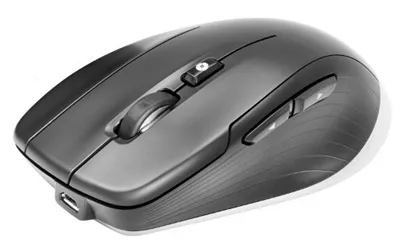
There are also dedicated zoom keys near your thumb, and you can also use the standard mouse wheel for zooming in and out of your geometry.
Apart from left and right-click all the other buttons can be programmed using 3DConnexion software.
So, in total, you get five programmable buttons that can be assigned to dedicated commands as per your CAD software.
It has a high-resolution sensor of 7200 DPI which is great for precise movement.
This mouse is built separately for left-hand and right-hand users and when purchasing you can select your preferred mouse.
You can also get a wired or wireless version of the mice. The battery in the wireless version is inbuilt and can be charged using a micro-USB cable provided with the mouse.
This mouse also comes with three connectivity options, and these are cable, Bluetooth, and universal receiver.
3DConnexion SpaceMouse Pro
This is a secondary mouse that should be used along with a 3D connexion CAD mouse or any other standard mouse, it is not a standalone mouse.
It has an ergonomic design and comes with a wrist pad for supporting the hand.
This device is best suitable for 3D cad users who need to navigate in 3D space frequently.
With its six degrees of freedom, you can easily navigate in 3D space and position cameras as if you are holding the object in your hand.
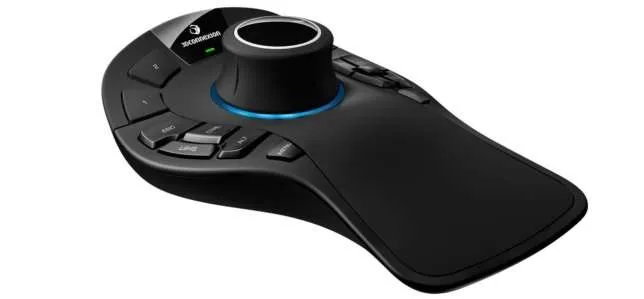
The four Function keys on SpaceMouse Pro are assigned automatically to frequently used functions as per your software and you can also program them using the 3DConnexion software.
The keyboard hotkeys like Enter, Shift, Ctrl, and Alt are available on the SpaceMouse directly and you can use these keys from SpaceMouse directly limiting hand movement.
It also has dedicated view buttons for switching views like the top, front, and isometric.
It has both wired and wireless versions, and it has an inbuilt battery that lasts about two months on one full charge.
You can charge it using the USB micro cable provided with the product.
Logitech G604
This is a popular mouse that is mostly used by gamers and of course CAD professionals.
It has a very ergonomic design with a large size that fits in hand comfortably. It’s made with high-quality rubber-type material which provides great grip.
It also has a smooth and ratcheted spin metal scroll wheel that can be tilted to the left and right as well and hence you can use it to navigate in any direction in 2D or 3D space.
It has 15 programmable keys that can be programmed for any CAD software.
You can easily program view controls, frequent commands, and more using Logitech G hub software.
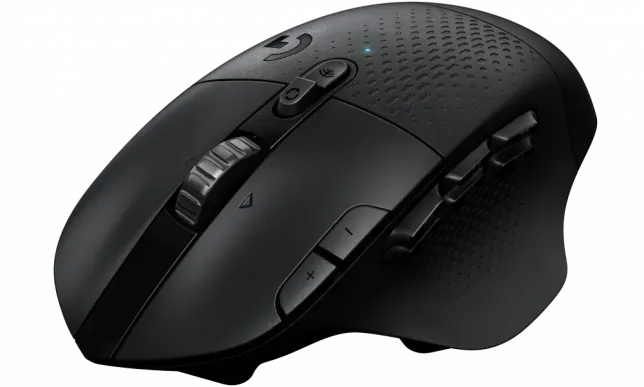
It supports up to 25600 DPI resolution which can be adjusted with G Hub software.
It supports lightspeed connectivity with its receiver and you can also connect it using Bluetooth.
It runs on an AA battery which lasts up to 240 hours ideally but can be extended in Bluetooth mode for up to 5 months.
The only downside connected with this mouse is that it’s available only for right-hand users.
Logitech MX Master 3
This is my main mouse when I am not working with my CAD software exclusively.
This is by far the best productivity mouse you can find out there that works quite well as a CAD mouse as well.
Though to make it fully suitable for CAD software I have programmed my side click button to function as middle wheel click (for panning drawings).
Moreover it’s size is just right and fits in hand and it has an ergonomic design with rubber-type material for great grip.
One of the most noticeable features of this mouse is it’s scroll wheels.
The top scroll wheel is made with machined steel which provides great balance when scrolling and gives an extremely precise movement.
On top of that it’s clicks are silent which is great if you don’t want others to disturb with mouse click sound.
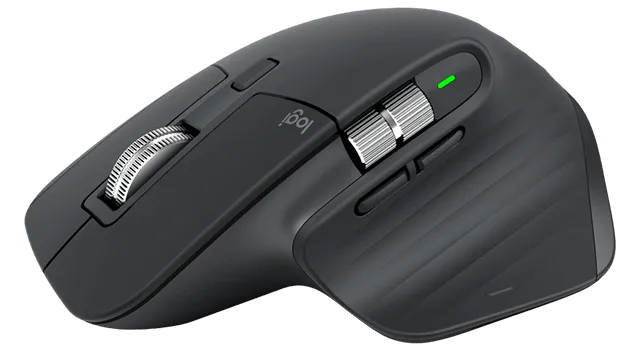
The thumb scroll wheel lets you scroll horizontally and using thumb buttons you can add additional features as it is completely programmable.
With multiple workstations support, you can connect it to multiple computers, and with the click of a button you can switch between these workstations, and you can even copy-paste data between these workstations.
The mouse supports up to 8000 DPI sensor resolution which can be adjusted in an increment of 50 DP as per your requirement and it can be used to track on any surface even when it’s very smooth like glass.
Another differentiating factor other than the scroll wheel is USB type C charging.
Yes, this mouse has an inbuilt battery, and you can charge it using a USB-type C cable. With one full charge, it lasts 70- days, and with one minute of charging you can work for 3 hours.
It works with Windows, Mac, and even Linux. You can connect it to your workstation using a Unifying USB receiver and Bluetooth as well.
Razer Basilisk V3
With an ergonomic shape and an improved optical mouse switch, this mouse is certainly a great addition to this list.
The thumb and side area are made with rubber textured material for a better grip with the body made up of plastic.
It is suitable for mid-sized palms and is currently available for right-hand users only.
Generally, Razor mice use mechanical switches which tend to become unreliable after long usage and start registering missed clicks but with this improved optical switch, Razor has done away with a major drawback in its mice.
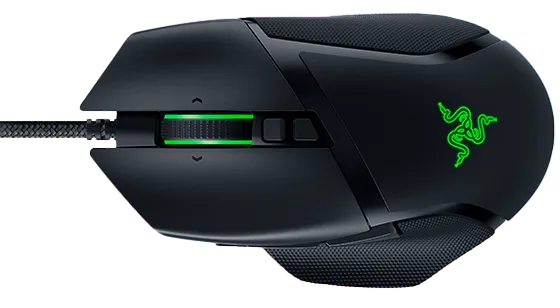
The mouse has 10 programmable keys. The scroll wheel supports smooth and ratcheted movements and you can even set the scrolling resistance in this mouse as per your preference.
The scroll wheel also supports the horizontal tilt function just like other Logitech mice we covered in this article.
You can program mouse keys using Razer Synapse software.
You can also take advantage of Razer HyperShift functionality which will let you assign an alternative key function to every button when the secondary key is pressed making the total number of programmable keys 20.
As it’s a gaming mouse it comes with RGB lights which you may or may not like based on your taste, but it will never interfere with your productivity as it’s a wired mouse that does not consume battery for the lights.
You don’t need to worry about battery consumption or recharging it either.
The wire is sturdy but not stiff so it won’t interfere with mouse movement and the wire is braided as well.
The mouse has an impressive 26000 DPI sensor resolution which is certainly one of the best (if not the best) in its class.
Logitech G600 MMO
This mouse is part of this list for one exclusive reason, its 20 programmable buttons. When comparing it with its closest rival Razer Naga, we found it wins clearly because of its design alone.
This mouse has 12 programmable buttons all on the thumb side, but these buttons are designed in such a way that every button has a different shape.
This solves the issue of wrong clicks even when the buttons are closely placed which is clearly not the case with Razer Naga.
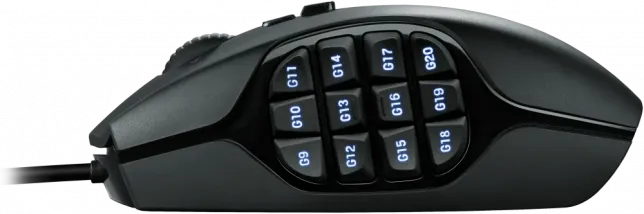
With the G-shift button near the scroll wheel, the total customizable button nearly doubles as you can assign a different function to the same button when clicked with the G-shift button pressed.
You can program these 12 buttons as well as the other 8 buttons using Logitech G Hub software.
It has a middle scroll wheel with tilt support which means you can also tilt the scroll wheel to move horizontally in your 2D or 3D space.
Another distinguishing feature of this mouse is its third Ring click button which is next to the right-click and use can be used to assign any dedicated function like Panning your drawing.
It is kind of like the 3D Connexion CAD mouse dedicated middle scroll wheel click button. As you can imagine for a CAD user a dedicated Pan button is a big deal, at least for me it is!
This mouse also supports a maximum of 8200 DPI resolution, and you can easily switch between 5 DPI modes. It’s a wired mouse so no need to replace batteries or charge it frequently.
Apart from the ergonomic design, it has a soft rubber grip on the side for additional grip and its cable is braided which is not too stiff and won’t interfere with mouse movement.
Logitech MX Ergo
This is a different category of the mouse where you don’t need to move the actual mouse on any surface rather you can use the thumb trackball to do the same.
This as you can see will take some time to get used to but once you are comfortable using this mouse it will help you significantly reduce the strain on your hand.
In the latest generation of this mouse, one of the most remarkable features is the magnetic 20-degree tilt adjustment which will help you work in two hand postures of 0 degrees and 20 degrees.
Its shape is ergonomic and because of its large size, it fits comfortably in your hand too.
The material is soft rubber type which is again great for a good grip on the mice.
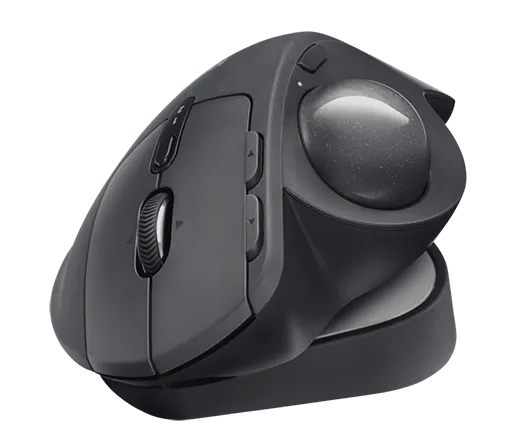
The scroll wheel can not only rotate but you can also tilt it left and right which is great for navigating in 2D and 3D space.
This mouse also supports multiple computer workflow which means you can connect with multiple computers with the push of a button.
You can switch between computers to perform the usual tasks or even for copying and paste between connected computers.
It has a smooth trackball near the thumb with an adjustable cursor speed/precision button right on top of the trackball which lets you control the precision or the DPI of the mouse.
This mouse has a maximum DPI value of 2048 which is more than sufficient for most CAD workflows.
The trackball is very easy to remove and can be cleaned with a soft cloth.
It also has two programmable buttons near the left click which can be programmed using Logitech G Hub software.
This mouse has a built-in battery that lasts up to 120 days on a full charge and with one minute of charge, you can work for 24 hours uninterrupted. You can charge it using the Micro USB cable provided with the product.
Logitech M510
This is the only mouse in our list which comes without any bells and whistles, but it just gets the work done.
I prefer the Logitech M510 which is a wireless mouse with a removable AA battery.
The battery lasts up to 24 months as it has auto sleep power-saving mode which puts the mouse to sleep when idle for a long time.
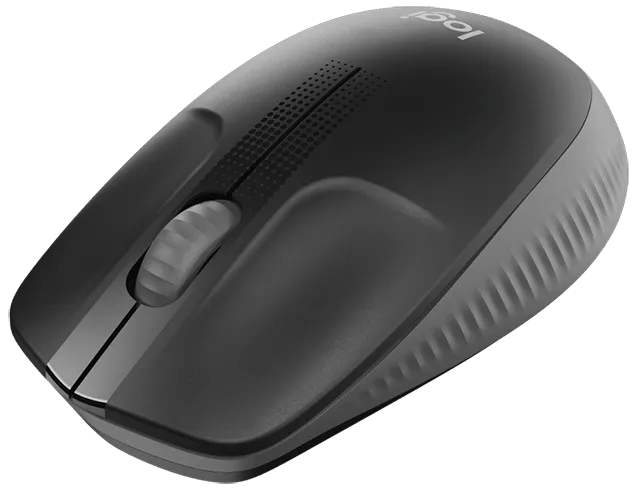
It can be connected using a USB receiver provided with the mouse and it works with windows, Mac, Linux, and Chrome operating systems.
It has a sensor that supports up to 1000 DPI resolution which is quite decent for most CAD workflows.
It is ideal for larger hand sizes but if you want the smaller version then go with M185 which is almost similar in features but is comparatively smaller.
The only downside I have experienced with this mouse is its robustness.
The mouse buttons are not very robust and they hardly last beyond a year of rigorous usage. I always ended up buying one mouse every year because of its unreliable clicks after a year of usage.
But at this price point, it’s not a big issue as you can easily get a replacement without breaking the bank.
Which mouse do you use?
A great mouse is not going to perform well with average PC specs so you should also consider upgrading to the best laptop for AutoCAD and other CAD software if want a truly great performance from your workstation.
Finally, I would really like to know which mouse you use with your CAD software and what you love about it.
Let me know in the comments below.