AutoCAD groups: Complete details and why you should use them
AutoCAD groups are like collection of many objects that act as a common unit. There are some great advantages to working with groups, such as the ease of copying the same components within the same drawing without selecting each object individually. For example, instead of separately selecting and copying 50 items of blocks, you can [ ]
AutoCAD groups are like collection of many objects that act as a common unit.
There are some great advantages to working with groups, such as the ease of copying the same components within the same drawing without selecting each object individually.
For example, instead of separately selecting and copying 50 items of blocks, you can add 50 items into one group, then just select the single group and copy it as you intended.
You can also name these groups to make them easily identifiable.
In this step-by-step guide, you will learn how to create groups, ungroup objects, modify groups, and other options.
If you prefer here is the video version of this article.
Additionally we have covered everything about making AutoCAD groups in the AutoCAD beginners course as well.
Creating Groups in AutoCAD
To explain all about groups I will be working with a coffee table, a reception table, and a conference table set as shown in the following image.
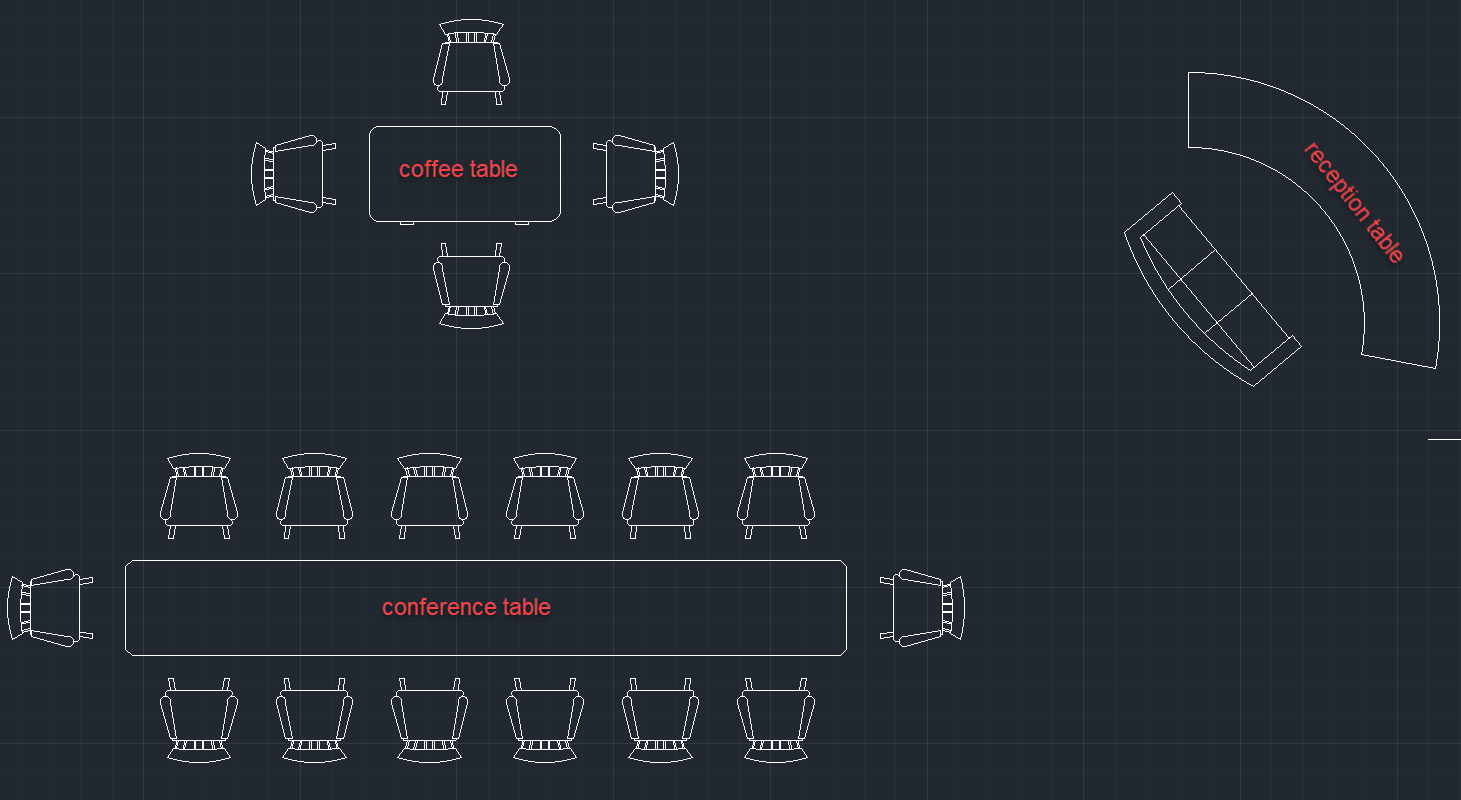
The main objective is to make groups from the individual blocks of chairs and tables work as one object.You can access the group command from the “Home” tab under the “Groups” panel as shown in the following image.