All about copy and paste commands of AutoCAD
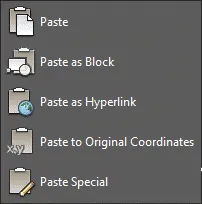
When you copy data from drawing it is temporarily parked in the clipboard and when you paste that data then it is accessed from that clipboard. This clipboard has several copy paste tools that you can use to copy and paste specific objects from your drawing. In this article, I will explain some of these [ ]
When you copy data from drawing it is temporarily parked in the clipboard and when you paste that data then it is accessed from that clipboard.
This clipboard has several copy paste tools that you can use to copy and paste specific objects from your drawing.
In this article, I will explain some of these interesting AutoCAD copy paste features of clipboard.
COPYBASE
This command will let you select objects with a base point.
Type COPYBASE on the command line and press enter, then select the base point from the drawing area and select objects which you want to copy and press enter again.
When you paste the drawing AutoCAD will prompt you to specify point where you want to place the object, this helps in placing your drawing precisely.
You can use PASTECLIP to paste this drawing in the same drawing or in another drawing as well.
COPYCLIP
This command is also similar to COPYBASE but with the exception of the base point.
In this case, only objects will be copied to clipboard and command will not prompt you to specify any base point.
CUTCLIP
It will cut original drawing from it’s location and hence original drawing will be deleted and you can then paste this drawing from clipboard to any other location on same drawing or another drawing as well.
PASTECLIP
This is the obvious paste command for AutoCAD.
This command will paste clipboard object in currently opened drawing you can use this command to paste drawing objects in multiple drawings as well.
PASTEBLOCK
As the command suggests it will paste copied object as a block in the current drawing.
After pasting this drawing as a block you will find that AutoCAD will assign a completely random string of characters to it's name which looks like A$605D409A.
You can rename this block to something meaningful by using RENAME command.
PASTEORIG
This command will paste objects copied from one drawing to other drawing retaining their original coordinates.
If you copy objects using COPYBASE command then also it won't prompt you for a base point while applying PASTEORIG and it will paste objects at their original coordinate values.
PASTEASHYPERLINK
This command will paste hyperlink of the selected object to the AutoCAD drawing irrespective of what the selected object is.
For example, let's assume we have a PDF document on the desktop of our PC and you want to link it with any drawing object.
To do that, copy that PDF using CTRL + C and then open the drawing and type PATEASHYPERLINK on the command line and press enter.
Now select drawing objects on which you want to paste the hyperlink of PDF and press enter.
Once you are done with this process move your cursor to the object in drawing then press and hold Ctrl key on the keyboard and click on the drawing object.
You will notice that PDF document linked to it will open.
Summary
There are also some interesting ways in which other copy commands of AutoCAD work.
One such command is COPYM which you can use to copy paste multiple instances of the object essentially creating an array using copy command of AutoCAD.
Do you use these copy paste commands in your drawing workflow?
Let me know in the comments area down below.