Six useful AutoCAD command line tips
AutoCAD command line may look very insignificant to new users but it’s rather very useful tool and it can increase your productivity in many ways. Here I will introduce you to some of the features of the command line that can increase your overall productivity with the software. Customizing size of the command line Command [ ]
AutoCAD command line may look very insignificant to new users but it’s rather very useful tool and it can increase your productivity in many ways.
Here I will introduce you to some of the features of the command line that can increase your overall productivity with the software.
Customizing size of the command line
Command line is an AutoCAD palette and you can change it’s size by expanding it using your cursor.
You can also move this command line by holding top left corner with the cursor.
By default, two lines are visible above command line which shows recently entered commands.
You can expand or collapse its size to show more or less number of lines in the command history.

AutoCAD command line missing
If your AutoCAD command line is missing for some reason then press CTRL + 9 key on your keyboard to bring it back.
You can use the same key combination to hide it again.
Looking at command history
On pressing the F2 key a pop-up will appear above command line with a list of all recently used commands and inputs.
To insert a command from this list highlight it and then right-click a contextual menu will appear select Paste to Command line from this menu.
You can also use UP and DOWN arrow key to toggle previously used commands.
When the desired command appears on command line press enter to select it.
Turning on/off command auto-complete
Starting from AutoCAD 2012 there is an auto-complete feature added to AutoCAD.
When you type a command you will see a list of suggested commands starting with the letters.
As you type it and this list becomes more and more specific as you enter more letters on the command line.
This feature can be great for finding the correct command but if you find this annoying then you can turn it off also.
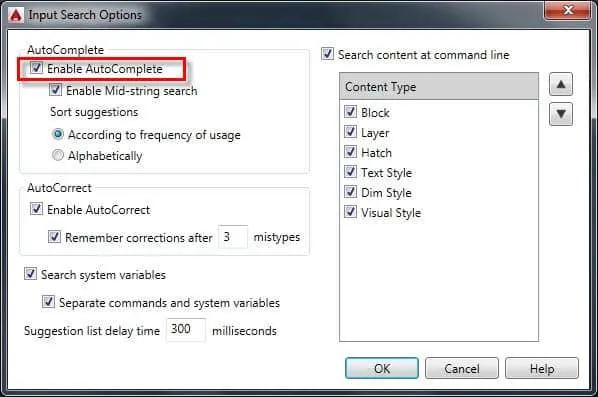
For turning auto-complete off type INPUTSEARCHOPTIONS on the command line and uncheck the radio button in the Auto-complete panel as shown in the image below.
Searching and using named objects
You can use the command line to search named objects like blocks, layer, dimension style etc. directly without looking for them at the respective place.
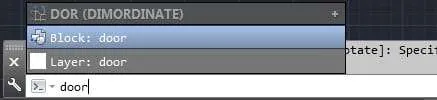
Let’s assume that we have a drawing with a layer named DOOR and a block named DOOR.
If you type DOOR in the command line you will see that AutoCAD will suggest you two options one for block and other for layer DOOR.
Selecting any named object from the command line will make it the current object for the drawing.
For example on selecting DOOR layer from these options, it will become the current layer.
If you want to turn off this search feature then uncheck the “Search content at command line” radio button from input search options window as mentioned in the tip above.
Autocorrecting spelling mistakes in command
If you are the one who makes frequent spelling mistakes of command then this feature is for you.
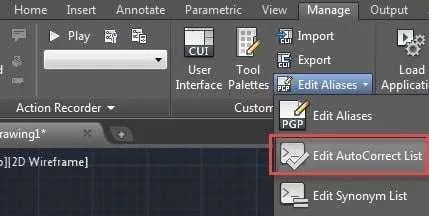
Go to Customization panel of Manage tab and select Edit AutoCorrect list from Edit Aliases drop-down menu of Customization panel.
A PGP file will open with notepad and you can enter your own misspellings in it.
For example, let’s assume you make a frequent spelling mistake of typing LAYER as LEAR then you can enter this misspelling in the PGP file so that even when you enter misspelling it will enter it's correct spelling.
The incorrect spelling should be entered first followed by a comma and then the correct spelling prefixed with asterisk, here is an example LEAR, *LAYER
Here the first spelling is incorrect and second is correct one.
Once you have entered misspellings save PGP file and exit it.
You may need to restart session of AutoCAD after applying these settings.
Summary
So that was my collection of AutoCAD command line tips.
Which of the above tips do you find most useful? Do you have a command line tip that you want to share with us?
let us know in the comments below.