How to make a drawing template in AutoCAD with proper unit
Before we start making an AutoCAD drawing we generally make many settings in the blank file like changing Units, Limits, Adding Layers, Linetypes, Blocks, Dimension styles etc. Repeating these settings every time we start a new drawing is not practical and that s where drawing templates come into picture. To make this task easier you can [ ]
Before we start making an AutoCAD drawing we generally make many settings in the blank file like changing Units, Limits, Adding Layers, Linetypes, Blocks, Dimension styles etc.
Repeating these settings every time we start a new drawing is not practical and that’s where drawing templates come into picture.
To make this task easier you can make a drawing template in AutoCAD with all of your custom settings and then, start any drawing with exact same settings.
Templates are saved with DWT file extension and when you save your work in a template file it gets saved as a DWG file.
In this article, I will explain the methods of setting your own units in AutoCAD drawings, specifying limits and its significance and then saving those settings as a template file.
You can obviously save your templates with a lot more custom properties then listed in this article.
So with that let’s start by configuring the unit.
Setting Drawing Units
Close all open tabs from your AutoCAD window to reach the start screen.
Now click on the arrow which is next to “Templates” and select acad.dwt template from the list as shown in the image below.
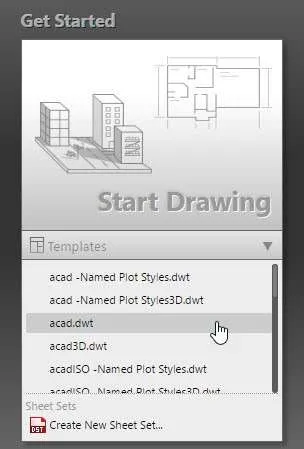
A completely blank drawing will open.
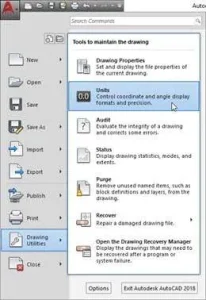
Go to Application menu on the top left of AutoCAD window and select Drawing Utilities option and then select Units as shown in the image below.
Alternatively, you can also use it’s command UN.
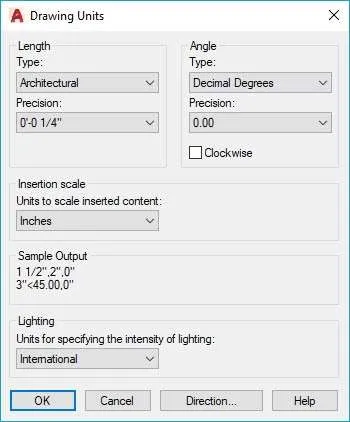
The Drawing Units window will open with default settings as per the selected template.
Click the Type drop-down menu and change the unit type to Architectural, if you are a metric user then change it to Decimal.
Click on the precision dropdown and change it to 0’-0 ¼”, metric users change it to 0.00.
The precision format is just for reference, you can choose your own format of precision display.
The precision selected here will not determine the precision with which AutoCAD measures your drawing, it is simply the precision up to which AutoCAD will display the decimal places.
Irrespective of the precision format, AutoCAD will still calculate geometries with the maximum allowable precision.
In the “Units to scale inserted content” dropdown change the value to Inches.
This is the Unit which will be displayed in the drawing and also used for external geometries like AutoCAD blocks which are inserted in the drawing.
In the Angle panel change type to Decimal Degrees, however, you can change it to other angle formats as well from the drop-down menu.
Change the precision from Angle drop-down menu to 0.00
Your final Drawing Units window should look like the image below.
Click OK to save these changes and close the Drawing Units window.
Understanding Unit terms
When Architectural length type is selected in the Units window, we can use apostrophes symbol to specify the drawing units like (‘) for feet and (“) for inches.
In the steps above we applied default unit as Inches, so skipping the apostrophe symbol will apply the default unit value i.e Inches.
For example, if you want to make a line of length 3 feet and 5 inches then you can enter it's length as 3’5” on the command line.
Alternatively, you can also enter 41 (without apostrophes) as the length of line which is the inch equivalent of 3’5” line (1’=12”).
If you are using Decimal length format instead of Architectural then feet and inches symbol will return an error and in those cases, you need to simply use the decimal value of the size.
For example, to make a line of length 1’4” simply type 16 for its length (1’=12”) without any apostrophes.
You can also watch this video to learn about setting Units in AutoCAD drawing.
Setting drawing limits
Our drawing unit is already specified, now we need to specify the extents of the working area of the drawing.
All the drawings are not made on a single scale.
As an example a large floor plan of an Auditorium would take a lot of space and it's dimensions will be in the range of hundreds of feet whereas if you are making a simple watch gear then the dimensions should remain in the scale of a few millimeters.
So, specifying drawing limits will give you an overall idea of the size of the screen or drawing extents in which you are working.
For our case, we will make a simple drawing which has maximum dimensions of 10 feet in length and width.
So, to make it we will define a drawing area of 15 feet in length and width keeping 5 feet margin.
Type LIMITS and press enter.
Command line will prompt “Specify lower left corner or [ON/OFF] <0′-0″,0′-0″>:” simply press enter to accept the default values of the lower left corner which is 0,0.

On the next prompt “Specify upper right corner <1′-0″,0′-9″>:” type 15’,15’ and press enter.
The drawing limits will get specified but now we need to apply the changes in the drawing area.
To apply the changes type Z and press enter then type A and press enter again.
This will reset your drawing area according to the newly applied limits.
Now the height of your drawing area is 15 inches and the length of the drawing area will be 15 inches or more depending on the aspect ratio of your monitor.
This limit value is not a permanent property and you can alter the limits by zooming in or out of your drawing.
Limits are specified only to set an approximate size of drawing area with respect to the drawing which you intend to make in it.
Creating drawing Template
So far, we have made some changes in the existing drawing and we can save these changes as a template file so that these settings are always accessible whenever we start a new drawing.
To save these changes as a template go to application button on the top left of the drawing area and select “Save As” option and select Drawing Template as shown in the image below.
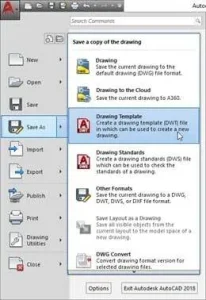
Save Drawing As window will open with a list of preinstalled templates in the Template folder as shown in the image below.
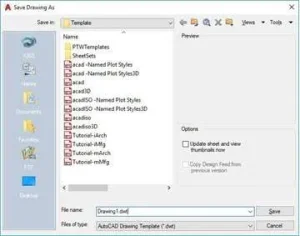
You can save your template with these pre-existing templates or you can also specify a new location to save the template file.
For this example, I will select desktop as the template location and name it as “My Template”.
Now click on save and click OK when description box prompts.
The template will be saved on the desktop with dwt file extension.
You can now open your drawing with this template simply by double-clicking on the My template file on the desktop.
Opening drawing with no templates
If you don’t want to use any preinstalled or custom template to start your drawing and instead want to open the drawing with the blank properties then there is an option for that too.
Click on the “New” icon on the quick access toolbar or use command NEW.
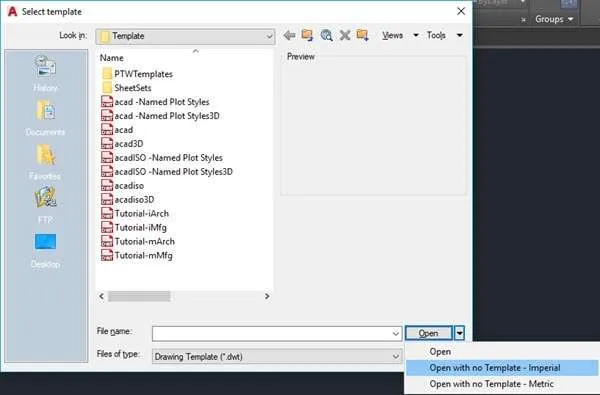
The drawing template window will open.
Click on the arrow right next to the open button and select “open with no template” option as shown in the image below.
You can select imperial as well as metric in these cases and the selection will only determine the insertion units of inches or millimeter.
Summary
I hope you are now comfortable with making drawing templates with different units.
If you have any question related to this article then let me know in the comments below.