All the essential software you need for 3D printing
3D printing is quite an exciting hobby for most, a business for others, and a profession for many. The learning curve has come down drastically in recent…
3D printing is quite an exciting hobby for most, a business for others, and a profession for many.
The learning curve has come down drastically in recent years, and it’s now more accessible than ever.
Along with the hardware, the software side of 3D printing has come a long way too.
There are more tools now, and the software has gotten sophisticated as well.
For beginners, still, the whole 3D printing software thing can feel overwhelming at first.
But here’s the good news: once you understand the basic workflow, everything clicks into place.
In this guide, we’ll walk you through the essential software you need for FFF (Fused Filament Fabrication) 3D printing.
We’ve compiled a thorough list of CAD, Slicing and printer software for you.
The goal is to simplify your search, reduce your strain, and make the process of 3D printing easier for you!
The 3 Essential Software Categories
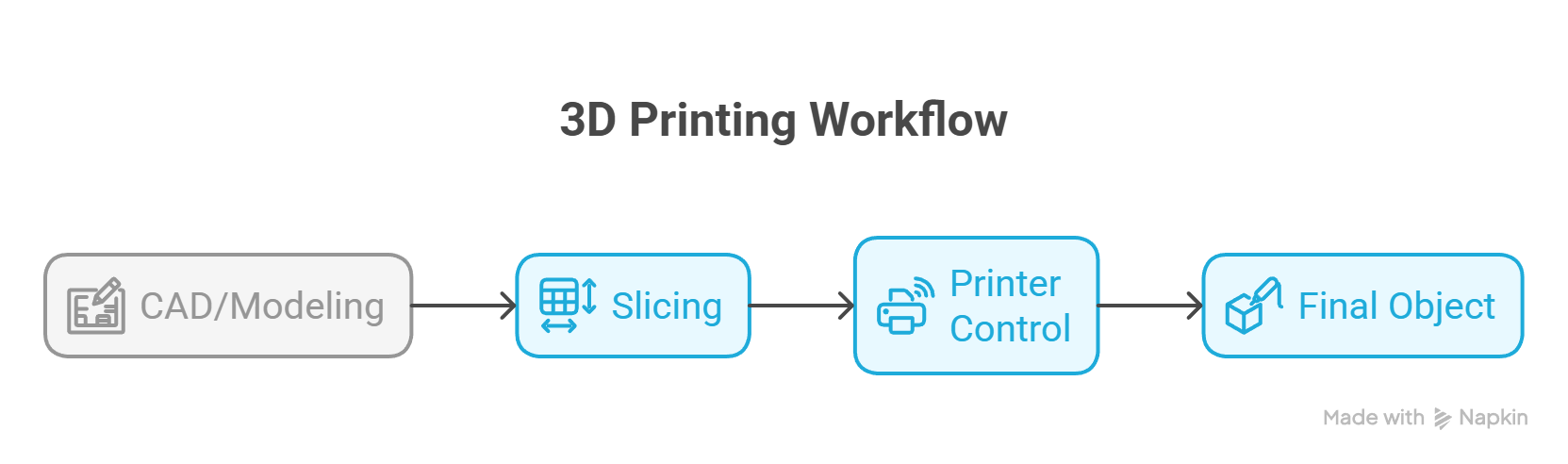
Think of the 3D printing workflow like a pipeline with three main stages:
CAD/Modeling → Slicing → Printer Control
First, you need a 3D model (either one you create or download).
This is the genesis of the whole 3D printing process.
The second step is where to transform that model for 3D printing.
This is the slicing stage.
The slicer software takes the CAD model and converts it into instructions your printer can understand.
Finally, and this depends on your setup, you might want to use printer control software to better manage and monitor your 3D prints.
It’s an optional thing, and mostly only hobbyists or professionals would use this software.
Now let’s dive into each category and explore your options.
CAD & 3D Modeling Software
Designing your own models gives you complete control and freedom over the process.
You can choose the design style, the tolerances, and truly tune the model to suit your needs.
That said, it’s not for everyone, and CAD modeling is definitely a skill that can take some time to master.
Beginner-Friendly Options
So let’s start with some of the basic options that are completely beginner-friendly and anyone with little to no knowledge of design software can start using these tools.
TinkerCAD
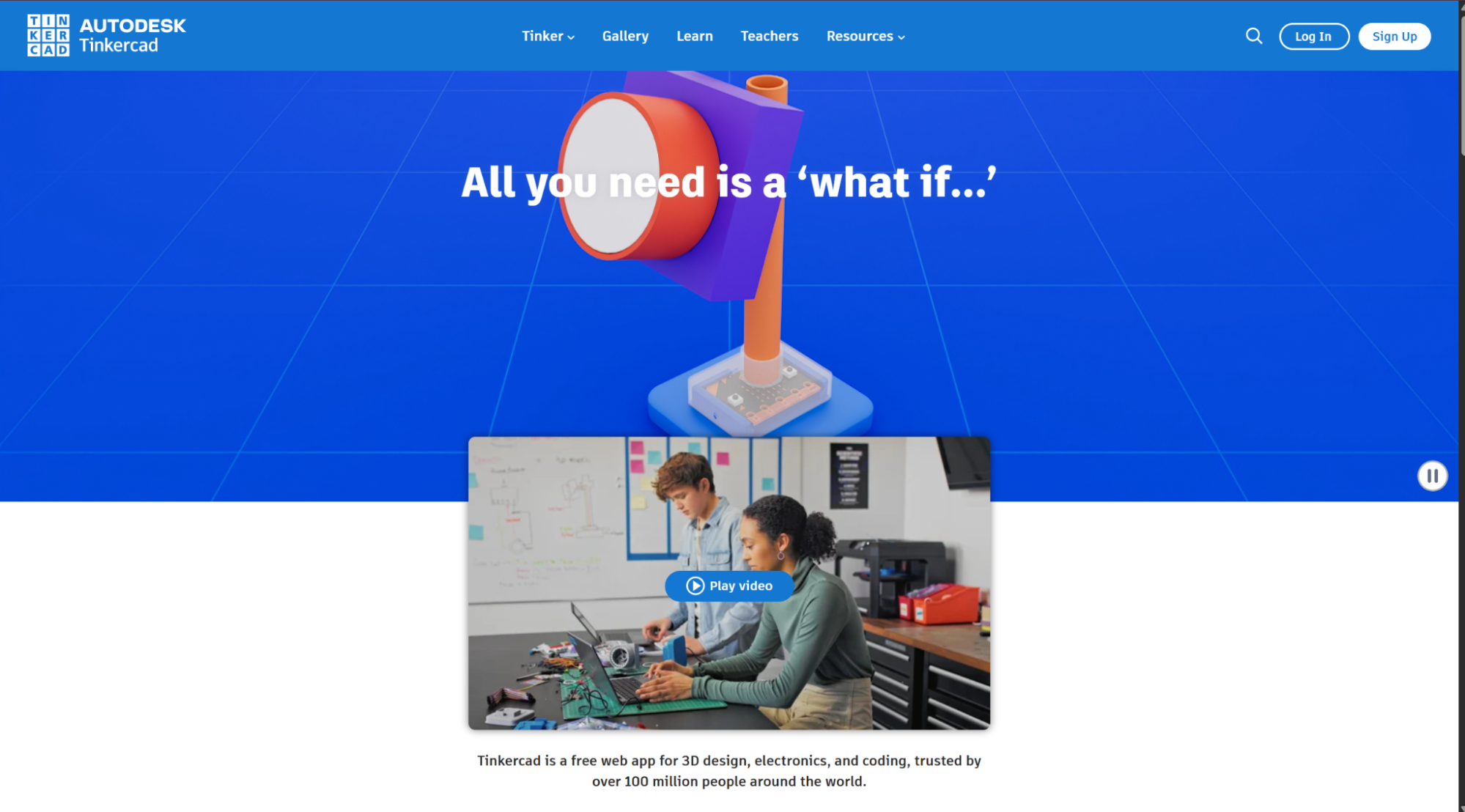
If you’re completely new to 3D modeling, TinkerCAD is where most beginners start.
It’s free, browser-based (no installation required), and uses a simple drag-and-drop interface with basic geometric shapes.
You can literally start creating models in minutes.
Because it runs on a browser, it’s OS agnostic.
You don’t need a specific Windows, macOS, or Linux-based computer to get started.
It’s perfect for learning the fundamentals of 3D design without getting overwhelmed by complex interfaces.
The downside, however, is that TinkerCAD is somewhat limited for advanced designs.
It’s good for creating LEGO bricks, if you want, but a whole LEGO assembly? Not really.
Fusion 360
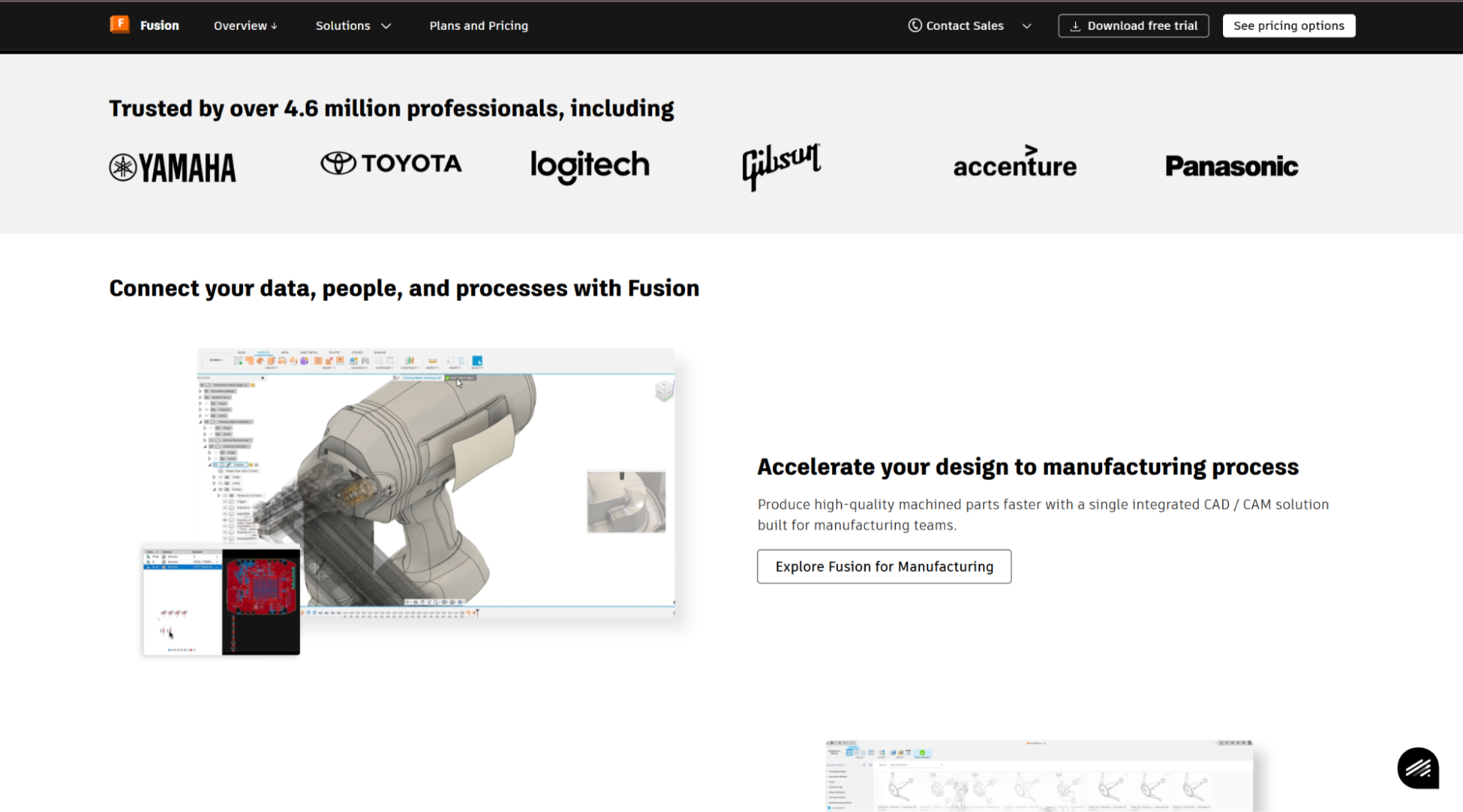
Many makers also start their designing journey with Fusion 360 as well.
It’s a more comprehensive 3D modeling software for semi-professionals and expert users alike.
Autodesk offers a free personal-use license for hobbyists and makers, which gives you access to professional-grade parametric modeling tools.
This parametric approach helps Fusion 360 stand out from several other tools.
You can go back and modify dimensions or features, and the entire model updates automatically.
This is incredibly useful when you’re iterating on designs and need to make quick changes to your models based on the printing results.
With Fusion 360, you also get CAM (Computer-Aided Manufacturing) capabilities, rendering tools, and simulation features.
Since it’s cloud-based, your projects can sync across multiple devices, and it works both on Windows and Mac OS!
However, the learning curve can be steeper than TinkerCAD, given the whole of extra tools.
But the maker community around Fusion 360 is quite active and supportive, and you have tons of guides to help you learn.
Advanced & Specialized Options
Now these are some of the advanced options that you should try only if you have a basic understanding or if you want to really learn about making 3D objects in complete detail.
Blender
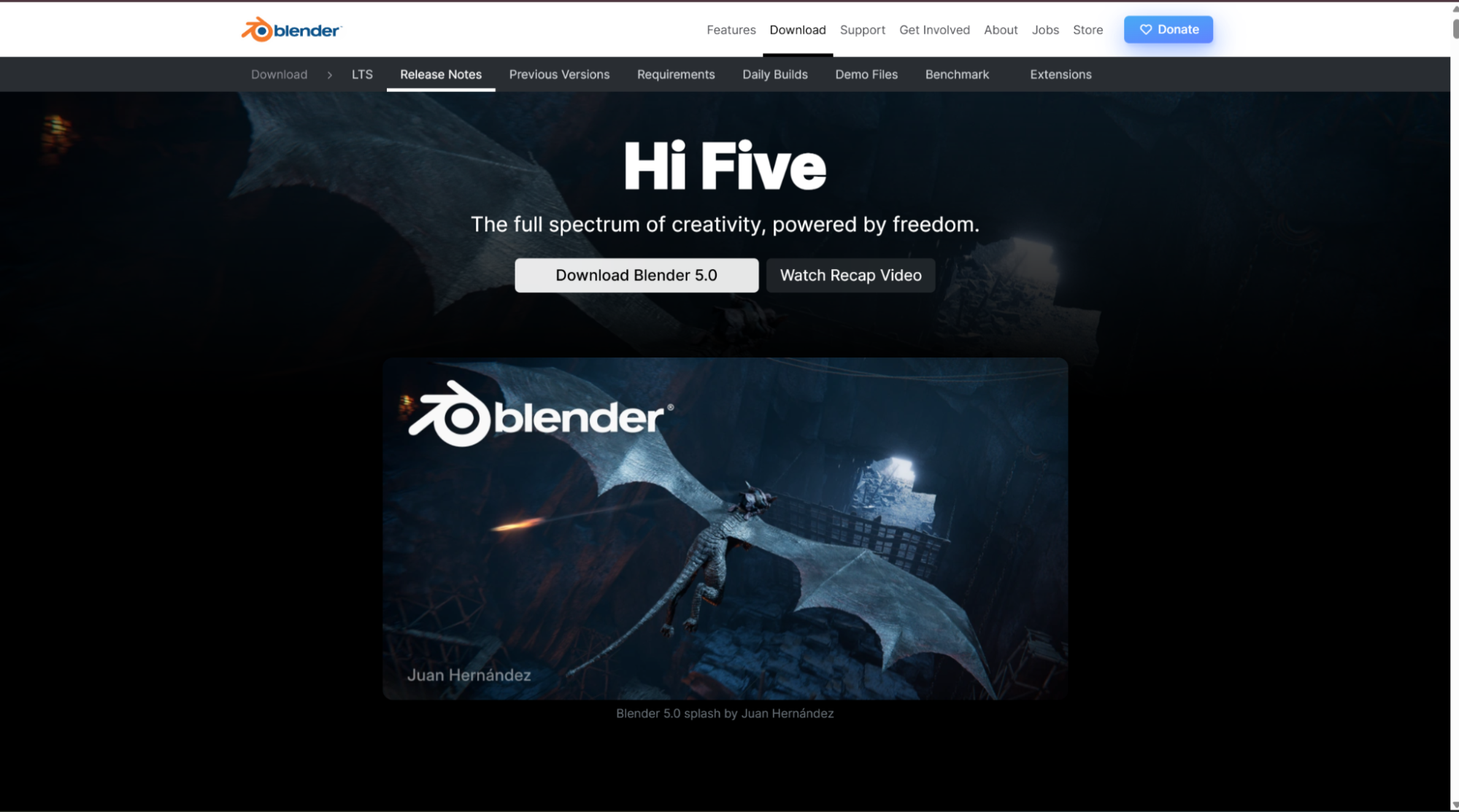
If there’s one all-in-one 3D software that exists today, it’s Blender.
This free software is like the Swiss Army knife, which lets you do all things 3D.
Modeling, sculpting, animation, video editing, rendering, VFX—you name it, and Blender probably does that.
If you’re interested in creating miniatures, figurines, artistic pieces, or anything with complex organic geometry, Blender is your tool.
It does have a steeper learning curve than most CAD programs because it’s designed for artists first and engineers later.
So, it can take a while for you to get comfortable with the software.
Plus, it runs on Windows, Mac, and Linux, and it’s continuously being updated with new features.
We’ll not recommend it for beginners, but for expert users, it wouldn’t hurt to try.
OnShape
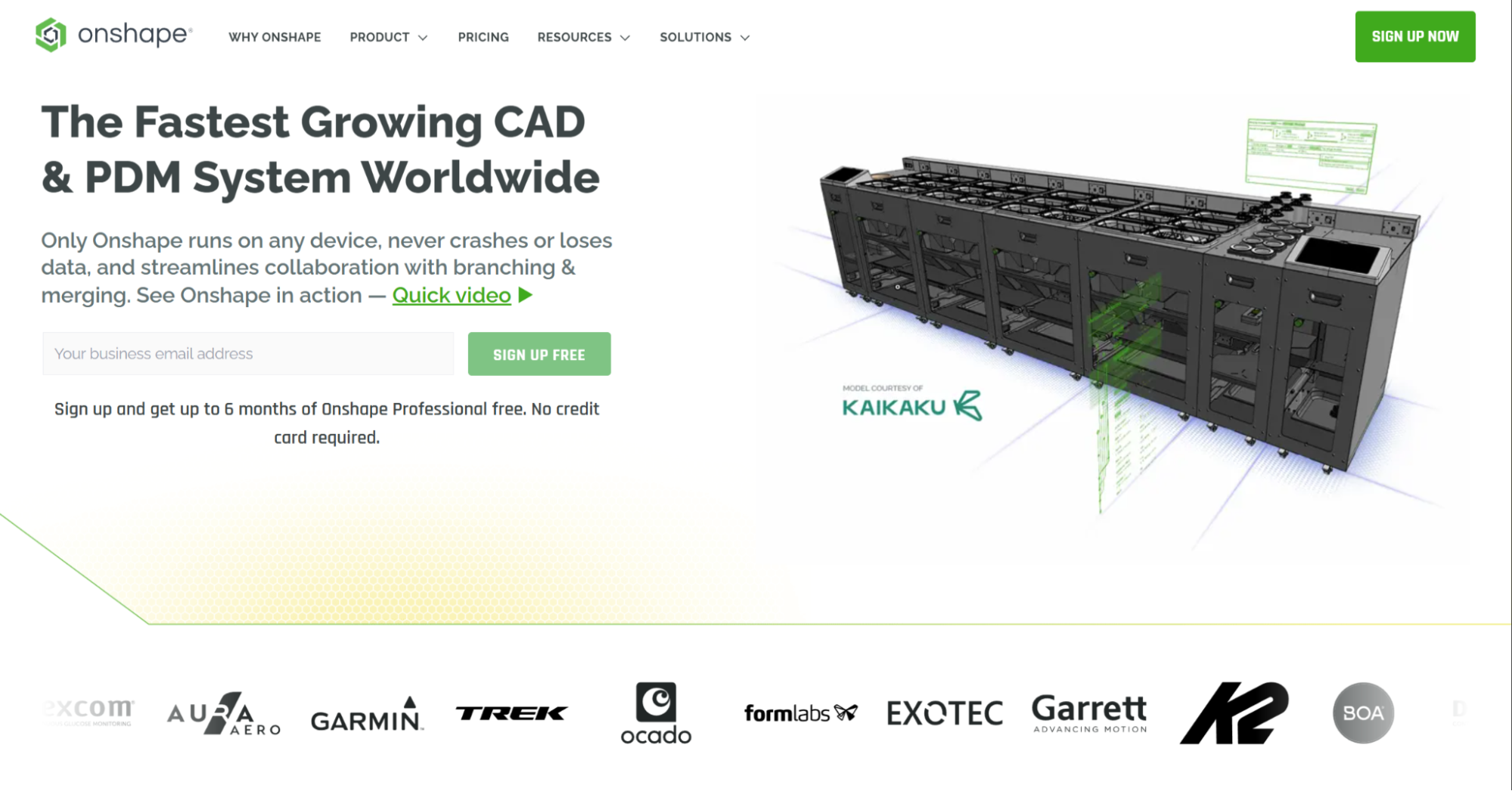
OnShape is a relatively recent addition to the CAD software list for 3D printing.
It’s a fully cloud-based parametric software that is free for public projects.
If you’re used to professional tools like SolidWorks but want something accessible and affordable from anywhere, Onshape is worth checking out.
Because it runs entirely in the browser, you can work on your designs from any device with an internet connection.
Its collaboration features are excellent if you’re working on projects with others.
The catch, however, is the free account requires your designs to be public.
So, if you value privacy, you’ll need to get a paid subscription.
And depending on your needs, it can get quite expensive, starting at about $1500 a year.
Solidworks
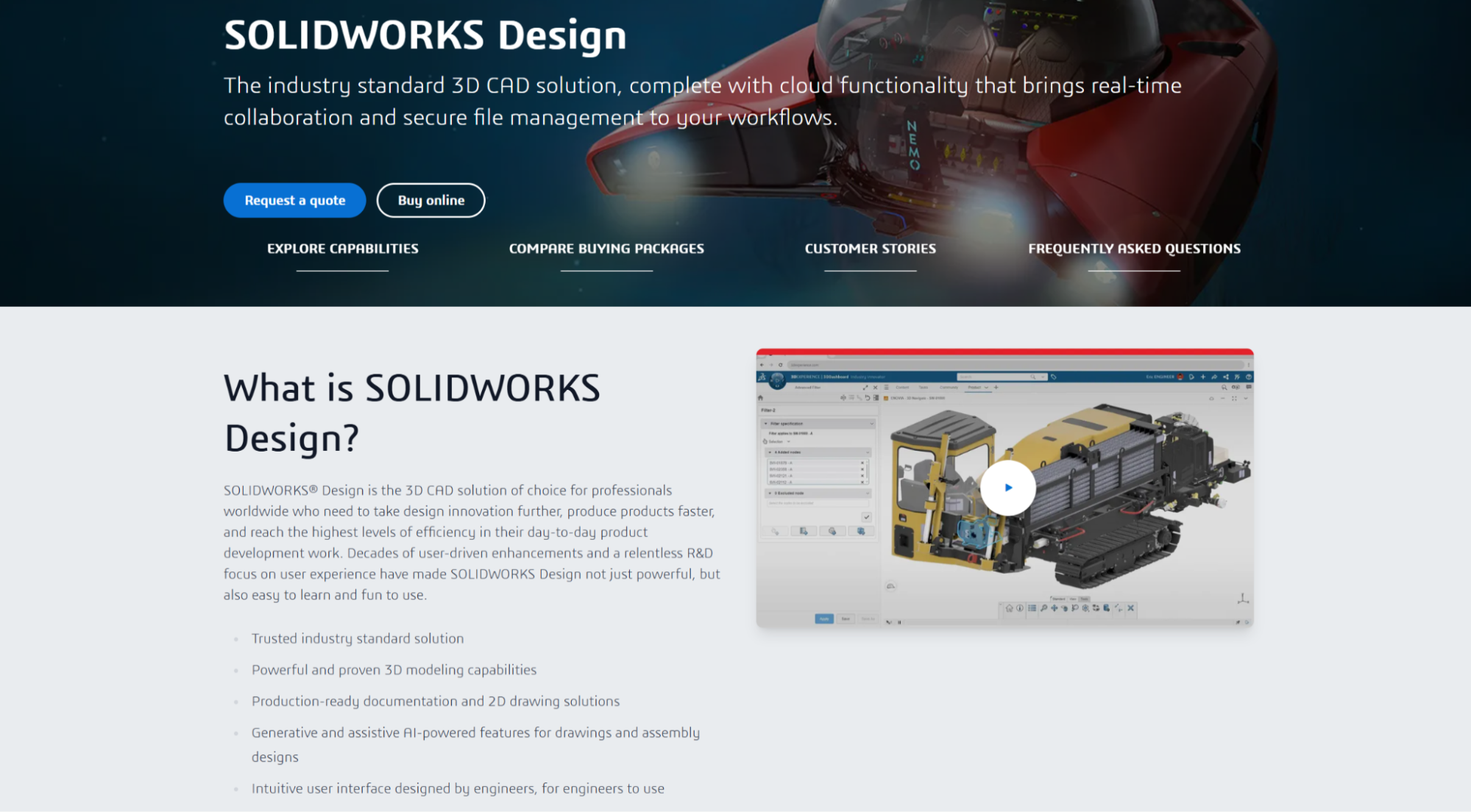
SolidWorks is the gold standard for manufacturing professionals and people who need to work in legacy industries and manufacturing.
It’s what most real-world engineers use in their projects.
To make it more accessible, SolidWorks recently introduced a Maker license that’s much more affordable than their commercial licences.
It gives you an entry to their software with basically all the top-tier features.
It is incredibly powerful for mechanical design, assemblies, and precise engineering work.
If you’re designing functional parts, replacement components, or anything that needs to meet specific tolerances, SolidWorks gives you the tools to do it right.
The downside is it’s Windows-only and still relatively expensive compared to free alternatives.
But if you’re serious about design work, it’s an investment that pays off.
Also Worth Knowing: FreeCAD
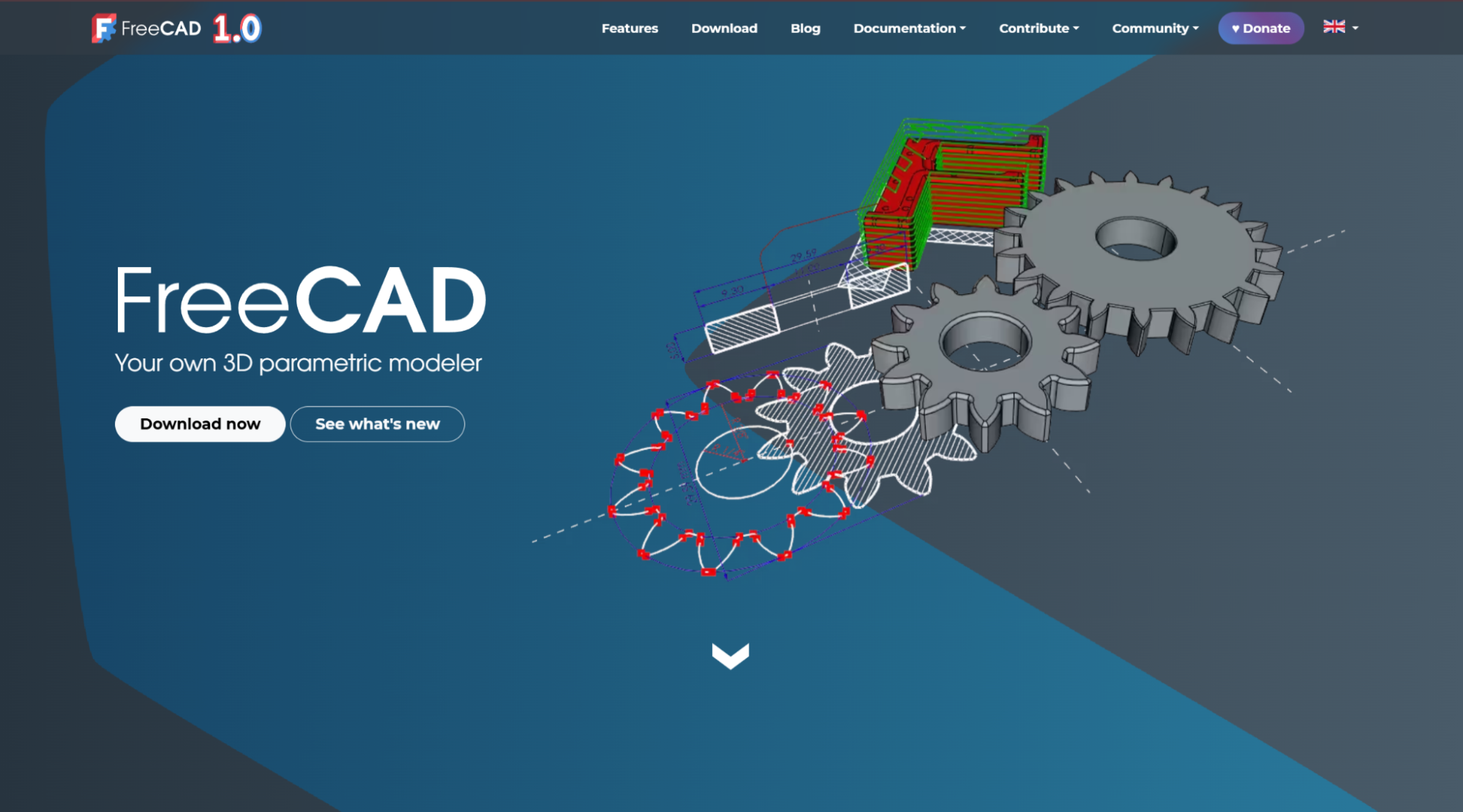
FreeCAD is a rare occurrence in the CAD modeling industry.
It is a completely free, open-source software that’s great if you want to have more professional-level features without paying for software.
The software does have a bit of a learning curve, as it’s less established and polished than its commercial counterparts.
But, for the grand prize of 0, it is surprisingly good and is in active development as well.
SketchUp is another intuitive software for architectural and geometric modeling.
Its free web-based version is decent for simple projects, though it’s less commonly used for mechanical 3D printing.
However, as an interior designer or an architect, if you’re familiar with SketchUp, it can be a great tool to turn your designs into real-world demonstrations with 3D printing!
Finding Ready-Made 3D Models
You don’t always need to design models from scratch.
There’s a massive ecosystem of free and paid 3D models available for download.
The three biggest repositories for 3D printable models are
Thingiverse
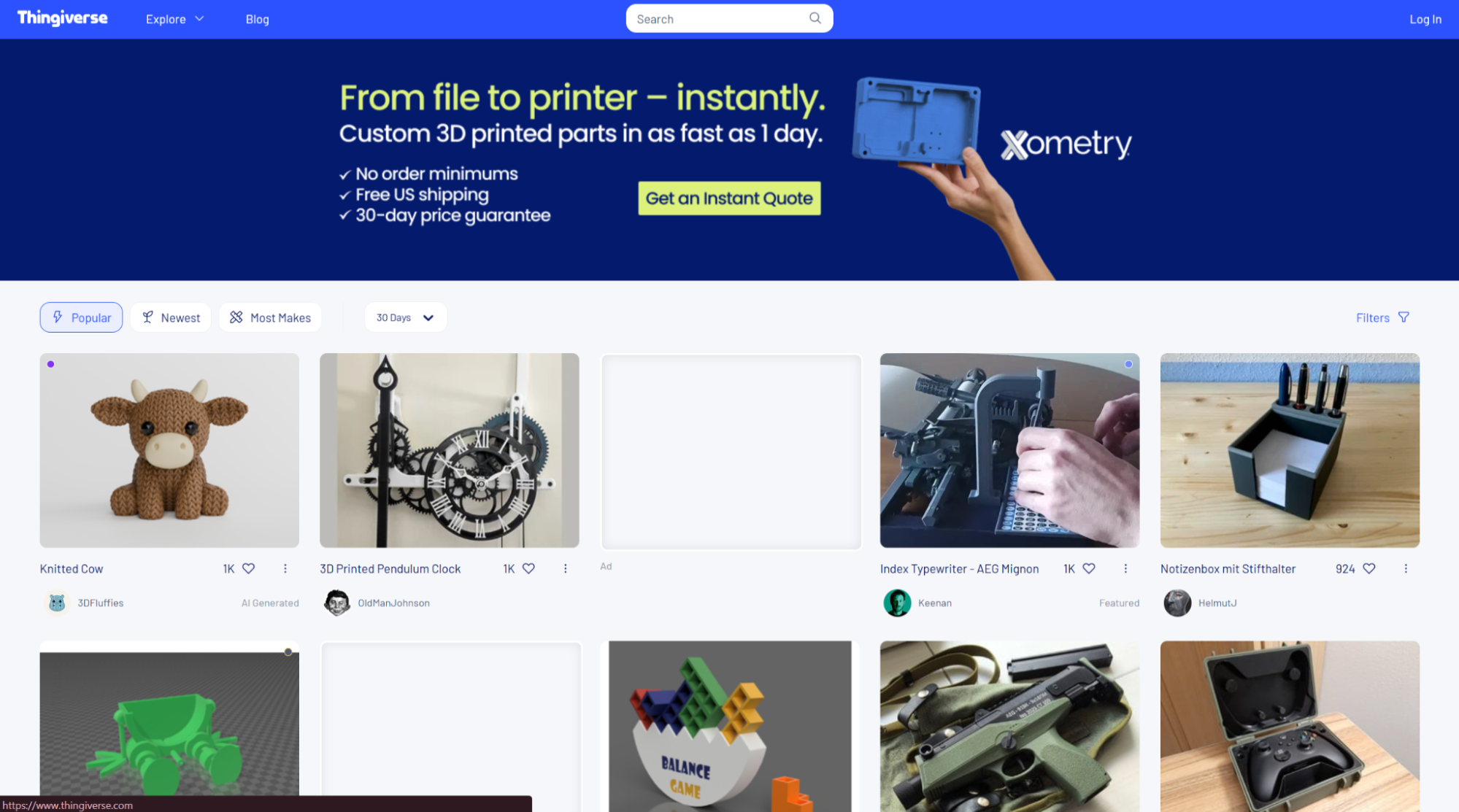
It hosts a collection of more than a million 3D printable models.
Thingiverse is one of the oldest and largest collections in the 3D printing ecosystem.
Here, you’ll find all the items, from practical household models to decorative pieces and toys.
Printables
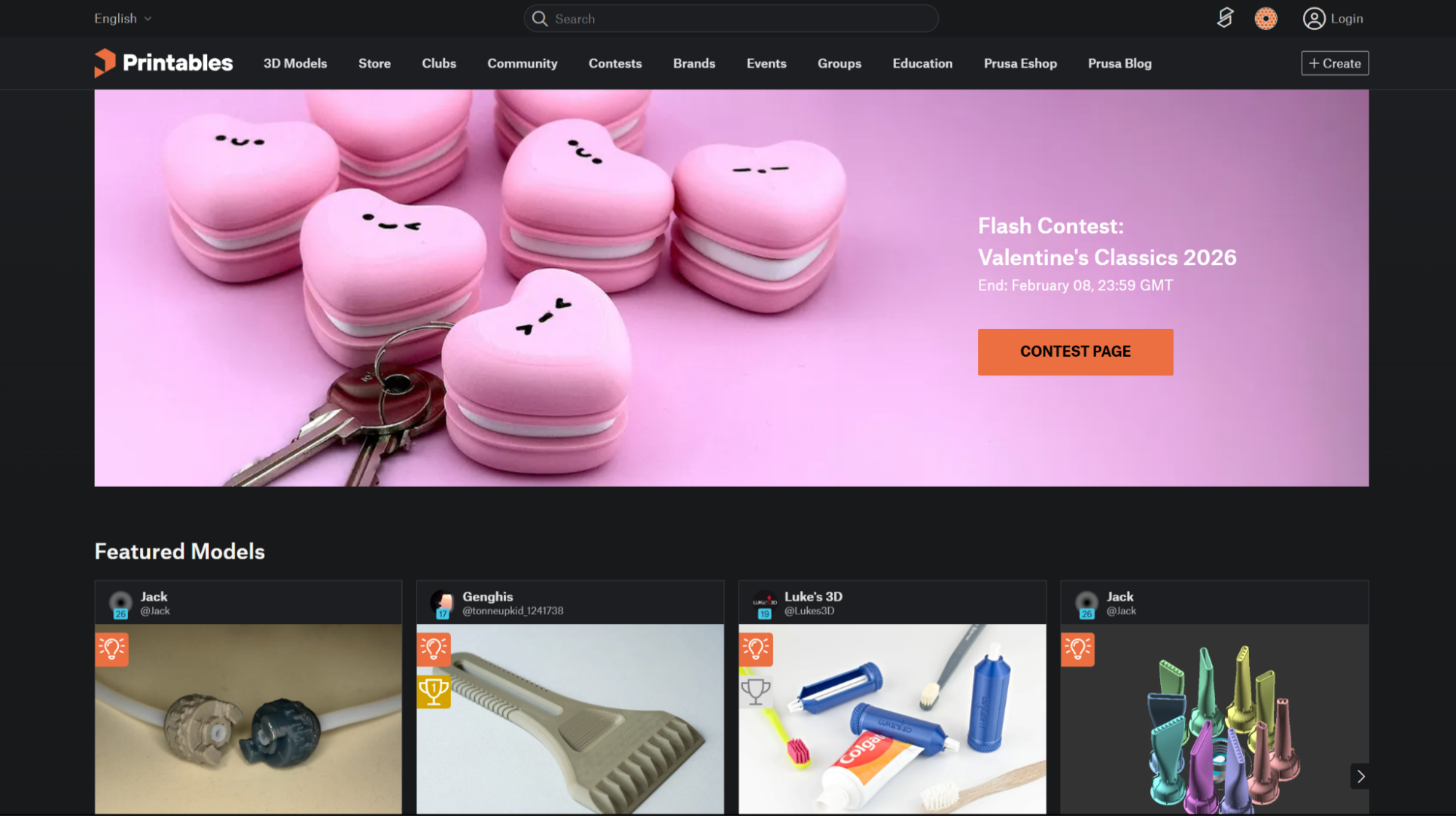
Printables is a recently launched 3D printing repository hosted and run by the Prusa team.
It gained massive popularity thanks to its reward system and an active community.
The quality control of the models in Printables is generally better, and the overall interface and user experience are good too.
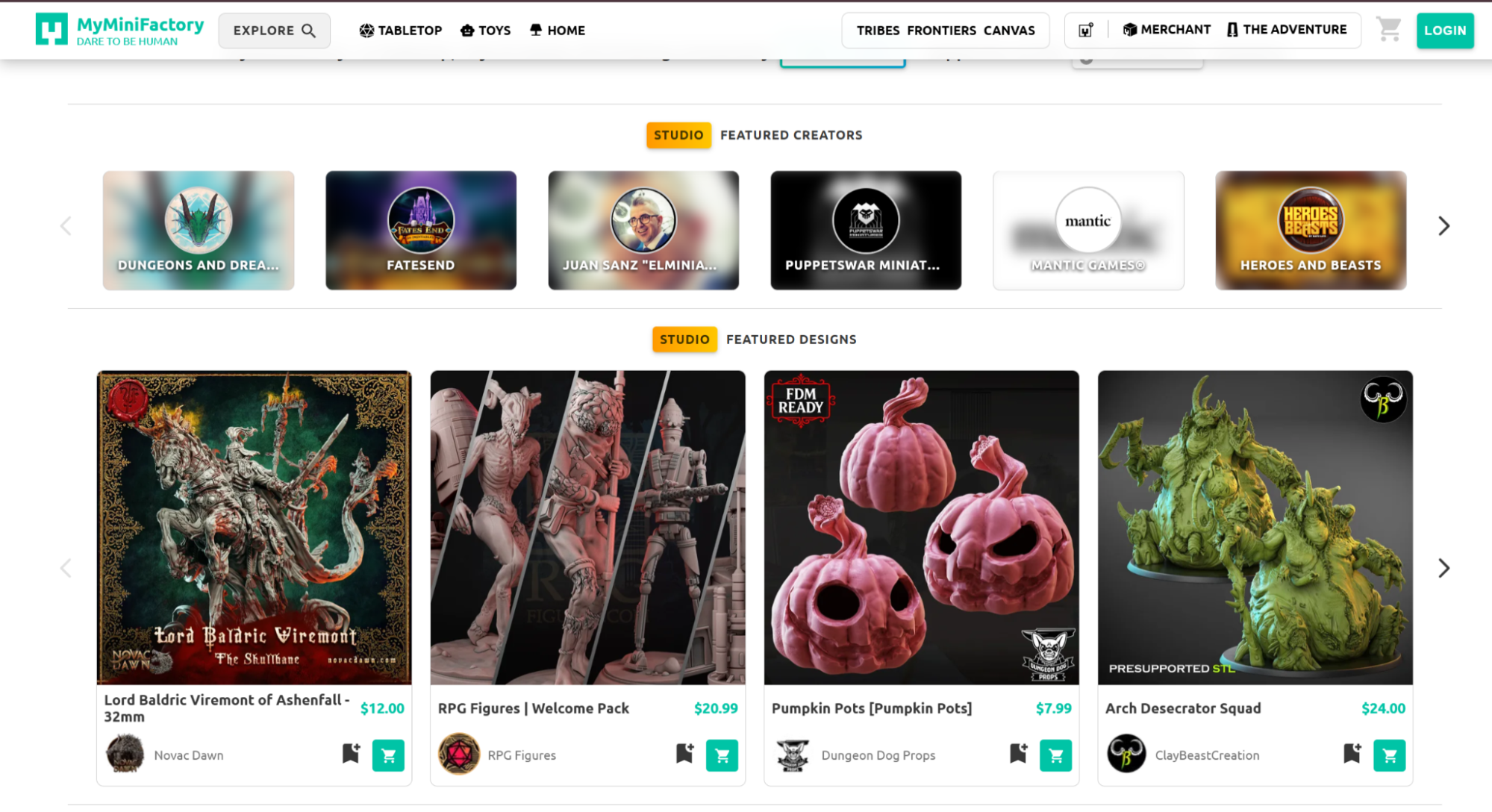
MyMiniFactory focuses on curated, quality-tested models. Everything is guaranteed to be printable, which saves you from downloading broken files.
However, it’s more inclined towards resin printing than FFF. Although you can still find some good FFF models on the website.
When you download models from these sites, they typically come as STL (Standard Tessellation Language) or 3MF (3D Manufacturing Format) files.
These are the file formats your slicing software expects, which brings us to our next category.
Slicing Software
The slicer is arguably the most important piece of software in your 3D printing workflow.
It ingests your 3D model and converts it into G-code—step-by-step instructions that tell your printer exactly what actions to perform, when, and where.
OrcaSlicer
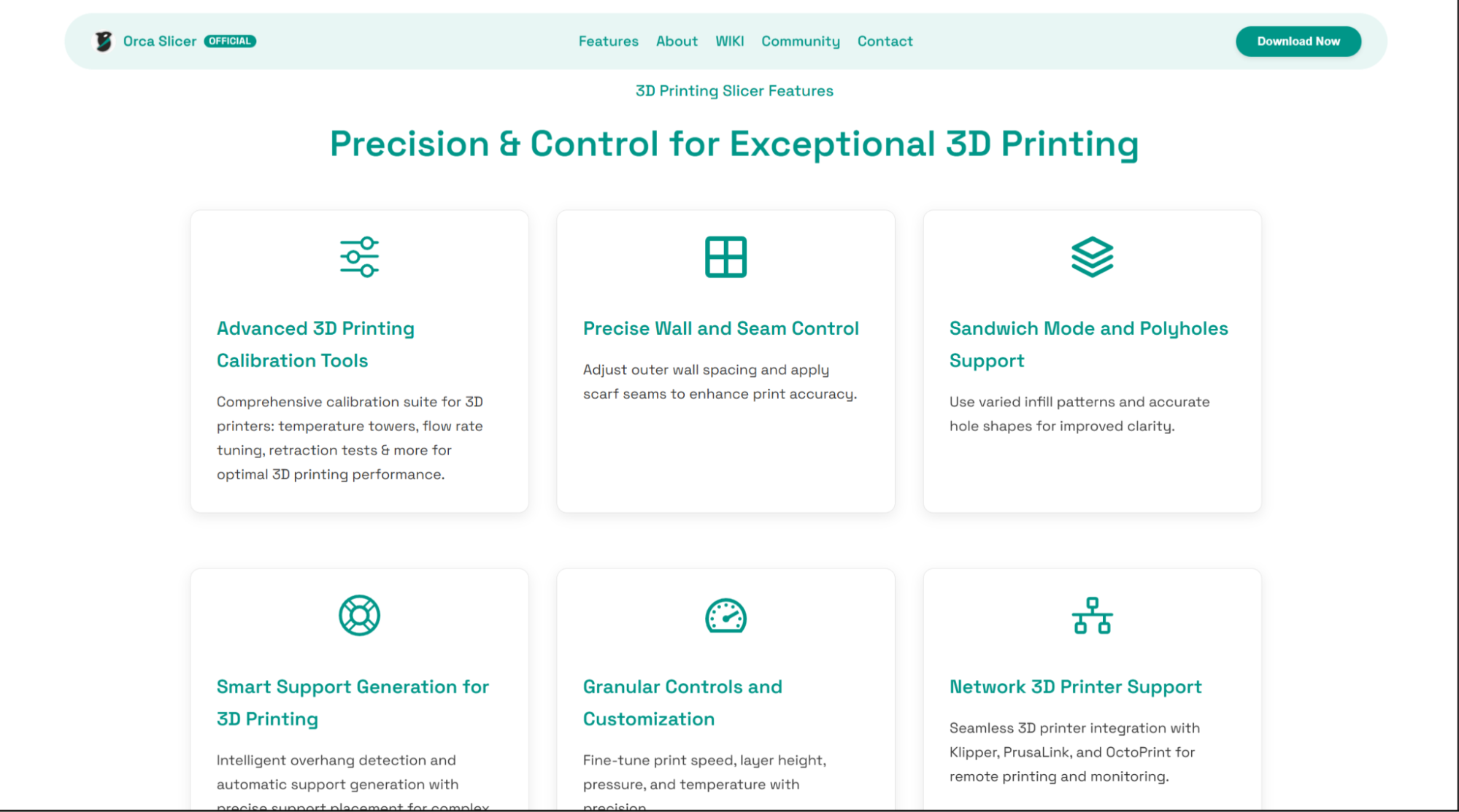
OrcaSlicer has quickly become one of the most popular and community-favorite software programs amongst 3D printing enthusiasts.
It’s a PrusaSlicer fork with additional features and improvements, which include better support generation, more intuitive interfaces for advanced settings, and built-in calibration tools.
What makes OrcaSlicer stand out is its active development and responsiveness to user feedback.
New features are added regularly, and it works with a wide range of printers beyond just Bambu Lab machines; plus, it’s completely free and open-source.
Ultimaker Cura
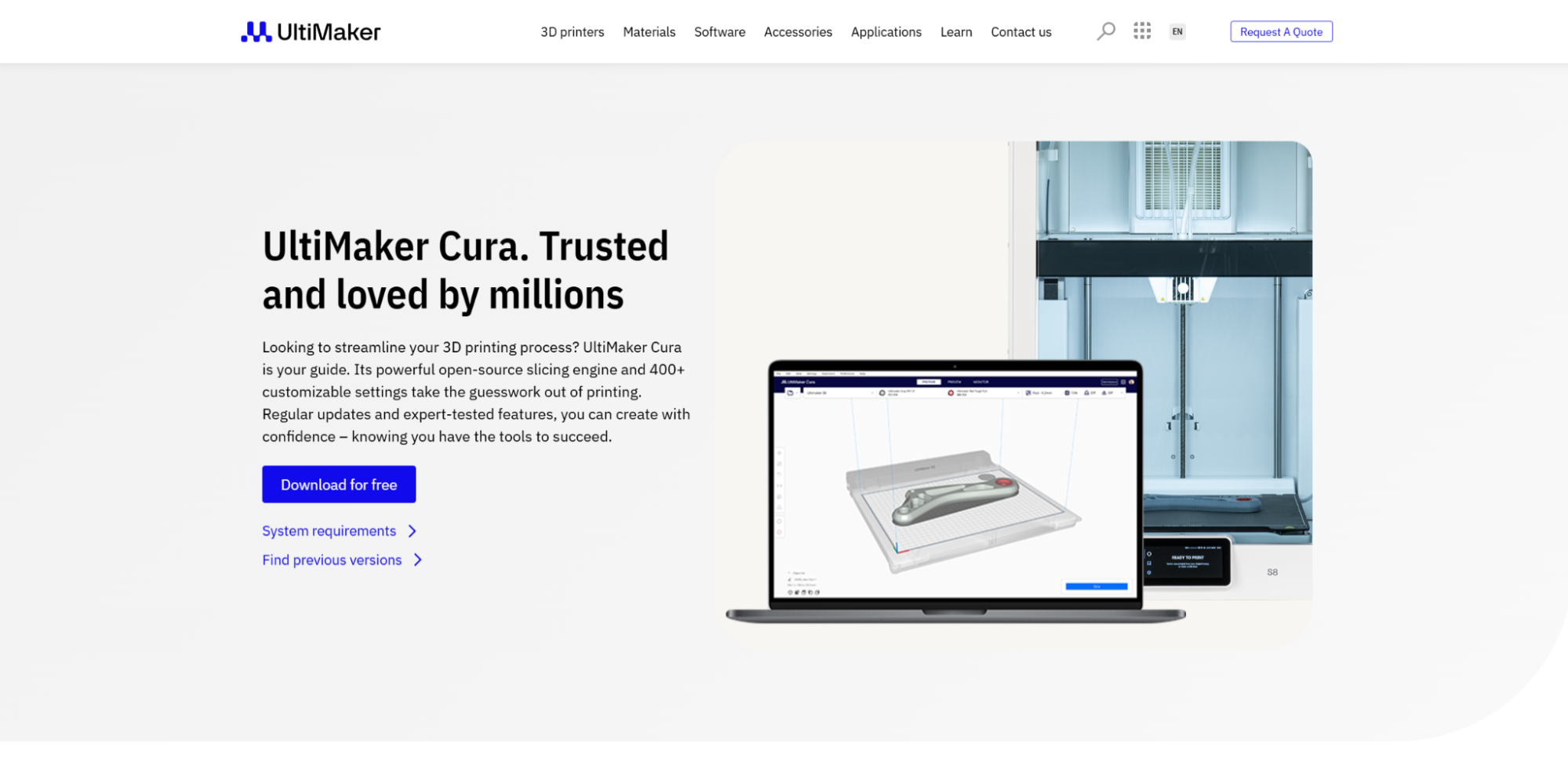
Probably the first slicer of many 3D printing users.
Ultimaker Cura has been the go-to slicer for years and continues to be so.
It’s free, well-documented, incredibly flexible, and supports virtually every FFF printer on the market.
The interface is clean and approachable for beginners, but under the hood, you have access to hundreds of advanced settings.
Cura’s plugin system is another major advantage.
It lets you extend the slicer’s functionality with community-created plugins for everything from better support placement to integrated file management.
If you’re not sure which slicer to choose, Cura is a safe bet.
PrusaSlicer
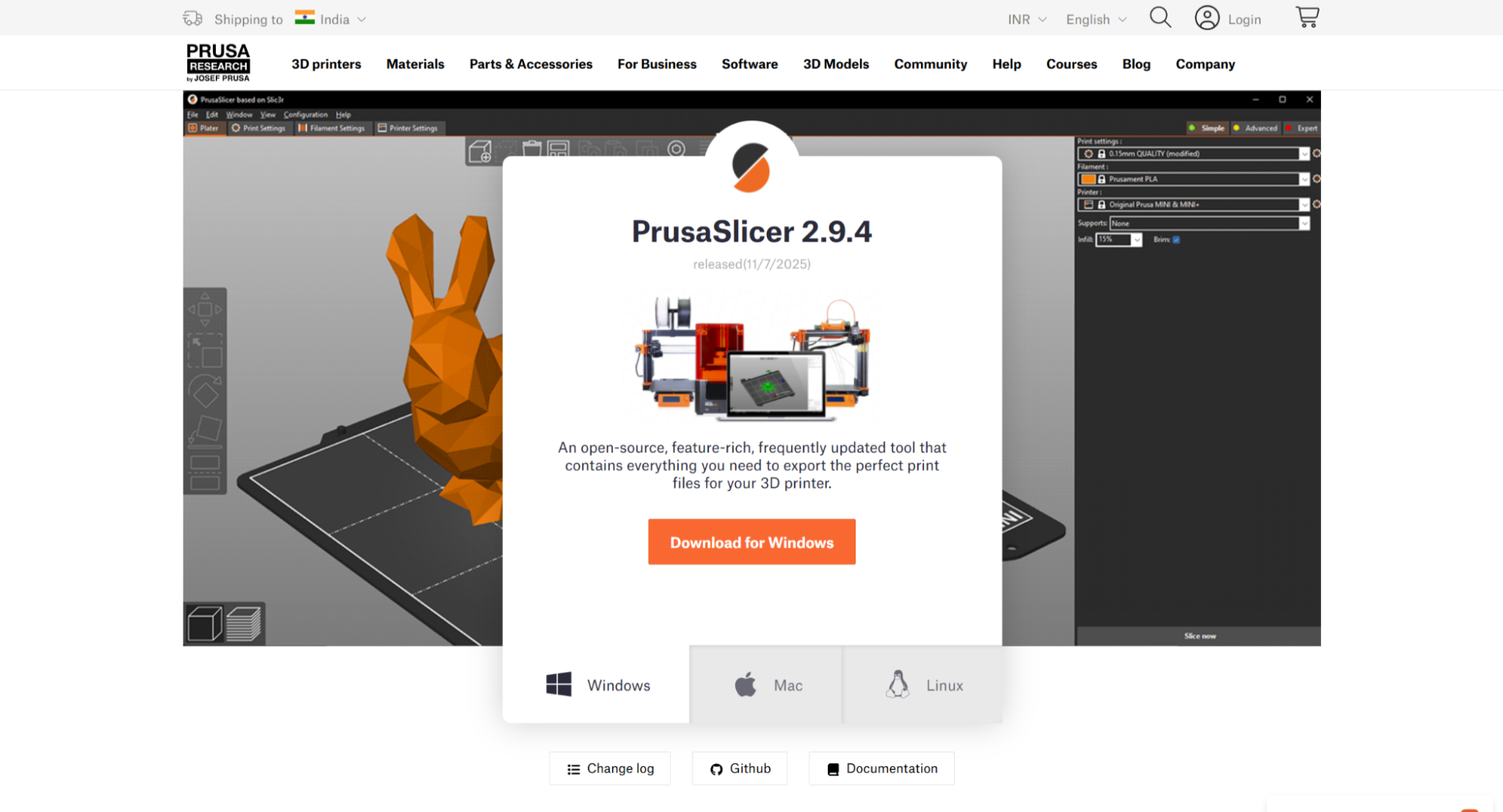
Developed by the Prusa Research team, PrusaSlicer is optimized for Prusa printers first.
However, it does work with several other brands too, except for Bambu Lab machines.
It strikes a good balance between ease of use and advanced features.
PrusaSlicer includes excellent variable layer height tools, great support generation, and a clean interface that makes it easy to switch between simple and expert modes.
Like Cura and OrcaSlicer, PrusaSlicer, too, is completely free and open-source.
Bambu Studio
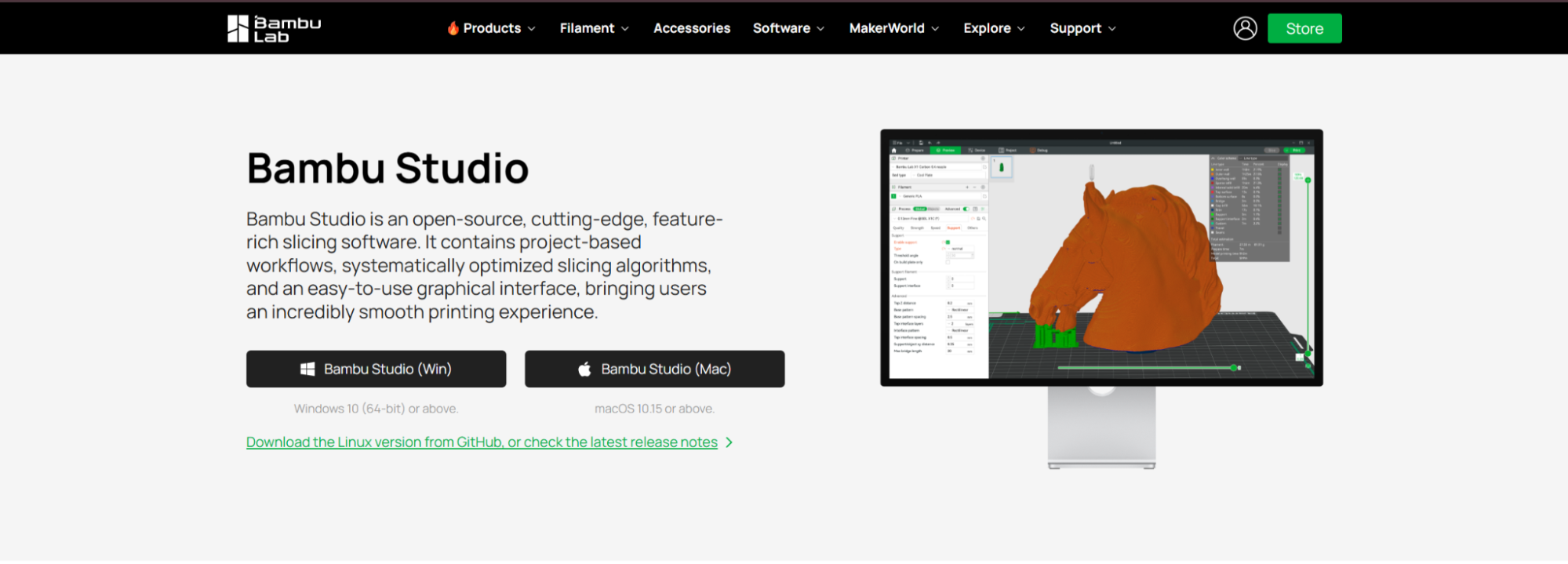
Bambu Studio is specifically designed for Bambu Lab printers and offers tight integration with their ecosystem.
It’s a fork of the PrusaSlicer, except for the Bambu Lab machines.
It has a neat user interface, the embossing and text and measurement features are nice, and the live control of the Bambu Lab printers is another plus.
If you own a Bambu printer, it’s worth trying alongside OrcaSlicer to see which you prefer.
Simplify 3D
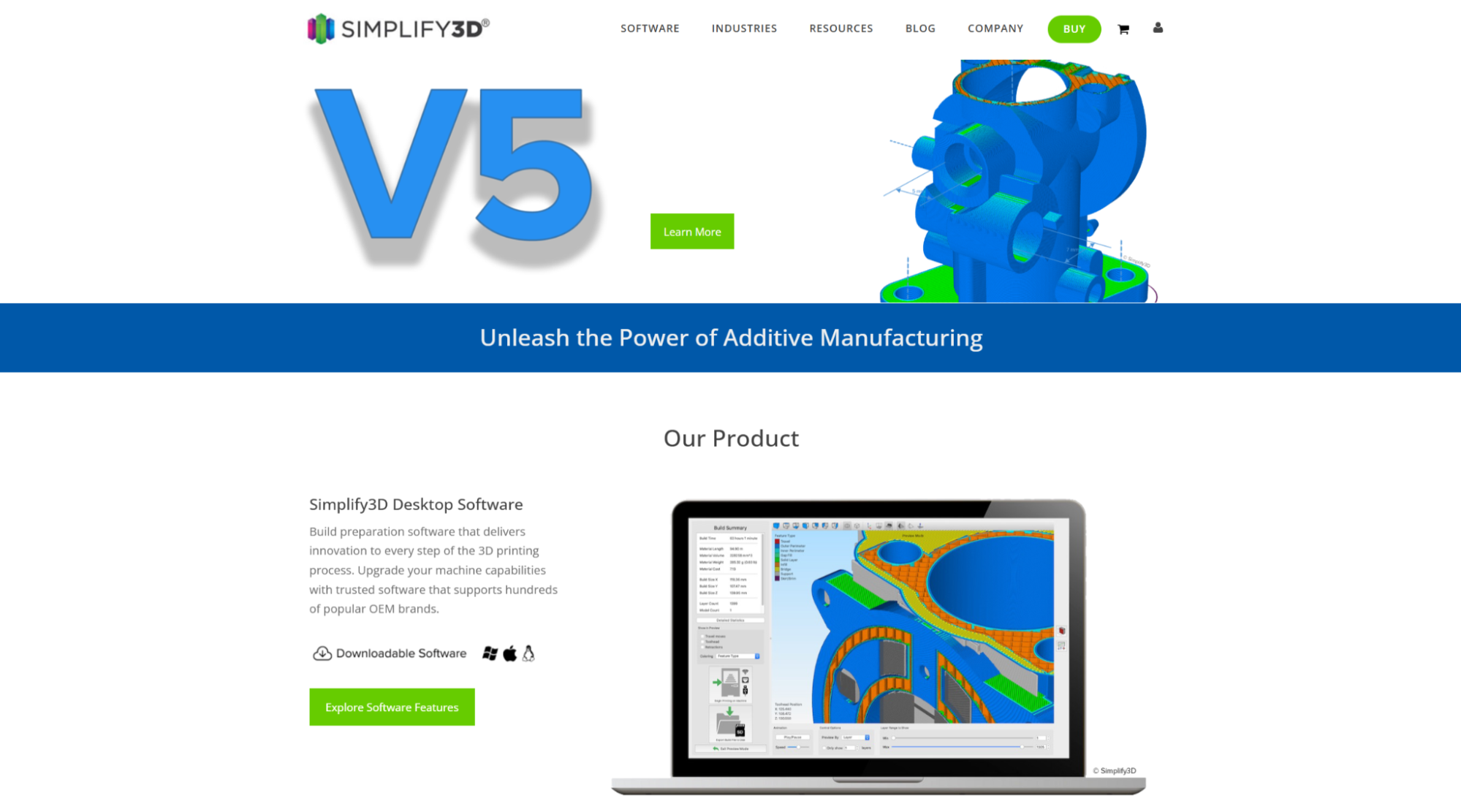
Simplify 3D is the outlier amongst the hobbyist 3D printing slicer software.
It is one of the only slicers to be a paid alternative (around $150) to others. It is snappy, the user interface is great, support generation is nice, and the printer compatibility is nice as well.
However, with free slicers like OrcaSlicer and Cura catching up in features, it’s harder to justify the cost unless you need specific functionality they offer.
3D Printer Control Software
Most modern 3D printers can work perfectly fine with just an SD card or direct USB connection, so this category is optional for many users.
However, if you want to level up your printing experience with remote monitoring, wireless printing, or advanced control features, these tools are worth considering.
OctoPrint
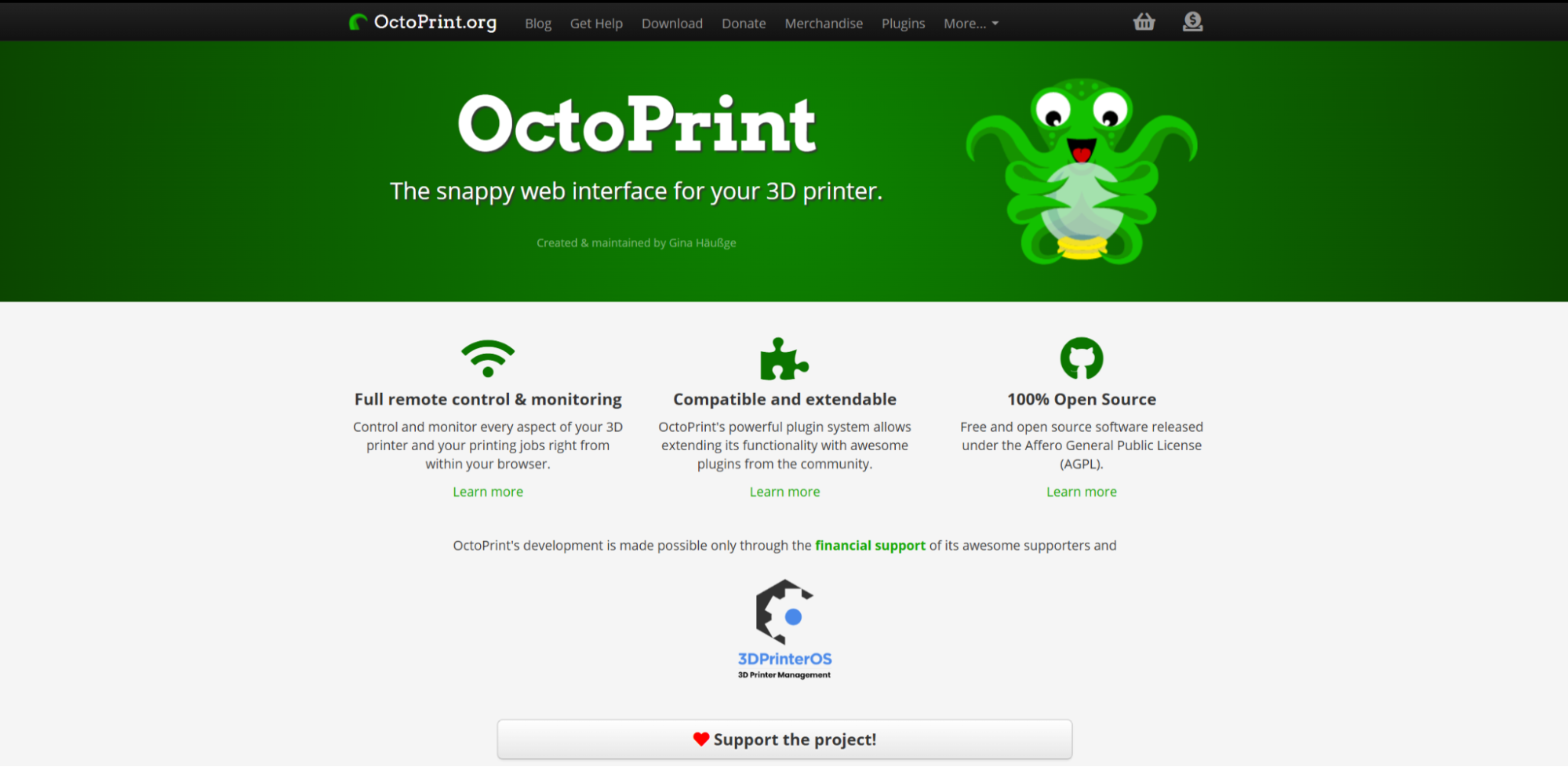
OctoPrint is the most popular solution for adding smart features to your 3D printer.
It runs on a Raspberry Pi (a ~$50-85 single-board computer) that connects to your printer via USB.
With OctoPrint, you can:
Upload and start prints from your computer or phone
Monitor print progress with a webcam
Receive notifications when prints finish
Create time-lapse videos of your prints
Access hordes of community-created plugins
The setup does require a bit of technical knowledge and can be overwhelming for a complete beginner.
But the OctoPrint community is incredibly helpful, and there are step-by-step guides for every popular printer model.
Klipper
Klipper is firmware that offloads processing from your printer’s control board to a Raspberry Pi or similar computer.
This allows for faster processing, which enables higher print speeds and more complex features.
Setting up Klipper is more technical than OctoPrint and typically requires some command-line knowledge and configuration file editing.
However, the performance improvements can be significant, especially on older printers with less powerful control boards.
Many users run Klipper alongside a web interface like Mainsail or Fluidd to get both the performance benefits and user-friendly control.
How to Choose the Right Software
Now we come to the million-dollar question—with all these options, how do you decide what’s right for you? Consider these factors:
Your Skill Level
If you’re a complete beginner, start with TinkerCAD and get the hang of the modeling concepts and 3D modeling workflow.
It’s free and easy to use.
For an experienced 3D user, you can go ahead with Fusion 360.
It gives you access to a vast array of tools and can help you get the most out of your 3D printing designs.
Your Intended Use
For designing functional and mechanical parts, go for parametric CAD software like Fusion 360, Onshape, or SolidWorks.
It gives you the ability to quickly iterate and suit the design to manufacturing needs.
If you’re an artist or want to 3D print organic models or shapes, Blender is your best bet.
It has a variety of tools, workflows, and applications, and while difficult, it can be a good choice once you get the hang of it.
Operating system
Most CAD software runs on Windows and Mac, but if you’re on Linux, your options are more limited (Blender, FreeCAD, and Onshape are your best bets).
Except for SolidWorks, it works natively only on Windows for now.
Budget
Many powerful options are free for personal use.
They’re great to begin with and know your needs and requirements from the workflow.
Only consider paid software if you need specific professional features or are doing commercial work.
Learning curve
Be realistic about how much time you can invest in learning.
Complex software like Blender or SolidWorks offers incredible capabilities but requires significant time investment.
Sometimes “good enough” tools that you can learn quickly are better than perfect tools you never master.
Choosing Slicing and Host Software
These software aren’t difficult to choose as CAD software and have little difference from the above category.
The choice of software often comes down to:
Printer compatibility
Almost every slicer works with every 3D printer.
However, some printer-slicer combinations might require a bit of tweaking around.
It’s best to choose the one that comes with your printer or the one that’s recommended by the community.
Some manufacturers provide pre-configured profiles that make setup easier.
Features you need
All modern slicers handle basic slicing well.
The differences come in advanced features like variable layer heights, intricate support generation, and calibration tools.
OrcaSlicer and PrusaSlicer excel here, while Bambu Studio, too, is great for Bambu Lab owners.
Community support
Popular slicers like Cura have massive communities, which means more tutorials, more help when you run into problems, and more shared print profiles.
However, as other slicers are getting popular, so are their communities, so PrusaSlicer and OrcaSlicer are up there too.
Price
Unless you need something very specific, there’s no reason to pay for slicing software.
The free options are genuinely excellent.
For printer control software, the decision is simpler: Do you want remote control and monitoring? If yes, set up OctoPrint.
Want better performance from your printer? Klipper might be worth the learning curve.
Happy printing directly from an SD card? You don’t need either.
Frequently Asked Questions
These are the questions that people often ask us, so here are the answers.
Do I need to pay for any 3D printing software?
Not necessarily.
Excellent free options exist for every category.
TinkerCAD, Fusion 360 (personal license), Blender, Cura, PrusaSlicer, OrcaSlicer, and OctoPrint are all free.
You might only need paid software for professional work or specific commercial requirements.
Can I use different software together?
Absolutely! Most makers use different tools for different jobs.
You might design in Fusion 360, slice in OrcaSlicer, and control your printer with OctoPrint.
The ecosystem is designed to work together.
Just make sure everything in your 3D printing ecosystem speaks STL and G-code.
Which slicer is best for beginners?
Cura is the most beginner-friendly with the most tutorials available, but honestly, any modern slicer works fine for beginners.
Start with whatever your printer manufacturer recommends, and switch later if you feel limited.
Do I need to learn CAD if I only print downloaded models?
Not at all. Millions of people enjoy 3D printing without ever designing their own models.
However, learning basic CAD opens up a lot of possibilities—you can customize downloaded models, fix broken files, or create exactly what you need rather than hoping someone else has designed it.
Summary
Getting started with 3D printing software and the whole process doesn’t have to be overwhelming.
The overall workflow is straightforward: get a 3D model (design it or download it), slice it into printer instructions, and optionally use control software to manage your printer.
Start with TinkerCAD and Cura and then expand your toolkit as you grow.
Fusion 360 is also a decent second choice for 3D CAD modeling.
Remember, the best software is the one you’ll actually use.
Don’t get paralyzed trying to pick the “perfect” tool.
Download a few options, try them out with some test projects, and see what feels right.
You can always switch later, and most skills transfer between similar tools.