AutoCAD Dynamic Blocks, a complete tutorial
Dynamic blocks in AutoCAD are like blocks on steroids. In a regular AutoCAD block, you can use one base point and maybe rotate or scale it and that will be almost all the flexibility it has to offer. But in a dynamic block, you can stretch it, change its shape, change it entirely to a [ ]
Dynamic blocks in AutoCAD are like blocks on steroids.
In a regular AutoCAD block, you can use one base point and maybe rotate or scale it and that will be almost all the flexibility it has to offer.
But in a dynamic block, you can stretch it, change its shape, change it entirely to a different type and a lot more.
As an example here is the dynamic block that we will learn to make in this article.
Essentially using the single dynamic block we will make the pipe diagram where the pipe length can be changed, the direction of flanges can be changed, T and elbow joints can be added anywhere and a lot more.
The final block in our example will look like the following image, here it is made with just one single block used several times over in this drawing.
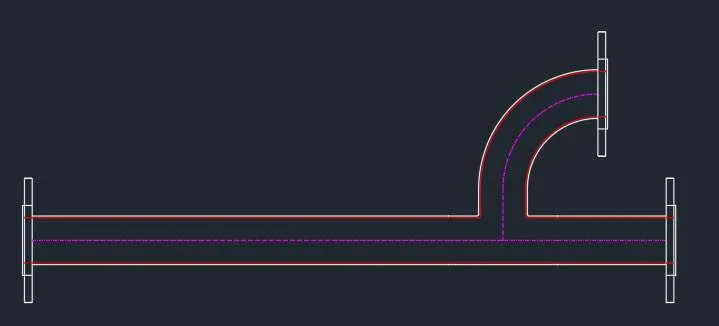
In this article, I will show you the step-by-step method of making the pipe-fitting dynamic block as shown above.
Using this dynamic block you can make as many configurations of pipe fittings as you like.
If you want a video of this tutorial then here it is, if however, you want the text tutorial then keep reading.
So, let’s begin with the simple drawing that will make the building block of this pipe dynamic block.
Starting the dynamic block
I will start with the basic sketch of the different views of the pipe diagram that we want to make.
As shown in the following drawing we will make the front and top view of the flange, then make the pipe and its T and elbow joints.
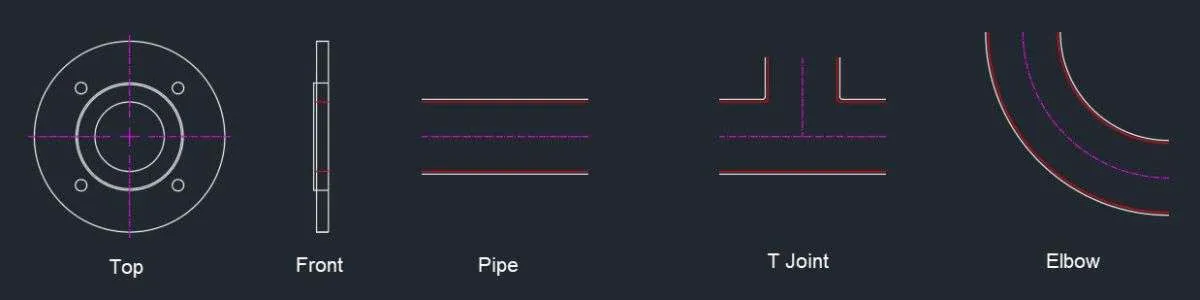
Once we have these, we are ready to convert them into a real AutoCAD dynamic block.
There are several ways of doing this and I will use a simple method for this but before we do that let’s see what we want the block to look like in the end.
- The pipe should be stretchable so that it’s length can be changed.The front of the flange should be able to rotate so that we can fix it in any direction.
- All these parts of this piping diagram should be made using one single dynamic block.
- The centerline of all the block views should align with one another.
- Keeping these conditions in mind we will make the dynamic block, so, let’s get started with the Block command.
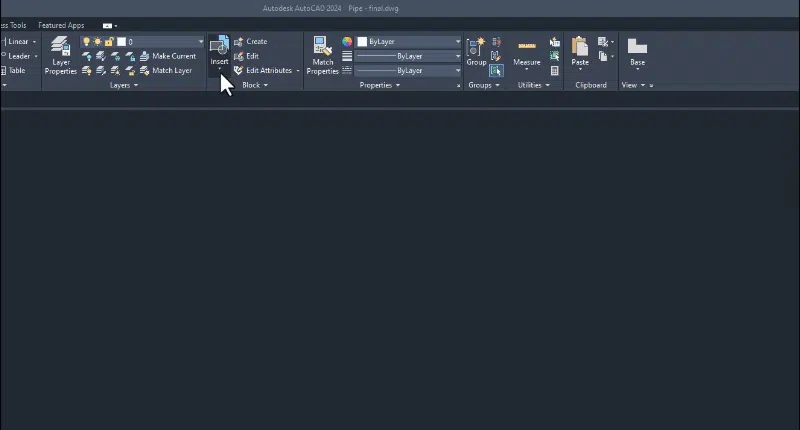
You can type B and press enter to start the block command or you can also click the “create” option on the block panel to start the command as shown in the following image.

Now the block Definition palette will open up.
Select the name of the block from this palette in the Name field, I am using “Pipe block” as the name for this example.
Then click the “Pick point” box and select the centre of the top view of the flange.
Then click the “Select objects” option from the Block Definition palette and select all the objects from the drawing area and press enter.
In the behaviour panel make sure “Allow exploding” is checked and “Annotative” as well as “Scale uniformly” options are not checked.
Finally, click the “open in block editor” option on the lower left corner of the “Block definition” palette and click OK.
Here are all these steps as shown in the following animated image.
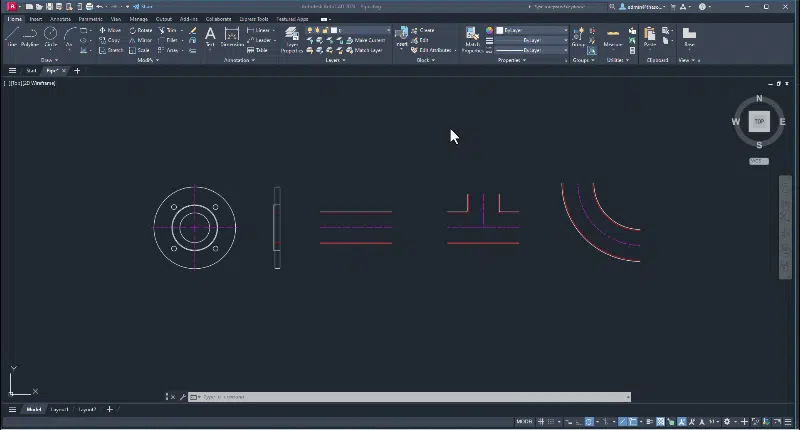
The drawing will now open in the block editor and here you can add the dynamic properties to the block.
We will start with the visibility settings in our dynamic block but before we do that, we need to make our drawings manageable by separating them into 5 groups.
Making groups from block drawings
We need to merge all of these separate pipe drawings into one using the visibility parameter and for that, we need to place all of these drawings on top of one another.
This is problematic as this will just make the entire drawing very confusing like the following image.
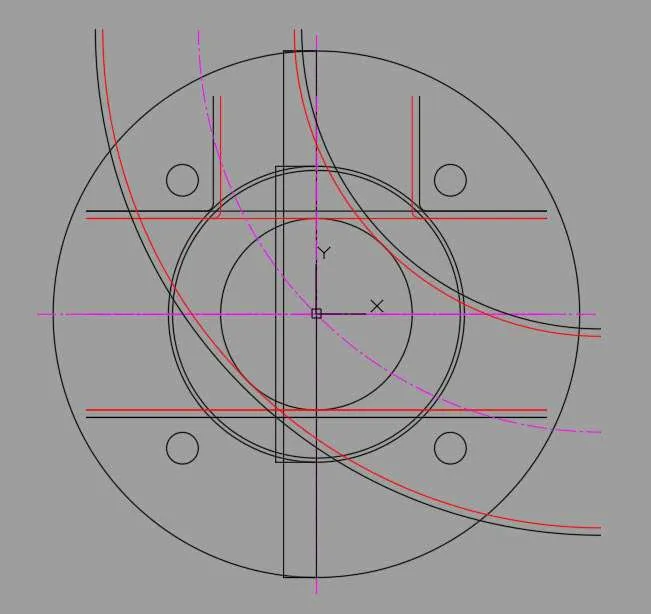
So, to fix this issue I will convert all of these separate drawings into groups so that all the separate views like Front view, Top view, Pipe, T joint and Elbow joint are easily selectable when working with block editing tools.
Grouping will make selecting these objects easier and then we can select these objects as one unit rather than making a selection of the entire set of lines, circles and other geometries that make up these drawings.
This grouping is a temporary arrangement and after converting everything into a dynamic block we can break these groups.