How to add Datum Feature symbol in AutoCAD
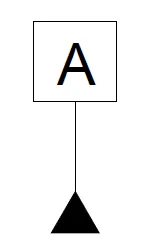
Datum feature symbol (shown in the image below) is used to specify datum geometries like plane and surface which act as a reference for measuring dimensions. AutoCAD supports many geometric dimensioning and tolerancing symbols within its feature control frame. And you can easily add feature control frames using Tolerance option of AutoCAD dimensions panel but [ ]
Datum feature symbol (shown in the image below) is used to specify datum geometries like plane and surface which act as a reference for measuring dimensions.
AutoCAD supports many geometric dimensioning and tolerancing symbols within its feature control frame.
And you can easily add feature control frames using Tolerance option of AutoCAD dimensions panel but unfortunately, there is no direct option of adding a datum feature symbol in AutoCAD.
So you have to improvise a little bit to add it to the AutoCAD drawing.
In this article, I will show you two simple methods of adding Datum feature symbol in AutoCAD.
let’s start with the first method which is Multileader option.
Using Multileader
To create datum feature symbol we need to create a new Multileader style.
Type MLS on the command line and press enter.
From Multileader style manager window, click on New button then name new style as MULTI and click on continue.
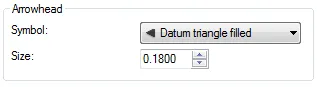
Click on Leader Format tab and locate Arrowhead panel, select Datum triangle filled from Symbol drop down menu as shown in the image below.
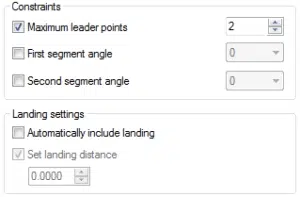
Select Leader Structure tab then Click on Maximum leader points radio button of Constraints panel and type 2.
Uncheck Automatically include landing radio button on Landing settings panel, see the image below.
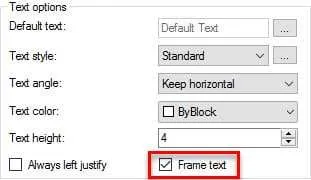
Now go to the Content tab and click on Frame text radio button on text options panel as shown in the image below.
Click OK and then click on Close to get out of Multileader style manager window.
Select this multileader style as default and create multileader, it will look like a Datum feature symbol.
Using Block with Attribute
In this method, we will make our own Datum feature symbol using Block and attributes.
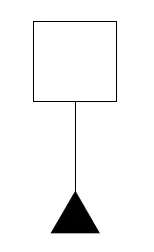
Make a drawing that looks like the identifier symbol as shown in the following image.
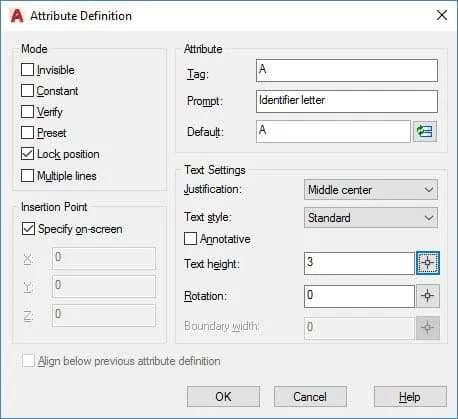
After making the drawing type ATT on the command line to start attribute definition window.
Type A in the tag field, in prompt field type “Identifier letter” and leave Default field empty.
Set text justification to Middle center and an appropriate height of the text, then click on OK to accept these changes.
Click at the center of the rectangle of the datum feature symbol to place the tag.
Now convert this drawing along with attribute definition into a block.
Now this block can be used as an identifier symbol wherever required, and each time you add this block it will prompt you to specify identifier letter.
You can also rotate this symbol to place on different planes using the Rotate command or you can add rotate parameter and action to making it a dynamic block.
Summary
As you can see both the methods are not direct way of adding datum feature symbol but they work quite well.
Let me know if you have questions related to this article in the comment section down below.