How to Export STL from SolidWorks and Fusion 360 for 3D Printing
You have finished the design, everything looks right on the screen, and now you just need to send it to the 3D printer. One quick export and you are done. That part should take two minutes, right? Well, as soon as you load the STL into your slicer and the part is the size of [ ]
You have finished the design, everything looks right on the screen, and now you just need to send it to the 3D printer.
One quick export and you are done.
That part should take two minutes, right?
Well, as soon as you load the STL into your slicer and the part is the size of a grain of rice, or it looks fine on screen but prints with visible faceting on every curved surface.
Or the file opens in the slicer with a mesh error warning and you are not sure what that even means.
None of these are unusual.
These “errors” catch most people at least once, and they almost always trace back to the same few settings.
This guide walks through the export process for both SolidWorks and Fusion 360, what the settings actually mean, and how to catch problems before they waste your entire 3D print.
If you are working the other direction, converting an existing STL back into an editable SolidWorks model, that workflow is covered separately.
What an STL file actually is
An STL file does not store your perfect CAD geometry.
It approximates every surface using a mesh of flat triangles.
The finer the mesh, the closer those triangles follow your original curves – but also the larger the file.
The format also contains no unit information.
It is just a list of triangle coordinates.
When your slicer opens the file, it does not know whether those coordinates are in millimeters, inches, or centimeters – it just assumes a default, usually millimeters.
If that assumption is wrong, your part comes out at the wrong scale.
This single fact causes more confusion and frustration in beginners than almost anything during the export process.
Before you export from either tool
Two quick checks before you touch the export dialog will save you from the most common failures:
1. Confirm you have a solid body, not surfaces.
Open shells and surface bodies look fine in the modeling window but will not export as a clean, printable mesh.
In SolidWorks, the FeatureManager should show a “Solid Bodies” folder, not “Surface Bodies.” In Fusion 360, check the browser tree and confirm the body icon looks solid, not hollow.
2. Check your units.
In SolidWorks, go to Tools > Options > Document Properties > Units.
In Fusion 360, click the document settings icon at the top of the browser tree.
Note the unit system before you export and make sure your slicer is set to match.
Exporting STL from SolidWorks
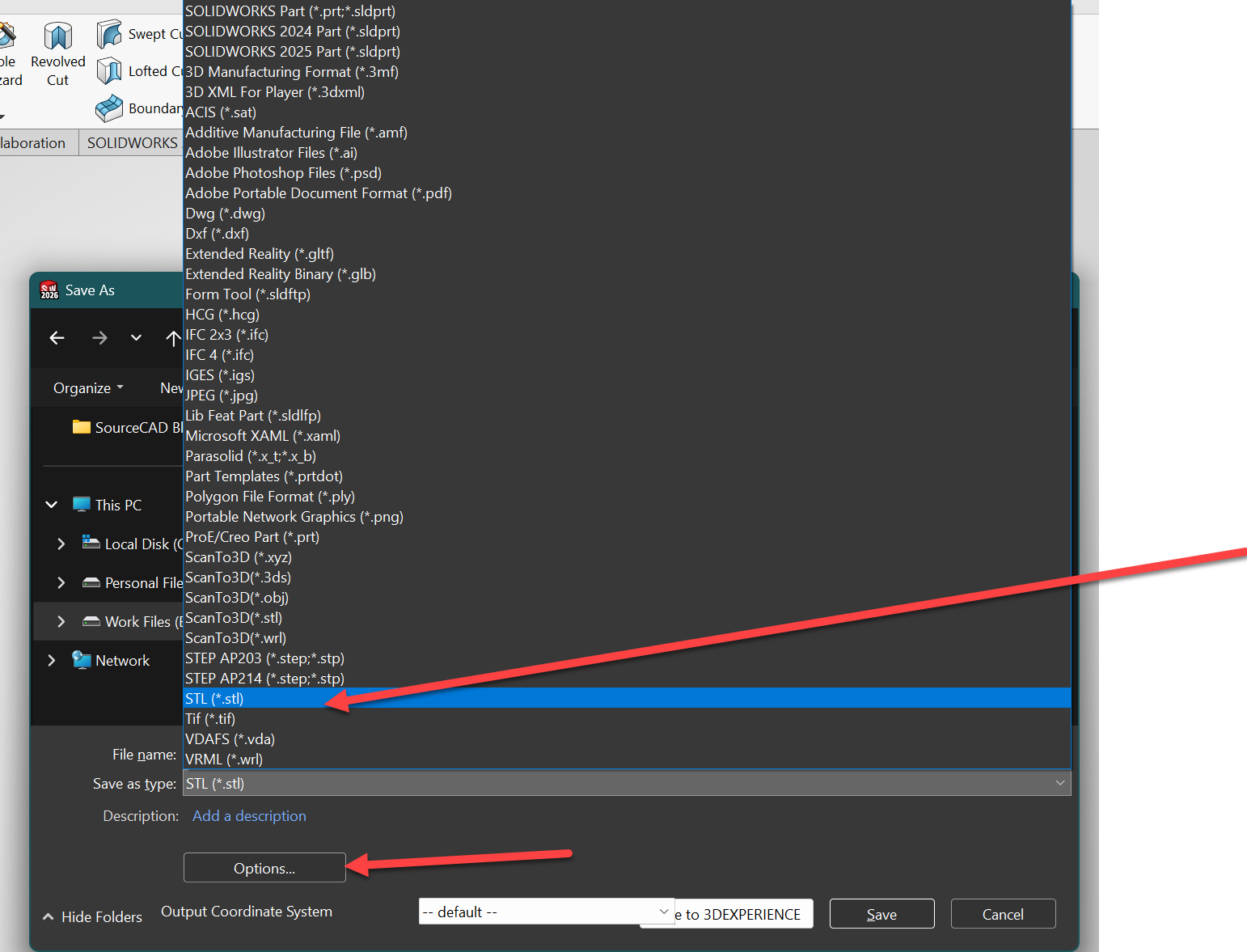
Here are the steps:
1. Go to File > Save As
2. In the Save As Type dropdown, select STL
3. Before clicking Save, click the Options button that appears at the bottom of the dialog
4. Set your format and resolution (explained below)
5. Click OK, then Save
Skipping the Options dialog is THE most common mistake.
That is where the quality settings for your STL file are managed.
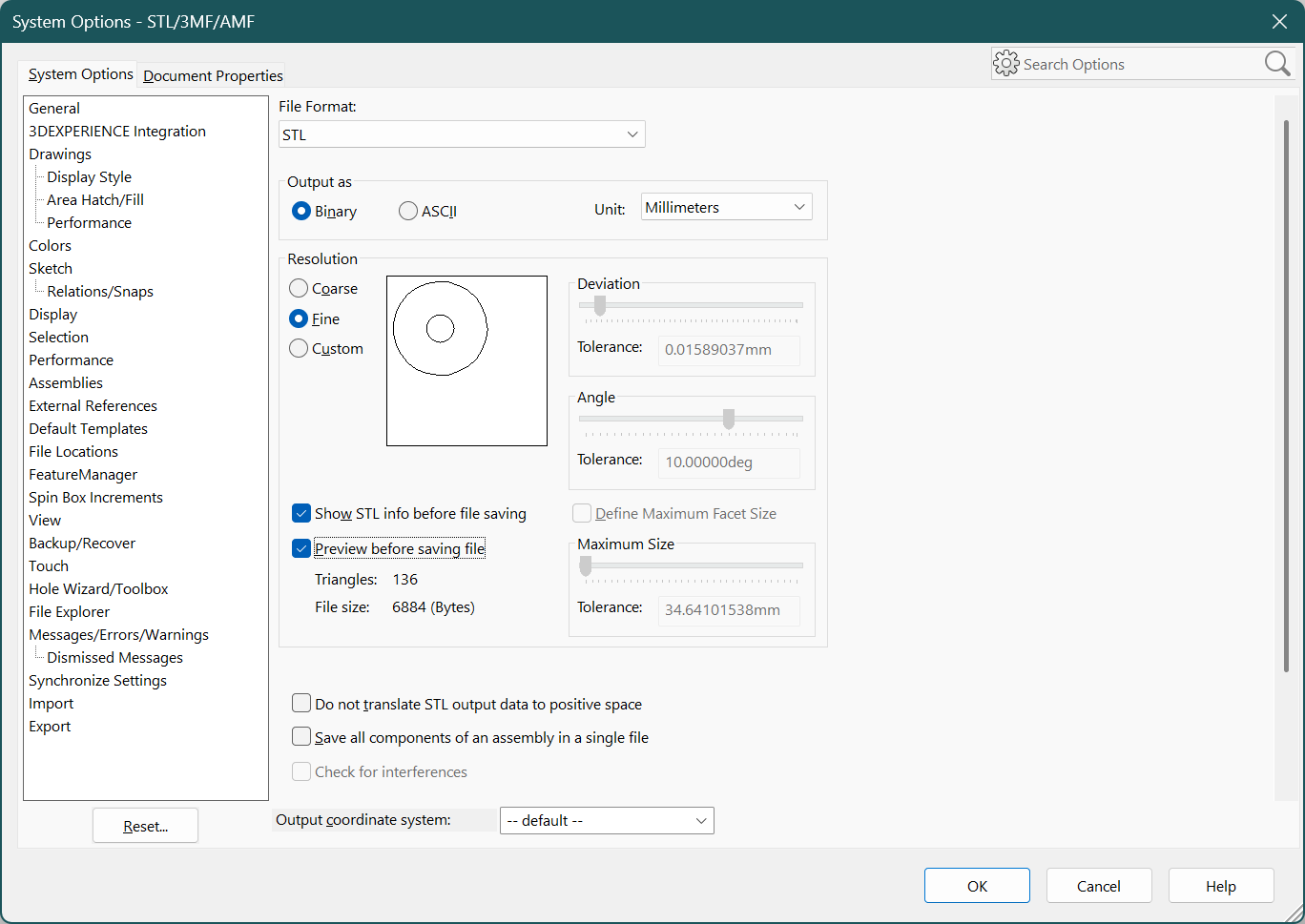
In the Options dialog, the first thing you see is the Output As section.
Always select Binary.
Binary STL files are roughly five to six times smaller than ASCII for the same geometry, and every modern slicer and 3D printing service accepts them.
ASCII is human-readable text – occasionally useful for debugging – but there is no practical reason to use it for printing.
Resolution settings
The Resolution section gives you three options:
● Coarse – Small file, fast export. Fine for sanity checks, but curved surfaces will look visibly faceted on the printed part.
● Fine – Tighter tolerances, denser mesh. This is the right default for most parts.
● Custom – Manual control over two values: Deviation and Angle.
When you choose Custom, two fields appear:
● Deviation (chord tolerance) – the maximum distance between the original CAD surface and the triangulated mesh surface.
● Angle – the maximum angular deviation between adjacent triangles.
Smaller values on both produce a more accurate mesh and a larger file.
For functional mechanical parts, Fine is usually enough.
For cosmetic parts or tight-tolerance mating surfaces, use Custom and set Deviation to 0.01 mm (or 0.001 inches).
Going tighter than that rarely adds visible quality for desktop FDM printing and just makes the file harder to work with.
Exporting assemblies
If you are exporting an assembly to print as one piece, check “Save all components of an assembly in a single file” before exporting.
Without it, SolidWorks creates a separate STL for each component.
Whether you want one merged file or individual files depends on how the parts are being printed.
File size check
After export, glance at the file size.
A simple bracket or housing should be well under 5 MB at sensible resolution settings.
If a small mechanical part is coming out at 50 MB or more, the deviation tolerance is too tight.
Most desktop 3D printers cannot resolve detail finer than about 0.1 mm, so there is no benefit in pushing beyond that.
Exporting STL from Fusion 360
Fusion 360 gives you two routes to an STL file. Both produce the same result – the difference is mainly in how you access them.
Method 1: Save As Mesh (right-click from the browser)
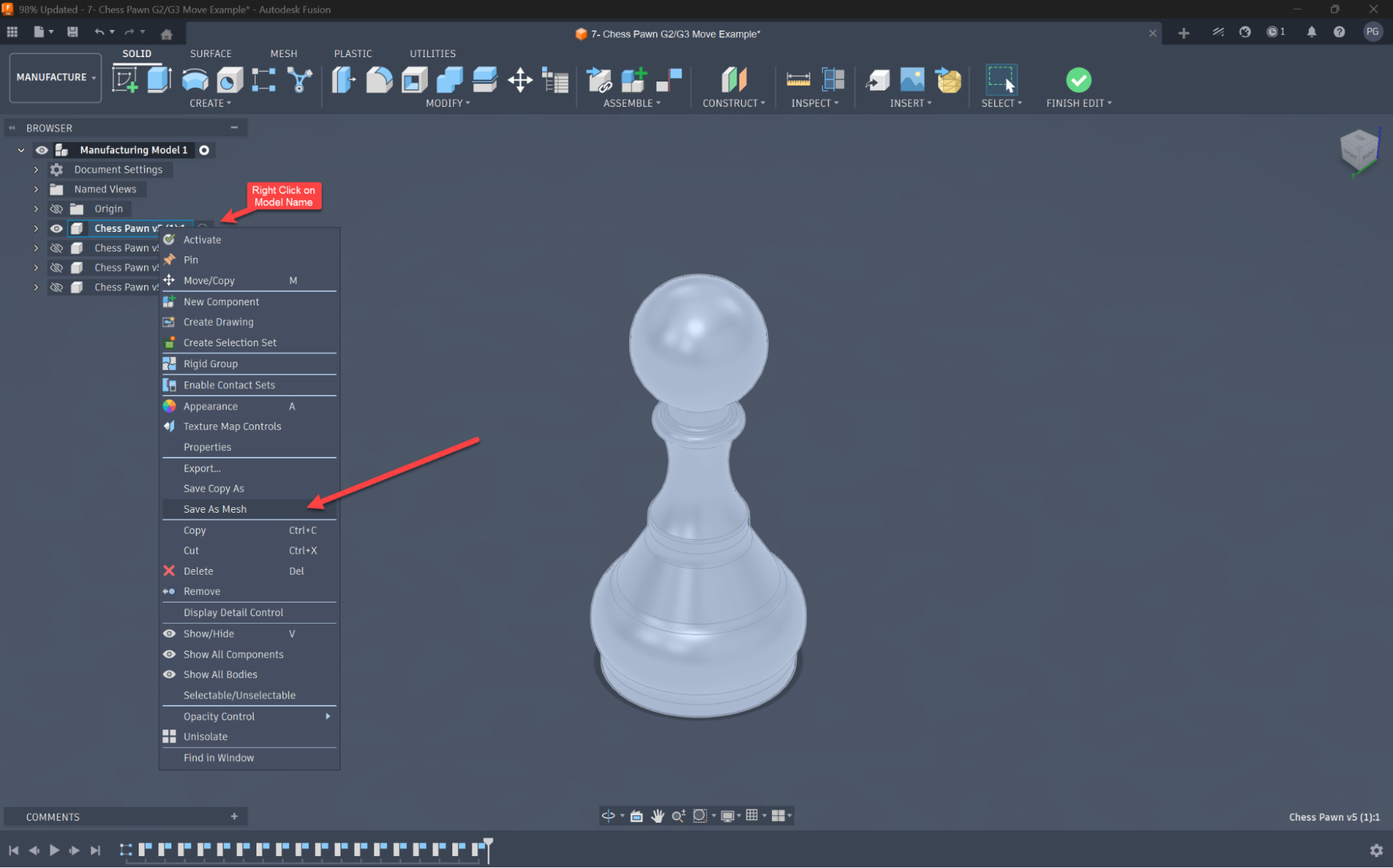
This is the faster option for most situations
1. In the browser tree on the left, right-click the body or component you want to export
2. Select Save As Mesh
3. Set your options in the dialog (see below)
4. Click OK
The dialog has three key settings:
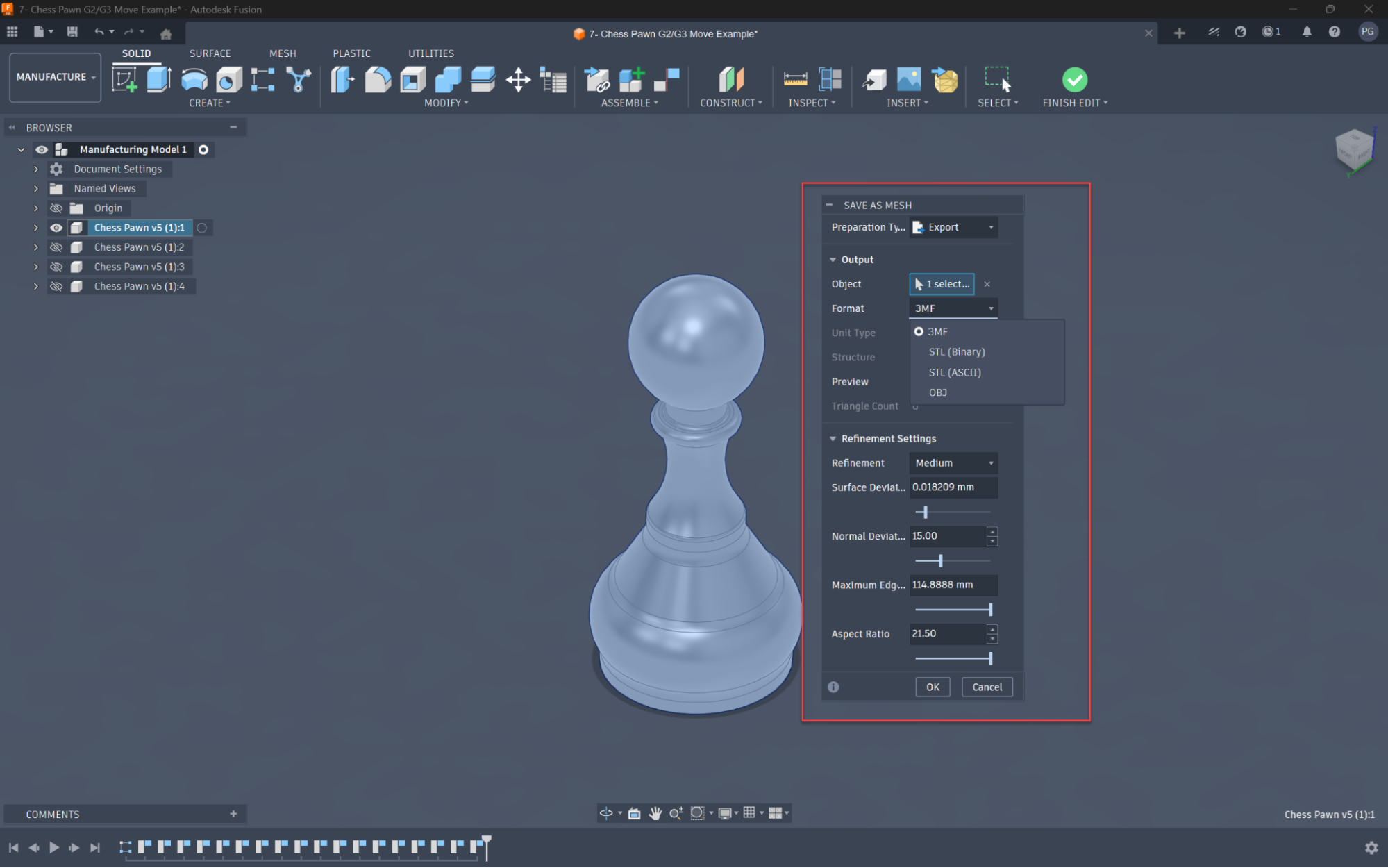
● Format – Choose between STL (Binary), STL (ASCII), 3MF, or OBJ. For 3D printing, pick STL Binary unless your slicer supports 3MF (more on that below).
● Structure – One File exports everything as a single STL.
Individual Bodies exports each body separately.
Use One File for single components; decide per-body for multi-body prints.
● Refinement – Sets the mesh quality.
Options are Low, Medium, High, or Custom.
The refinement levels in plain terms
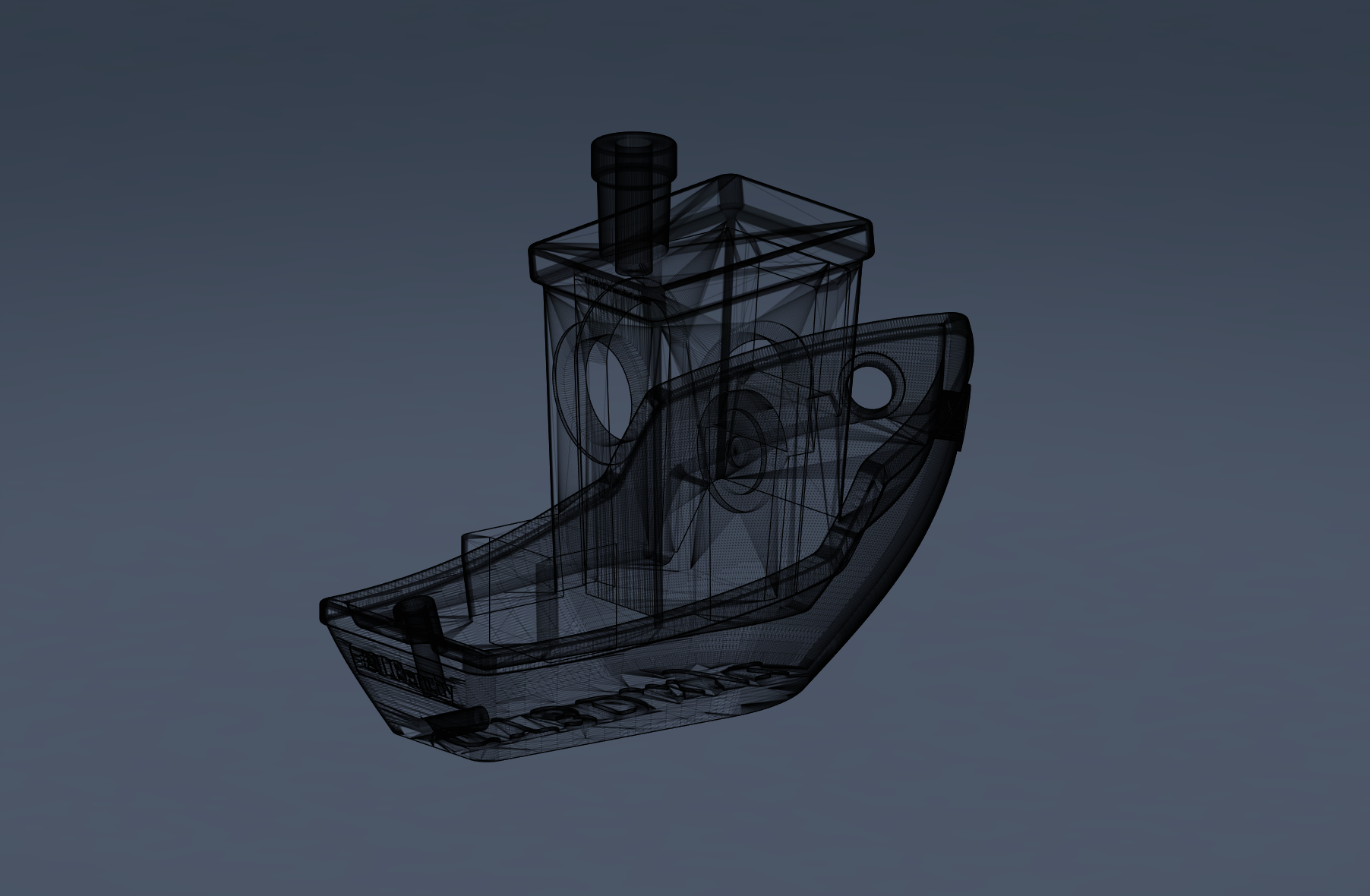
● Low – Coarse mesh, small file.
Good for quick previews, not for final prints.
● Medium – Balanced quality and file size.
The right default for most mechanical parts.
● High – Dense mesh for smooth curves.
Use this for organic shapes, figurines, or parts where surface finish matters.
● Custom – Lets you set Surface Deviation, Normal Deviation, Maximum Edge Length, and Aspect Ratio manually.
Method 2: Utilities > 3D Print
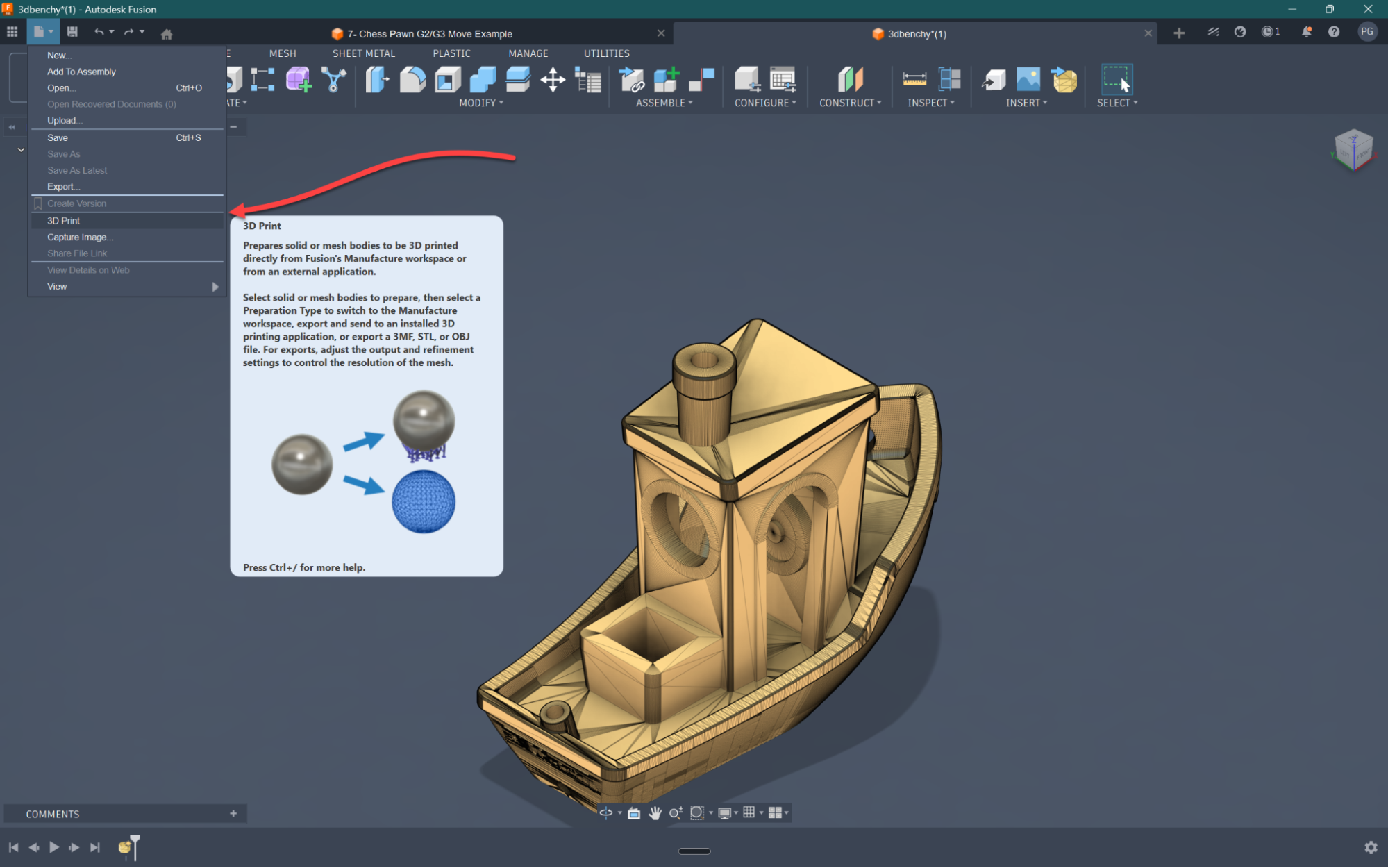
Go to Utilities > 3D Print (or File > 3D Print in some versions).
The dialog offers the same refinement settings as Save As Mesh, but with one extra option: Send to 3D Print Utility.
This launches a connected slicer directly and passes the file to it, skipping the save-and-import step.
If you are iterating quickly between design and print, it saves a few clicks each time.
Although it requires a tad bit of set up before you 3D print.
A note on Fusion 360 and units
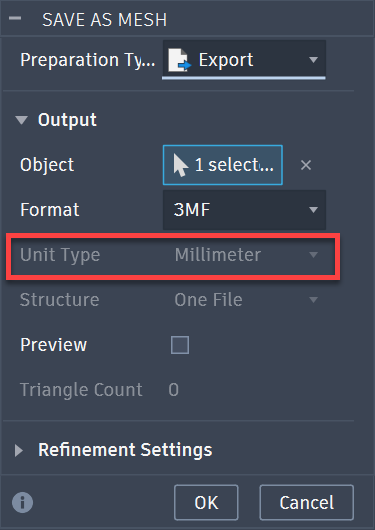
Fusion 360 uses millimeters internally for STL export by default, even if your design document is set to inches.
This is a known behavior and it catches people out regularly.
If your part was designed in inches, it may arrive in
the slicer at 1/25.4 of the intended size because the slicer reads millimeter coordinates and treats them as millimeters. The fix:
● Check the unit setting in the Save As Mesh export dialog (Fusion 360 added an explicit units option in recent versions)
● Or verify the dimensions in your slicer immediately after import, before slicing
Catching this early takes ten seconds. Catching it after a three-hour print does not.
Checking your STL before you slice
Loading the file into your slicer and eyeballing it is not enough.
Some mesh problems are invisible on screen but cause failed prints or wrong geometry mid-job.
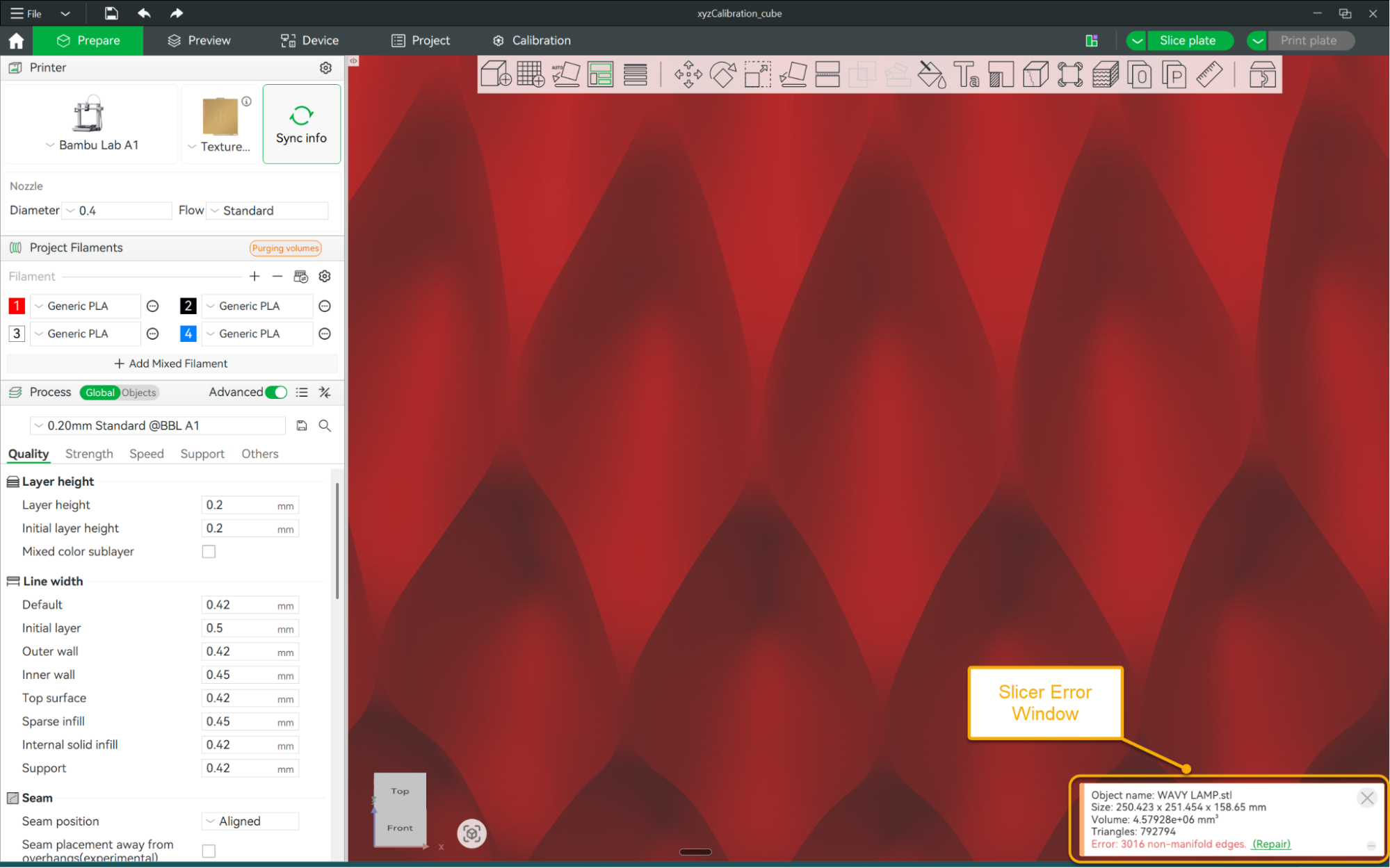
Quick check: Load the STL into PrusaSlicer or Bambu Studio and look for any repair warnings.
Both slicers can flag common issues automatically.
PrusaSlicer shows a red error icon on the model if it detects problems; Bambu Studio too displays a similar badge.
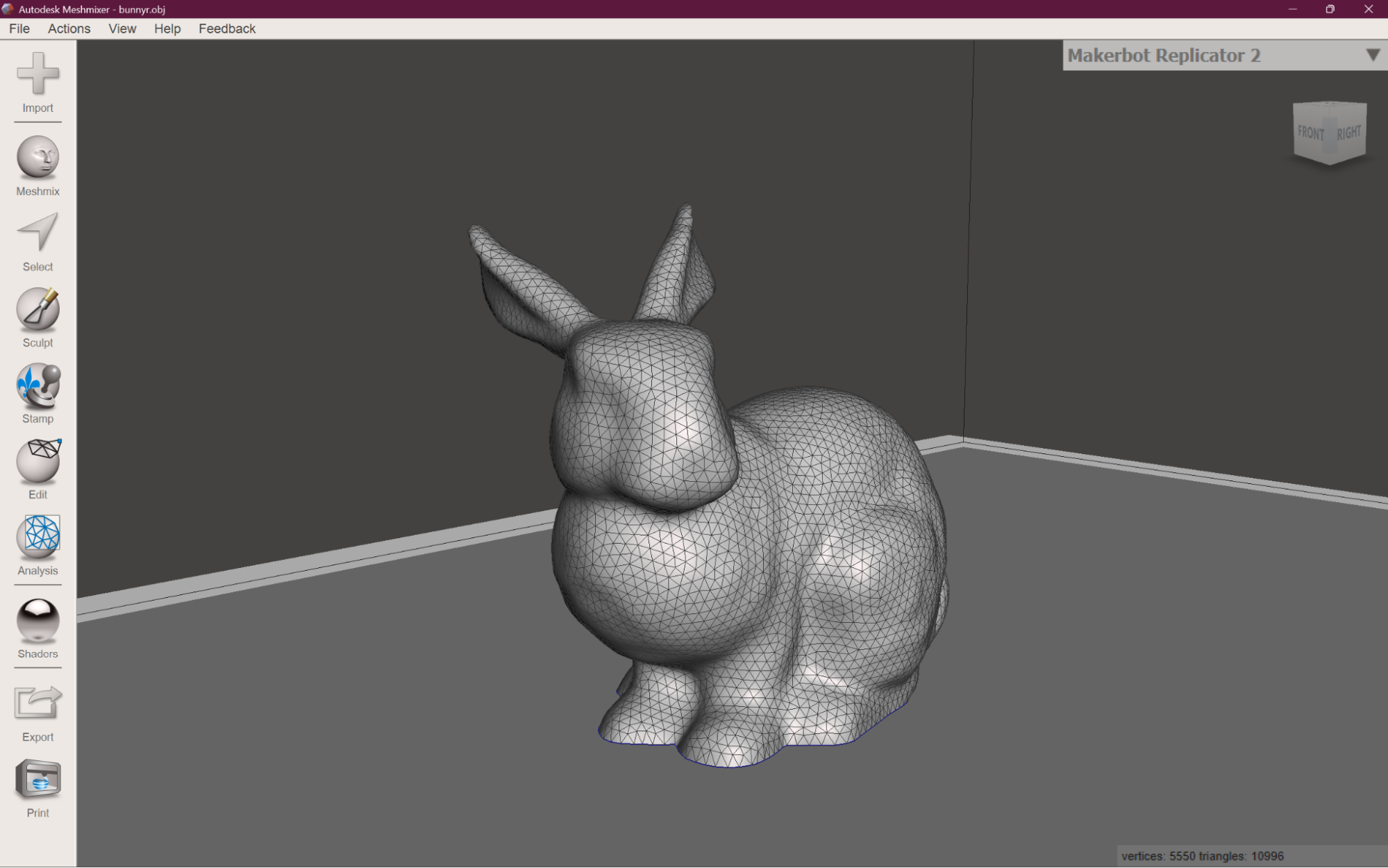
Thorough check: Open the file in Meshmixer (free) and run Analysis > Inspector.
The tool places color-coded markers on problems it finds:
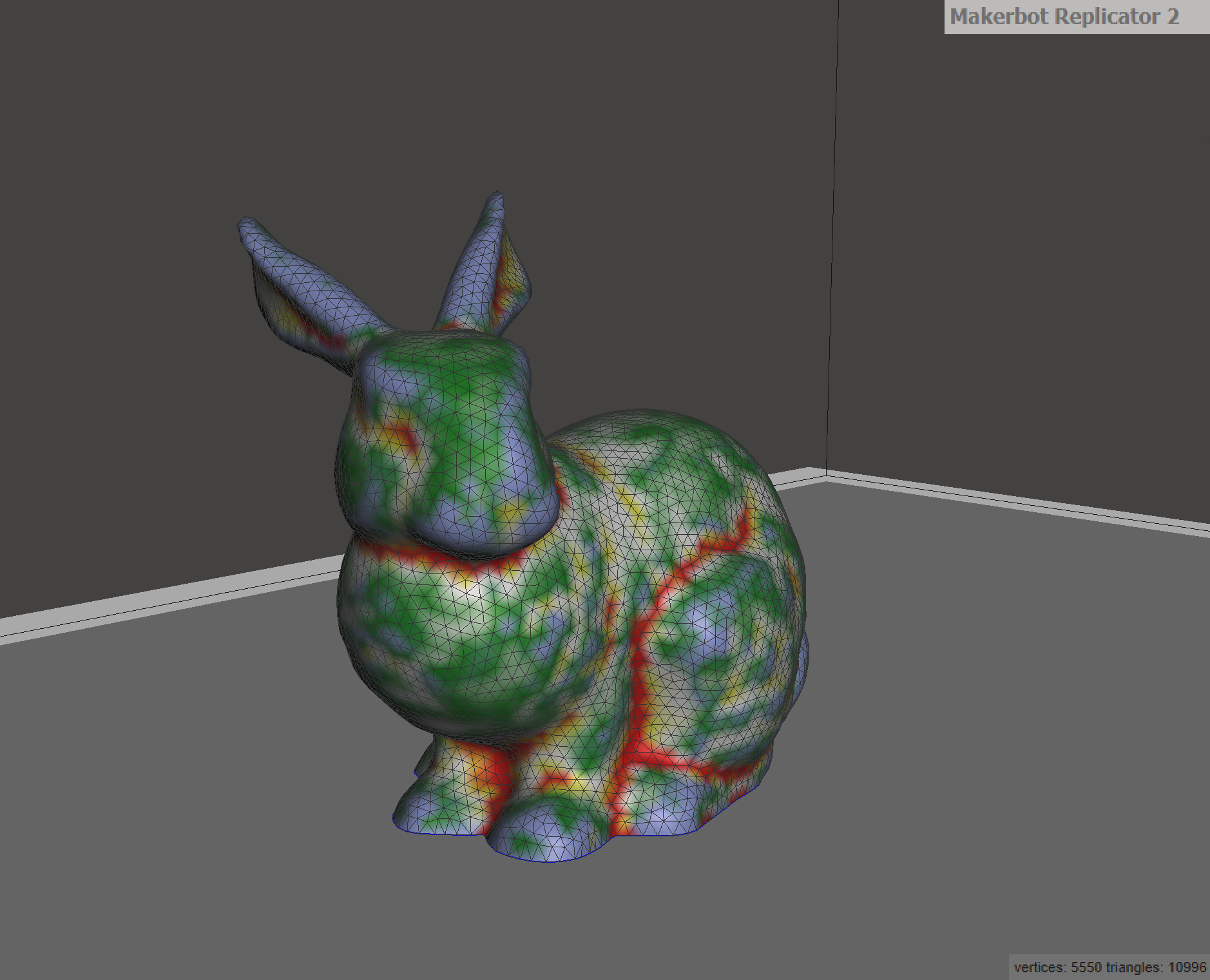
● Blue markers – holes in the mesh
● Magenta markers – disconnected geometry
● Red markers – non-manifold edges (edges shared by more than two faces)
You can auto-repair most issues from within Meshmixer.
That said, if the errors are significant, fixing the source in the original CAD model is better practice than patching the mesh.
Netfabb Basic is another free option that does similar analysis and repair.
For files exported cleanly from SolidWorks or Fusion 360 solid bodies, you should rarely see errors – they show up most often in imported geometry or files that have passed through multiple converters.
Common problems and what causes them
Part prints at the wrong scale.
Almost always a unit mismatch.
Check what units the slicer assumes when it opens the file.
If the part is 25.4x too small, millimeter coordinates are being read as inches (or vice versa).
Most slicers let you correct the scale in the import step without re-exporting.
Curved surfaces look faceted after printing.
Resolution was set too coarse on export.
Re-export at Fine (SolidWorks) or High (Fusion 360), or drop the Deviation value in Custom settings. The difference is most visible on cylindrical bosses and fillets.
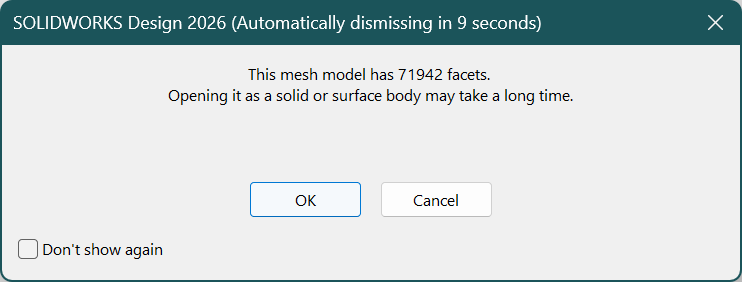
The STL file is enormous.
Deviation tolerance is set too tight.
For FDM printing, anything below 0.005 mm gives you more triangles than a desktop printer can resolve.
Loosen the tolerance slightly and the file size drops significantly with no visible loss in quality.
Slicer shows mesh errors or generates bad supports.
Non-manifold geometry, open surfaces, or inverted normals in the model.
Run it through Meshmixer Inspector or PrusaSlicer’s repair function.
If errors are extensive, go back to the CAD file and fix the geometry at the source.
Slicer shows the model correctly but slices it wrong inside.
Inverted normals.
The slicer is reading the inside of the model as the outside because some triangles face the wrong direction.
Meshmixer Inspector will flag these.
In Fusion 360, this sometimes occurs after boolean operations on imported bodies.
STL or 3MF?
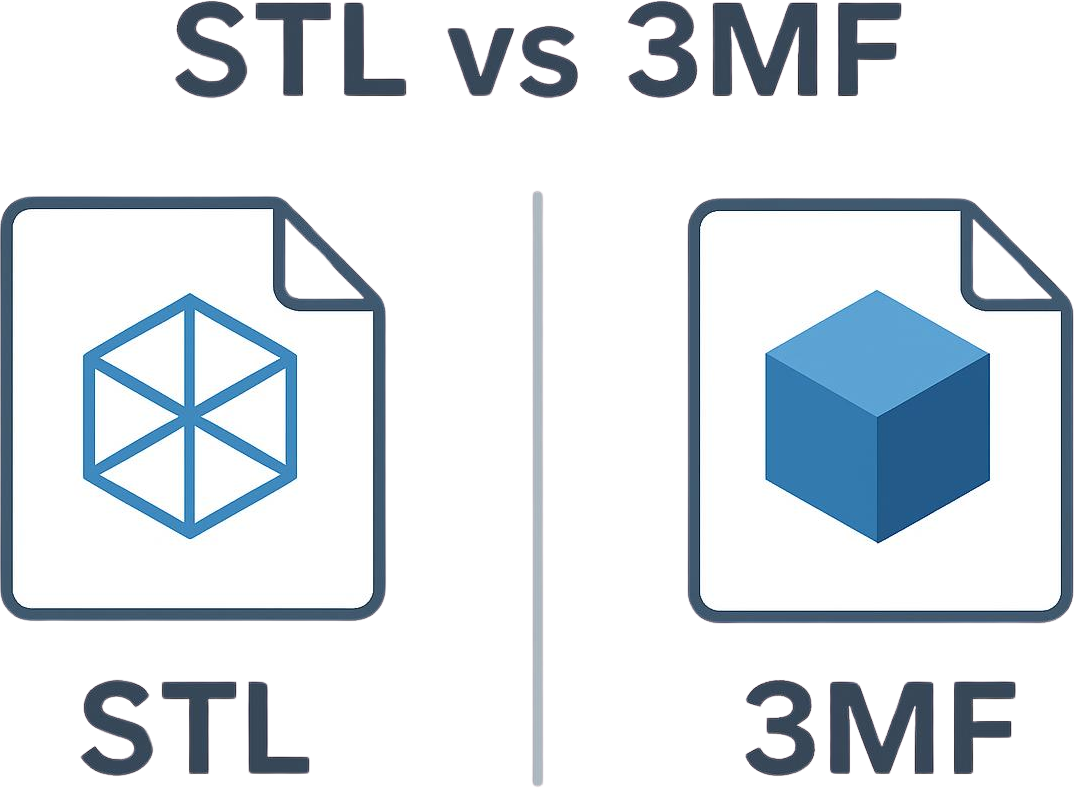
Both SolidWorks and Fusion 360 can export 3MF, and it is worth knowing what it offers
● 3MF embeds unit information, so the scale problem described above cannot happen
● The format requires a manifold mesh by specification, which reduces mesh errors on import
● 3MF files support color, textures, and material assignments for printers that use them
● File sizes are often smaller than equivalent STL files
The limitation is compatibility.
STL works everywhere.
3MF works in PrusaSlicer, Bambu Studio, Cura 5.0+, and most modern slicers – but older machines, some industrial equipment, and certain online printing services may not accept it.
If you know your entire workflow supports 3MF, use it.
If you are sending files to a third party or are unsure of their toolchain, STL is the safer default.
Tips Worth Knowing
● Keep the native file.
STL is not editable. If the design changes, go back to the SolidWorks part or Fusion 360 body and re-export.
It is easy to forget this when someone sends feedback on a prototype and you are tempted to edit the mesh directly.
● Check the layer preview before you print.
Load the STL into your slicer and step through the slice layers.
This catches missing walls, internal voids, and support issues that look fine in the 3D view.
Five minutes of preview saves hours of failed print time.
● Standardize your resolution settings.
If you print similar parts regularly, pick one resolution per material type and stick with it.
Medium in Fusion 360 and Fine in SolidWorks are sensible defaults for most mechanical work.
● Verify scale immediately after import.
Make checking dimensions in the slicer the first thing you do after opening a file.
It takes ten seconds and catches unit mismatches before they become print failures.
For material-specific guidance once you are in the slicer, the 3D printing material properties cheat sheet covers how different filaments behave and what print settings tend to work for each.
Frequently asked questions
Should I use STL or 3MF for 3D printing?
3MF is technically better: it includes unit information, requires a manifold mesh, and is often a smaller file.
Use it if your entire workflow supports it.
If you are unsure whether the downstream slicer or service accepts 3MF, default to binary STL – it works everywhere.
Can I export an entire assembly as a single STL?
Yes.
In SolidWorks, check “Save all components of an assembly in a single file” in the Options dialog.
In Fusion 360, set Structure to “One File” in the Save As Mesh dialog.
Whether you want one merged file or individual files depends on how the parts are being printed.
Why does my STL look fine in the slicer but print rough?
Resolution was set too coarse on export.
The slicer renders the mesh at a zoom level that hides the faceting; the printer does not.
Re-export at a higher resolution setting and check the layer preview before printing again.
How do I check my STL for mesh errors?
Load it into PrusaSlicer or Bambu Studio and look for the mesh repair warning icon.
For a more detailed report, open it in Meshmixer under Analysis > Inspector.
Most errors in files exported from solid SolidWorks or Fusion 360 bodies are minor and can be auto-repaired.
My part exported at the wrong size. What happened?
Units mismatch.
STL carries no unit information, so the slicer assumes its own default.
Check the unit setting in the export dialog and the import setting in your slicer.
If the part is 25.4x too small, millimeter coordinates are being read as inches – or the reverse.
Summary
Exporting STL from Solidworks or Fusion 360 feels like the easy part, and usually it is.
Get the resolution right, confirm the units, export binary, and check the layer preview before you print.
Those four habits cover nearly every failure mode in this guide.
If you are still building up your SolidWorks modeling skills, the SolidWorks courses page covers options at different levels.
For Fusion 360, the Zero to Pro course walks through the full design-to-print pipeline.
And if the slicer side of things feels like a separate learning curve, the 3D printing courses go deep on settings, materials, and troubleshooting.
Drop a comment if you hit a specific export issue not covered here.
Multi-body parts and imported geometry can behave unexpectedly in a few edge cases, and they are worth talking through.