How to make isometric drawing in AutoCAD including text and dimensions
Isometric drawings are not actual 3D drawings, they are made with 2D geometries but they appear like 3D. Isometric drawing in AutoCAD can be made by tilting…
Isometric drawings are not actual 3D drawings, they are made with 2D geometries but they appear like 3D.
Isometric drawing in AutoCAD can be made by tilting viewing angle to 30 degrees for all of its sides in the 2D plane.
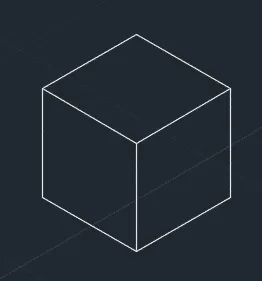
In this article, I will show you methods of making an isometric drawing in AutoCAD.
For explaining this feature I will use the geometry shown in the image above.
Here is a video as well for this tutorial but if you prefer article instead of video then scroll down to continue reading.
Starting Isometric mode
To enter the isometric mode select the ISODRAFT option from the status bar as shown in the following image.

If you don’t have that option on the status bar then click the three dash lines icon at the far right corner of the status bar and then activate the “isometric drafting” option as shown in the following image.
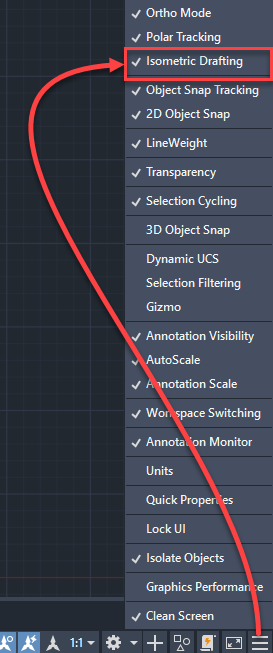
After activating it an isometric plane will activate.
You can press F5 function key to switch the isometric plane to top, right or left.
Press F5 key to activate Isoplane top and then select line command and click anywhere in the drawing area to start your line.
Specify a direction and type 5 on the command line then press enter, repeat this process by changing directions of line to make a closed square as shown in image A below.
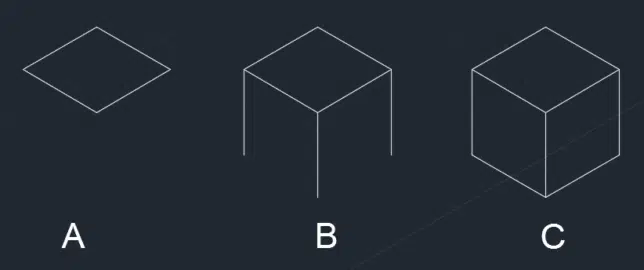
Now press F5 again to change the Isoplane to right or left.
Start line command again and make lines from three corners of the square of length 5 units towards downward direction as shown in the image B above.
Again change Isoplane to Top by pressing F5 key and join all three end points of the vertical lines to make a complete cube.
In a similar way, you can make other isometric drawings as well.
Making isometric dimensions
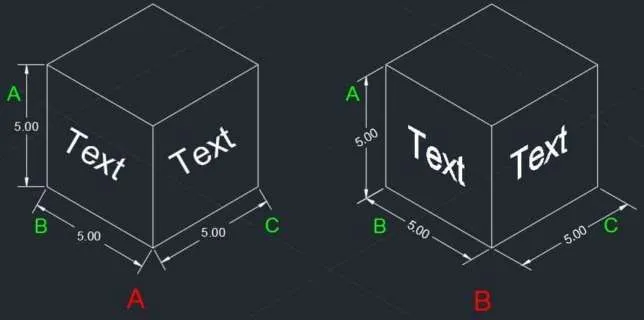
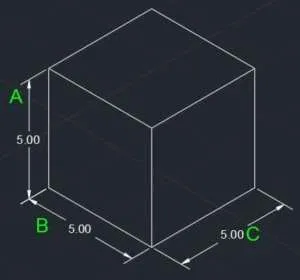
For explaining this feature I will use a simple isometric cube with dimensions as shown in the image below.
If you prefer the video then the step by step method of making isometric dimensions and text is in the following video.
If you prefer the article then read on.
Make aligned dimensions A, B and C on the geometry as shown in drawing A above using DIMALIGNED command.
Now type DIMEDIT on the command line and press enter, select oblique from the command line as shown in the image below.

Now click on dimension marked A from drawing shown above and press enter.
Command line will prompt you to select an angle to align this dimension type 30 and press enter again.
Your dimension will now align with the geometry to make it look like isometric dimension.
For dimensions B and C you can use the same method with the oblique angle of 30 and -30 respectively.
Your final drawing will look like this after using DIMEDIT on all three dimensions.
Making Isometric Dimension Text
The dimensions now look correct but when you look closely at dimension text they are still not properly aligned as per drawing.
You need to make changes to dimension text also in order to make it look normal.
Type DIMTEDIT on the command line and press enter then click on the dimension which you want to edit.
I am selecting dimension C for this case.

From the command line, select Angle option and type an angle of 30 degrees then press enter.
The dimension text will now align with the dimension line.
For dimensions, A and B use an angle of 30 and -30 degrees respectively in DIMTEDIT command.
Making Isometric Text
To write text on the isometric cube type TEXT on the command line and press Enter.
Now click on the face of cube towards dimension C and enter a text height value and rotation angle of 30 degrees in the command line prompts.
Type any text and press enter twice to exit the TEXT command, I am using “Text” as the sample text on the isometric cube.
Repeat the process of writing text on the face of cube towards dimension B as well.
But in this case, change angle of text to -30 degrees keeping all other parameters unchanged.
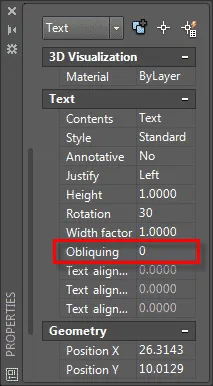
Now select text on the face of dimension C then right click and select Properties from the contextual menu.
From the Text panel of properties palette change value of Obliquing to 30.
Repeat the process for text on cube facing dimension B but in this case change obliquing value to -30.
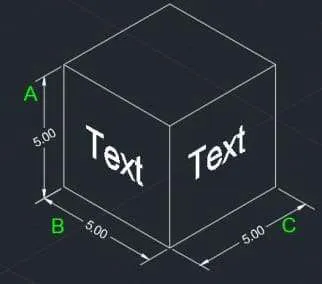
The final drawing with isometric dimension and text will look like the image shown below.
Summary
It's usually easier to make a 3D drawing and then extract isometric views from it using FLATSHOT command rather than making isometric drawing from scratch.
But if still need to make an isometric drawing in AutoCAD then these methods are quite useful.
On the other hand isometric dimension and text has almost no practical use as we don't add dimensions or text like that.
But it is useful when you want to make drawings for presentation purposes.
On a sidenote if you use ZWCAD then I have a separate article about making isometric drawing in ZWCAD as well.
So, do you have questions related to isometric drawing, text or dimension?
Let me know in the comment section down below.