How to rename blocks in AutoCAD, and other named objects too
If you are wondering how to rename blocks in AutoCAD and also other named objects like layers, linetypes, text styles, views and a lot more then this article has the answer. Essentially we will RENAME command to do just that. You can not only rename objects one by one but also you can rename multiple [ ]
If you are wondering how to rename blocks in AutoCAD and also other named objects like layers, linetypes, text styles, views and a lot more then this article has the answer.
Essentially we will RENAME command to do just that.
You can not only rename objects one by one but also you can rename multiple objects together using the wildcard characters.
In this article, I will show you the step-by-step method of renaming these named objects using both methods.
Renaming individual objects
Type RENAME (or REN command) on the command line and press enter.
Rename window with the list of all named objects will pop up which looks like this.
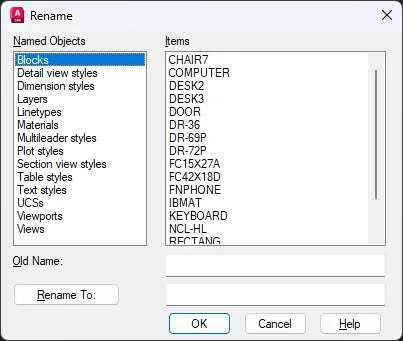
From the left panel click on the object type that you want to rename.
For the current example, I will select Blocks.
The right panel will show the list of all the blocks present in the drawing, click on the block name which you want to rename.
You will see the current name of the block in the “Old Name” field present below the items panel.
Type in a new name in the “Rename To” field and click on the “Rename To” button.
Your block will be renamed to the new name.
Once you are done renaming objects click the OK button to save the changes and close the rename window.